Connect Your First Screen
Activate a screen by pairing it with your Tab Revolver account using a unique code displayed on the screen.
1Activate your screen
On your TV or device:
- Open the web browser and go to
d.variabl.co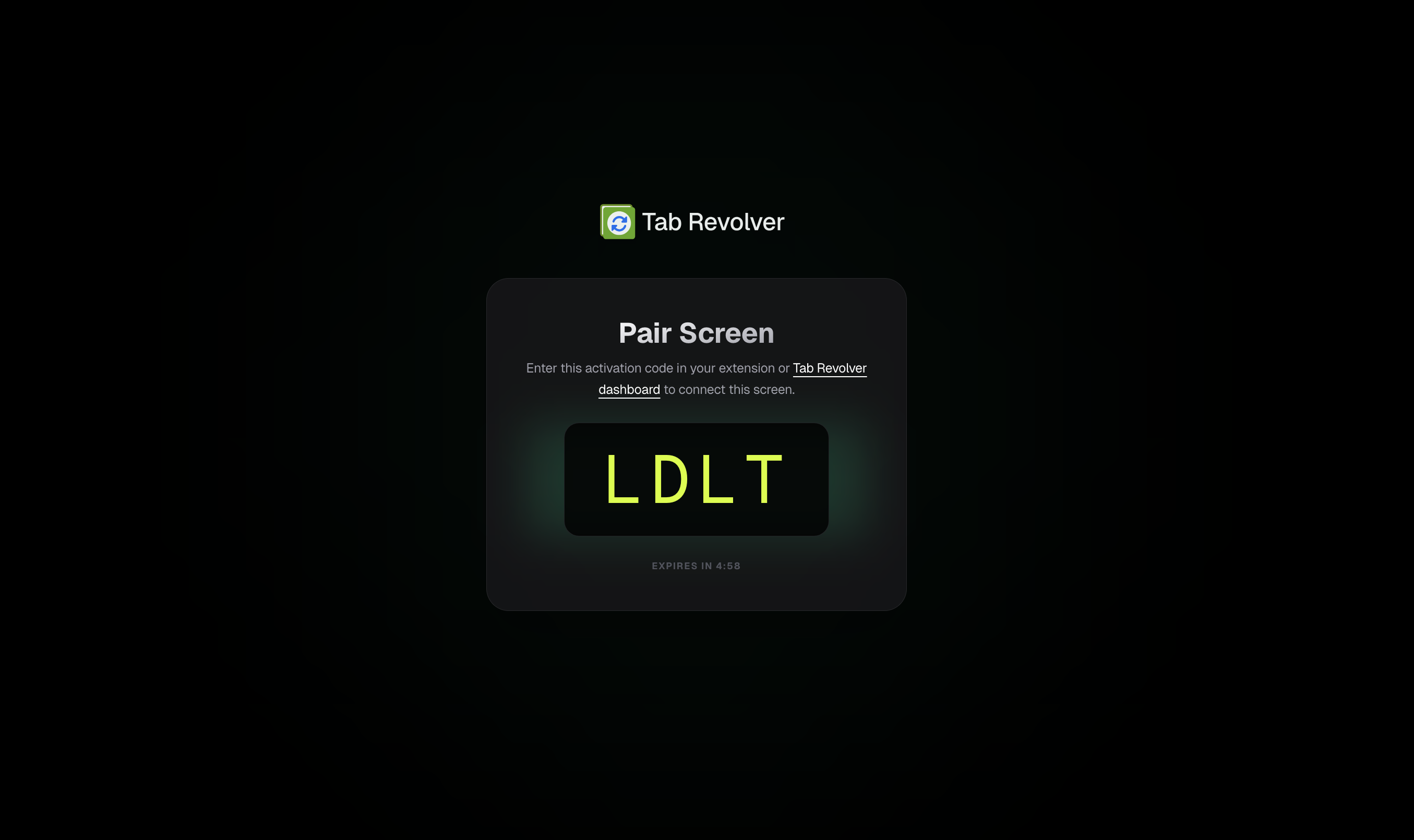
- Note the unique activation code displayed on the screen
On your computer or tablet:
- Log in to your Tab Revolver account and go to Screens
- Click Connect Screen
- Enter the activation code and give the screen its details
- Click Connect Screen
Your screen will start playing content immediately after activation. The code is unique and expires after use.
2Manage your screens
View and manage all your screens on the Screens page. From there, you can rename screens, assign playlists, or adjust screen settings.
Rename Screens
Easily identify your screens with custom names.
Disconnect Screen
Remove a screen from your account to generate a new activation code.
3Start your first rotation
Connecting your screen is the first step. To start broadcasting your tabs, you'll need to use the Tab Revolver extension:
- Open the **Tab Revolver extension** in your browser.
- Click **Start Rotation** and select your newly connected screen.
Stay Connected
For the rotation to show on your screen, you must **keep the browser window open** where the tabs are rotating. This allows the extension to capture and broadcast the live views to your display.
Hardware Integration
Coming SoonChrome Stick
Amazon Fire Stick
Android TV
We are working hard to bring native Tab Revolver apps to your favorite streaming sticks and TV platforms. Stay tuned for updates!
Still need help?
Go to Support