A Chromebook can be an inexpensive way to show a dashboard, web page, or digital signage playlist on a dedicated screen. But opening Chrome and pressing F11 is not the same as deploying a kiosk.
A Chrome kiosk app or managed Chrome OS kiosk session is designed for a device with one focused purpose: show approved content without giving viewers access to the normal desktop, browser tabs, or personal account. For a dashboard or signage installation, that distinction affects security, reliability, maintenance, and what happens after a restart.
This guide explains the difference between Chrome OS kiosk mode and ordinary fullscreen browsing, outlines a practical deployment process, and gives you a checklist for deciding whether a Chromebook is suitable for your screen.
Key takeaway: True kiosk mode locks a device into a dedicated, unattended session that automatically recovers upon power-on. Avoid relying on simple fullscreen (F11) on an unmanaged Chromebook for long-term production signage.
What is Chrome OS kiosk mode?#
Chrome OS kiosk mode restricts a Chromebook to a dedicated application or display experience. Depending on the device's management setup and the kiosk software being used, the device may launch a single-purpose app or a controlled browser session instead of presenting the regular Chrome OS desktop.
For a dashboard or signage screen, the desired result is usually:
- The device starts with the intended display experience.
- Viewers cannot casually open new tabs or browse unrelated sites.
- The screen remains focused on one dashboard, website, or content source.
- Administrators retain a way to update, monitor, or recover the device.
The exact setup depends on the Chrome OS edition, administrator controls, device enrollment, kiosk application, and authentication requirements. Do not assume that every Chromebook supports the same unattended behavior.
When kiosk mode is useful for dashboards and signage#
Chrome OS kiosk mode is a good fit when a screen should behave more like an appliance than a general-purpose computer. Common examples include:
- A production dashboard on a factory-floor monitor.
- A sales or operations dashboard in an office.
- A visitor information screen in a reception area.
- A queue, schedule, or status page in a public space.
- A monitoring screen that should remain visible throughout a work shift.
The hardware may be simple, but the deployment still needs planning. A screen that works when manually opened in a browser can fail after a power interruption, lose access after a password change, or show a blank page when a dashboard requires an interactive sign-in.
For broader display-planning context, see Variabl's guide to displaying command-center dashboards. If your installation uses Windows instead, the Windows digital signage guide covers a different operating-system approach.
Chrome kiosk mode versus fullscreen browser mode#
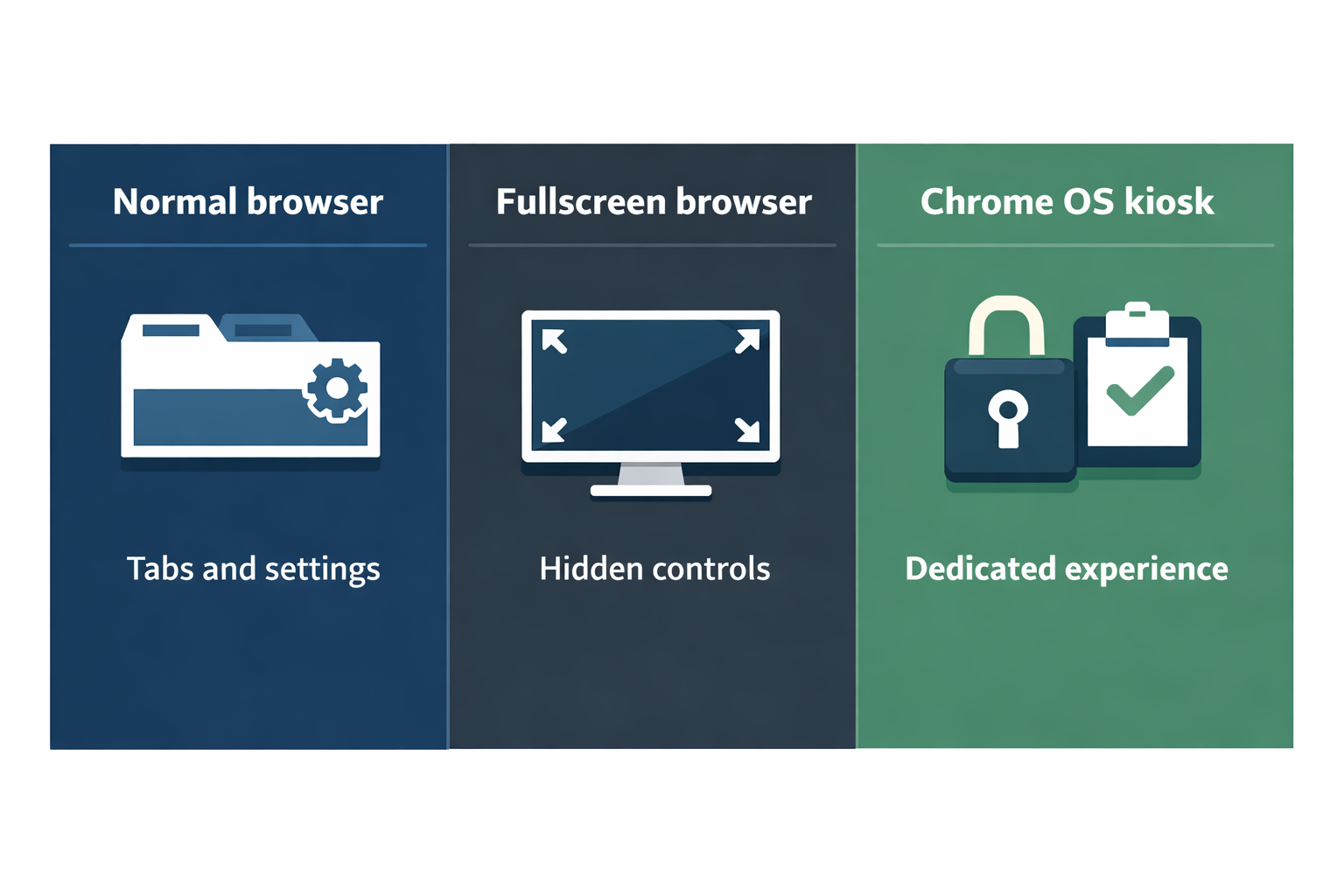
These approaches can look similar on the screen, but they solve different problems.
| Approach | What it does | Main limitation |
|---|---|---|
| Normal browser window | Opens a website in an ordinary Chrome session | Users may access tabs, settings, bookmarks, or other sites |
| Fullscreen browser mode | Hides much of the browser interface | It is not necessarily secure or persistent after restart |
| Chrome OS kiosk mode | Restricts the device to a dedicated kiosk experience | Requires compatible administration, software, and recovery planning |
| Managed Chromebook deployment | Adds device policies, enrollment, and administrative control | May require an organization-managed setup or subscription |
Fullscreen is primarily a presentation setting. Kiosk mode is a deployment model.
That does not mean kiosk mode automatically solves every operational problem. A kiosk session can still be affected by network outages, expired credentials, browser permissions, display scaling, device sleep settings, or a website that was not designed for unattended use.
What to prepare before turning a Chromebook into a kiosk#
Choose the content and authentication model#
First, identify exactly what the screen must show:
- A public web page that requires no sign-in.
- A dashboard with a dedicated read-only account.
- A page embedded or delivered by a screen-management platform.
- Several pages or content items that rotate.
Public pages are usually simpler to automate. Private dashboards require more care. A personal employee account should not be used on a public-facing screen, and a dashboard's session may expire while the screen is unattended.
If you need to display a specific web address through Variabl, review the guide to adding a web URL to a digital signage display. Whether a particular Chrome OS kiosk workflow is supported by Variabl should be confirmed with the product team before purchase or deployment.
Select suitable hardware#
Check the Chromebook and display as a complete system rather than choosing only by processor or price. Confirm:
- The Chromebook has the required video output or a compatible adapter.
- The display supports the chosen resolution and refresh behavior.
- The device can remain connected to power continuously.
- Wi-Fi coverage is reliable where the screen will be installed.
- The hardware can operate in the intended temperature and physical environment.
- The device can be accessed for maintenance without disrupting visitors or workers.
A fanless or low-power device may be attractive for signage, but reliability depends on the whole installation: power adapter, cable, network, display, mounting, and ventilation.
Decide how the device will be managed#
For one temporary screen, manual setup may be adequate. For multiple screens, plan for centralized administration or a documented maintenance process. Important questions include:
- How will the kiosk application or URL be changed?
- How will the device be restarted remotely, if at all?
- How will you recover a device after a failed update or lost network connection?
- Who owns the administrator account?
- Can the screen be removed from service without exposing sensitive data?
Do not confuse a kiosk browser with remote device management. A kiosk application may control what viewers see, while a separate management system may be needed to administer the Chromebook itself.
A practical Chromebook kiosk deployment sequence#
The exact menu names and policies can change, so verify the current instructions for your Chrome OS version and management setup. As a general process:
- Create a deployment plan. Record the screen location, content URL, account requirements, device owner, network, power source, and recovery contact.
- Prepare a dedicated account or access method. Avoid using a personal account. If the content is private, confirm that the authentication method is suitable for unattended use.
- Update and enroll the device if required. Organization-managed kiosk deployments may require administrator enrollment and a supported management configuration.
- Install or select the kiosk application. Confirm that it is compatible with the device and Chrome OS configuration. A regular browser shortcut is not automatically a kiosk app.
- Configure the launch content. Use the required dashboard URL, web application, or signage service. Test redirects, cookies, permissions, and sign-in behavior.
- Connect the display and set the physical layout. Check orientation, resolution, scaling, cable stability, and whether the dashboard remains readable from the normal viewing distance.
- Test a complete power cycle. Turn the device off, restore power, and verify what appears without manual intervention.
- Test loss and restoration of network access. Determine whether the screen shows an understandable error, retains cached content, or requires a manual reload.
- Document recovery steps. Keep instructions for authorized staff, including how to exit the kiosk session without exposing credentials to the public.
- Monitor the installation after launch. A screen that works for ten minutes is not necessarily ready for continuous operation.
Security and privacy considerations#
A public screen can reveal more than intended if the dashboard contains personal information, customer data, internal URLs, or browser notifications. Before deployment:
- Use the least-privileged account that can display the required content.
- Remove personal profiles and saved passwords from the device.
- Do not expose administrator credentials at the installation site.
- Check whether browser notifications, pop-ups, or permission prompts can appear.
- Review the dashboard for sensitive information visible to passersby.
- Restrict physical access to the Chromebook and its power connection.
- Keep a documented method for taking the device out of service.
Kiosk mode reduces casual access to the operating system; it does not make an insecure website, weak account, or exposed device safe by itself.
Troubleshooting common kiosk problems#
The screen shows a blank page#
Check the network connection, URL, certificate warnings, browser permissions, blocked scripts, and whether the page requires an interactive login. Try the same URL in a controlled normal browser session to separate a website problem from a kiosk configuration problem.
The dashboard repeatedly asks for sign-in#
The session may expire, third-party cookies may be restricted, multi-factor authentication may require user interaction, or the dashboard may not support unattended sessions. Use an approved display account or a supported publishing method rather than bypassing security controls.
The device returns to the lock screen or sleeps#
Review Chrome OS power policies and the device's physical power settings. Exact behavior depends on the device and administrative configuration, so test after a long idle period rather than assuming that fullscreen prevents sleep.
The dashboard is cropped or difficult to read#
Check display resolution, browser zoom, operating-system scaling, dashboard layout, and viewing distance. A page designed for a laptop may need a separate display layout for a wall-mounted screen.
The kiosk exits unexpectedly#
Look for device restarts, updates, application crashes, unstable power, network errors, and expired sessions. Record the time and visible error before changing several settings at once.
Compatibility checklist before deployment#
Use this checklist before buying hardware or promising unattended operation:
- The Chromebook model and Chrome OS configuration support the intended kiosk method.
- The required kiosk application or browser workflow is available and maintained.
- The content URL loads without an unsuitable manual interaction.
- Authentication and session expiration have been tested.
- The display connection and resolution are suitable.
- Power and network availability have been checked at the installation point.
- Sleep, restart, update, and recovery behavior are documented.
- Personal accounts and sensitive data have been removed.
- Someone is responsible for maintenance and incident response.
- Any screen-management product's Chrome OS compatibility has been confirmed directly.
Frequently Asked Questions#
Can I display a web dashboard on a Chromebook kiosk?#
Usually, a Chromebook can display a web dashboard if the chosen kiosk configuration supports the browser or application and the dashboard works without unsuitable user interaction. Test authentication, network loss, scaling, and restart behavior before deployment.
Is Chrome kiosk mode the same as pressing F11?#
No. F11 or another fullscreen setting mainly hides browser controls. Chrome OS kiosk mode is intended to restrict the device to a dedicated experience, although its exact controls and persistence depend on the device, management configuration, and application.
Do I need a fully managed Chromebook for kiosk signage?#
Not always. A single low-risk screen may be configured with a simpler workflow, while larger or public deployments generally benefit from stronger device administration and a documented recovery process. Confirm the current requirements for your chosen kiosk method.
Can a kiosk Chromebook display a private dashboard?#
It may, but private dashboards require careful account and session design. Use a dedicated least-privileged account or an approved publishing method, and verify that login prompts, multi-factor authentication, and session expiration will not interrupt the screen.
Does kiosk mode keep a Chromebook awake forever?#
Do not assume so. Sleep and restart behavior can depend on Chrome OS policies, device settings, power state, updates, and management controls. Test the exact hardware and configuration over the period you expect it to operate.
Does Variabl support Chrome OS kiosk mode?#
The supplied information does not verify Variabl's Chrome OS or Chromebook kiosk compatibility. Confirm supported devices, kiosk workflows, remote management, and unattended playback with Variabl before selecting it for a Chrome OS deployment.
Final recommendation#
Chrome OS kiosk mode can be a practical foundation for a dedicated dashboard or signage screen, but the important decision is not simply whether Chrome can open a URL. Confirm how the device starts, authenticates, stays visible, handles failures, and can be recovered by an authorized person.
For a single screen, begin with a controlled pilot and a full power-cycle test. For multiple public or operational screens, document device management, account security, monitoring, and maintenance before rollout.