A command-center screen can show plenty of data and still fail the people who rely on it. If operators cannot identify the most important change quickly, the display becomes background noise rather than a useful operational tool.
The best dashboard signage starts with a workflow decision: what should a person understand from across the room, and what action should that information support? From there, you can choose the right dashboards, arrange them by priority, decide what stays visible, and assign someone to keep each screen trustworthy.
This guide explains how to plan dashboard displays for command centers, network operations centers (NOCs), security operations rooms, facilities teams, and other monitoring environments. It also covers where emergency reporting belongs—and where a dashboard screen should not be treated as an emergency notification system.
Operational rule of thumb: A wall-mounted dashboard is an awareness tool, not an investigation terminal. Prioritize high-level health indicators, exception counters, and primary trends on shared screens; keep detailed log queries, runbooks, and ticket handling on operator workstations.
What command-center dashboard displays are used for#
A shared screen is most useful when several people need the same operational picture without opening individual laptops or asking another team for an update.
Common objectives include:
- Showing current service or system status.
- Highlighting exceptions that need investigation.
- Tracking work queues, incidents, equipment, or production activity.
- Comparing current performance with an agreed target.
- Providing context during shift handovers and team briefings.
- Making operational reporting visible to people in the room.
A screen does not replace the detailed tools operators use to investigate a problem. It provides a common, continuously visible summary. The detailed dashboard, ticket, log, or runbook remains the place for analysis and action.
That distinction helps prevent a common mistake: trying to put every available metric on the wall. A command-center display should support awareness first. It should not become a smaller, harder-to-use copy of every team member's workstation.
Decide what deserves a shared screen#
Before selecting a dashboard, write down the decision the screen should support. For example:
- “Do we have a service interruption that needs escalation?”
- “Which production line is outside its normal operating range?”
- “Are response queues growing faster than the team can handle them?”
- “What should the incoming shift know immediately?”
If you cannot describe the decision in one or two sentences, the screen may not have a clear purpose yet.
A useful screen usually contains information that is:
- Shared: multiple people need to see it.
- Time-sensitive: the value changes during the operating period.
- Actionable: a change leads to investigation, communication, or a defined response.
- Comparable: trends, targets, thresholds, or status categories make the data interpretable.
- Reliable enough for its role: viewers know who owns the data and when it was last updated.
This does not mean every metric must trigger an immediate action. A trend can be useful for planning or early awareness. But a decorative number with no agreed interpretation is rarely worth dedicating screen space to.
Build an information hierarchy for each display#
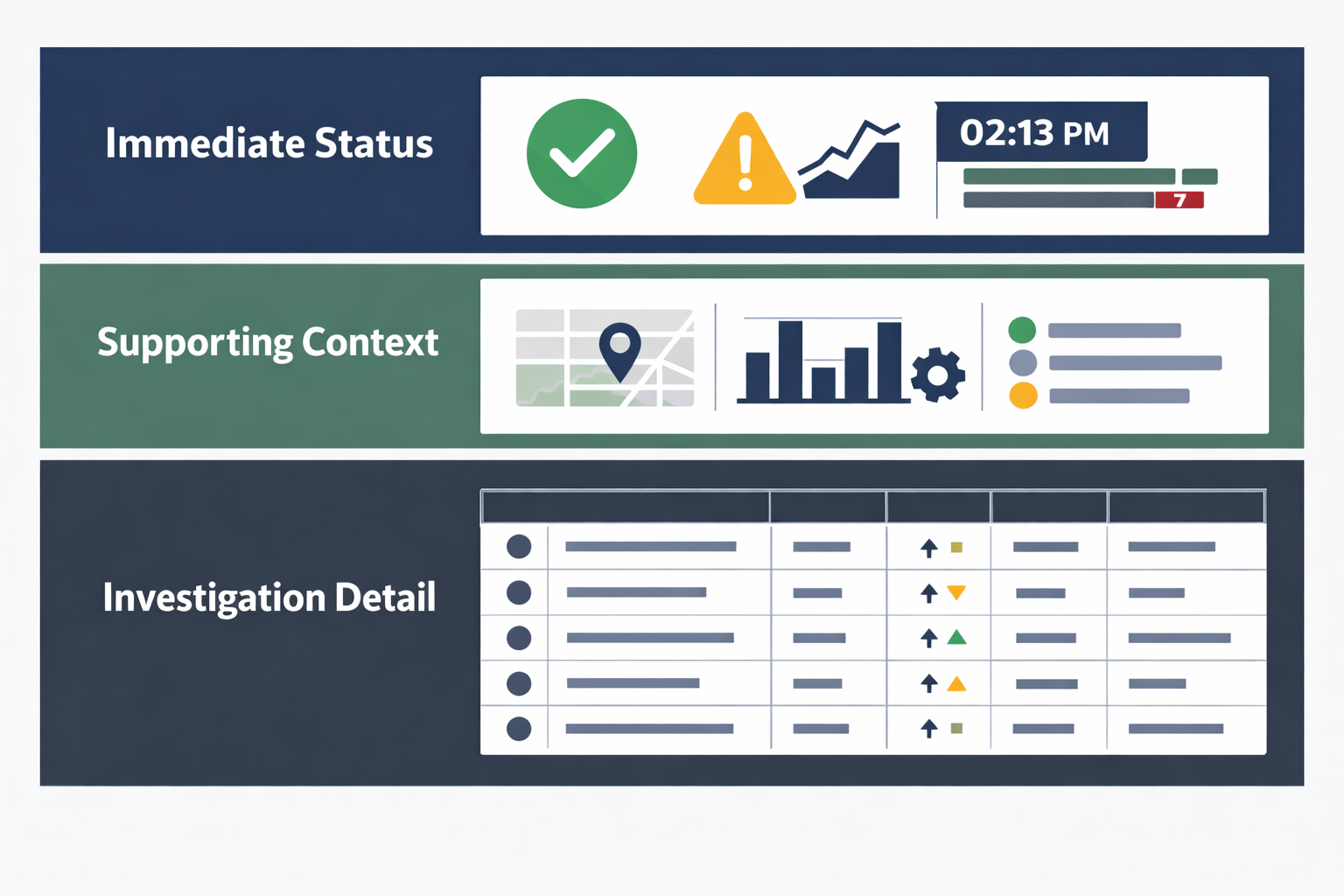
A wall of screens works better when every display has a defined information hierarchy. Think in three layers:
Layer 1: Immediate status#
This is what someone should understand in a few seconds. Examples include overall service state, active incident count, production status, or a clear “within range” or “needs attention” indicator.
Use a small number of high-priority elements. If everything is prominent, nothing is prominent.
Layer 2: Supporting context#
Context helps viewers interpret the status. This may include a short time trend, queue age, affected area, comparison with a target, or the timestamp of the latest update.
Context should answer “how serious?” or “how long?” without requiring the viewer to open another tool.
Layer 3: Investigation detail#
Detailed tables, long event lists, and diagnostic charts are often better suited to an operator workstation. They can appear on a secondary screen when the room needs them, but they should not crowd out the summary that everyone needs.
A practical arrangement might use one persistent overview screen, one screen for current incidents or exceptions, and a rotating screen for supporting reports. The exact arrangement depends on the team’s workflow and the physical layout of the room.
Design dashboards that remain readable at a distance#
A dashboard that looks clear on a laptop may be difficult to read on a wall-mounted display. Review each screen from the distance at which operators will normally see it, not only from the desk where it was created.
Check the following:
- Text size: viewers should not need to move close to the screen for the primary status.
- Contrast: foreground and background colors should remain distinct in the room’s lighting.
- Density: remove panels that do not support the screen’s purpose.
- Labels: use explicit labels rather than relying on color alone.
- Time context: show whether values are current, delayed, or based on a selected time range.
- Visual consistency: use the same meaning for colors, icons, and status terms across screens.
- Whitespace: leave enough separation between unrelated metrics to prevent misreading.
Color should reinforce a message, not carry it alone. A red indicator may be difficult to distinguish for some viewers or may be misunderstood if the screen lacks a clear legend. Pair color with text, shape, position, or an explicit status label.
Avoid showing a constantly changing animation merely because the screen supports it. Movement can attract attention, but it can also make it harder to compare values or notice a meaningful change.
Separate persistent screens from rotating content#
Not every piece of information needs to remain visible all the time. Separating persistent and rotating content makes the display easier to understand.
Keep persistent content visible when it is:#
- Required for immediate situational awareness.
- Used during every shift or operating period.
- Relevant to most people in the room.
- Needed to interpret alerts or exceptions.
- A reliable summary of the current state.
Consider rotating content when it is:#
- Useful for periodic reporting rather than continuous monitoring.
- Relevant to a particular team or time of day.
- Too detailed to share with the primary overview.
- A reference view that does not need constant attention.
- Appropriate for a scheduled briefing or handover.
Rotation must not hide information that people are expected to monitor continuously. If an incident can appear for only a short interval, viewers may miss it. For high-priority conditions, use a persistent status view or an established alerting channel rather than relying on rotation alone.
Treat emergency reporting as part of a wider process#
The phrase “emergency reporting” can describe several different activities: documenting an event, showing incident status, sharing response progress, or notifying people that immediate action is required.
A dashboard may help with the first three when its data is current and its ownership is clear. It should not automatically be treated as the sole emergency notification method. A display can be obscured, disconnected, out of date, or outside someone’s line of sight.
Before including emergency-related information, define:
- Which system is the authoritative source.
- Who confirms that an event is genuine.
- What the status labels mean.
- How often the information is expected to update.
- Which separate channels deliver urgent instructions.
- What happens if the screen or data source is unavailable.
Use the display to support the response process, not to create an untested process by itself.
Assign ownership before deployment#
Every screen should have an owner, even if several teams contribute content. Ownership is not only about technical access. It includes deciding whether the information is still useful and whether viewers can interpret it correctly.
Document the following for each display:
| Item | Decision to record |
|---|---|
| Purpose | What decision or awareness goal does the screen support? |
| Audience | Who relies on it during normal operations? |
| Data owner | Which team confirms that the underlying information is correct? |
| Review owner | Who removes obsolete panels and checks the layout? |
| Update expectation | How current must the information be? |
| Fallback | What should appear if the dashboard or network is unavailable? |
| Escalation | What should viewers do when a threshold is reached? |
This record is especially important for tracking data. A number without a definition, timestamp, unit, or owner can create false confidence. Make it clear whether a value is live, delayed, manually entered, estimated, or based on a reporting period.
Questions to answer before deploying screens#
Use this checklist during planning:
- What is the primary purpose of each screen?
- What should a viewer understand in five seconds?
- Which information must remain visible at all times?
- Which content can rotate without creating a monitoring gap?
- Can the main status be read from the normal viewing distance?
- Are timestamps, units, thresholds, and labels clear?
- Who owns the data and who owns the layout?
- What is the response when a value changes significantly?
- What is the fallback if a dashboard fails to load?
- Are urgent notifications handled by a separate, tested channel?
- Are permissions and sensitive information appropriate for a shared room?
- When will the screen be reviewed after deployment?
A short pilot can reveal problems that are difficult to spot in a design file. Ask operators what they noticed without prompting them, which information they ignored, and what they still had to look up elsewhere. Use that feedback to reduce clutter and clarify priorities.
How screen-management software fits the workflow#
Once the content plan is clear, a screen-management product can help teams place dashboards and web pages on dedicated displays. Variabl is designed for displaying dashboards, web pages, and other digital signage content on screens.
For example, teams can review the Grafana dashboard display guide when Grafana is one of the sources in their monitoring workflow. If the team uses Looker for reporting, the guide to displaying a Looker dashboard may be a useful next step. For a web-based status page or internal reporting view, see the instructions for adding a web URL to Variabl digital signage.
The important sequence is to define the operational purpose first and configure the screen second. Software can help present content, but it does not decide which metric deserves attention, validate the data, or define the emergency response process. Those decisions belong to the operating team.
Frequently asked questions#
What is dashboard signage?#
Dashboard signage is the use of a dedicated shared display to show operational dashboards, status information, reports, or other continuously relevant data. It is intended for at-a-glance awareness rather than detailed individual analysis.
What should be displayed on a command-center screen?#
Show information that is shared, time-sensitive, interpretable, and connected to an operational decision. A concise status summary, meaningful trend, current exception, and update timestamp are often more useful than a dense collection of unrelated metrics.
Should a command-center dashboard rotate?#
Some supporting content can rotate, especially periodic reports or team-specific views. Persistent status and high-priority information should not depend on rotation if missing it could delay an important response.
Can dashboard signage replace an emergency notification system?#
No. A shared screen can support emergency reporting and response awareness, but it should not be assumed to be the only channel for urgent notification. Define separate, tested notification and escalation methods for emergencies.
How do I make tracking data useful on a shared screen?#
Give each metric a clear label, unit, timestamp, target or threshold where appropriate, and owner. Explain what a change means and what action follows. Remove tracking data that viewers cannot interpret or use.
Can I display a web dashboard on a dedicated screen?#
A web-based dashboard can be suitable for a dedicated display when the source is reliable, the content is permitted for shared viewing, and the layout is readable at the intended distance. Test the complete viewing workflow and define what should happen if the page is unavailable.
The strongest command-center display is not the one with the most information. It is the one that helps the right people recognize the current situation, understand its significance, and take the next appropriate step.