
If you want Teams information on a TV or office display, the safest approach is usually to treat it as a web-content display project, not as a replacement for a person using the Teams app. A shared screen may be suitable for a carefully selected Teams page, team dashboard, calendar view, or other non-sensitive information. It is a poor fit for unattended meetings, private conversations, or any view that expects regular user interaction.
The important first step is to confirm exactly what you want to show. Teams web pages, the installed Teams application, and a live teams call have different privacy, authentication, and operational requirements.
When displaying Microsoft Teams on a shared screen makes sense#
A dedicated screen can help a team see information without opening a laptop. Potential examples include:
- A non-sensitive team status page or dashboard.
- A meeting-room schedule or availability view.
- A carefully scoped channel or project page.
- Announcements or operational information intended for a common area.
- A dashboard embedded or linked through a Teams-accessible web experience.
These use cases work best when the content is readable at a distance and does not expose private messages, customer information, personal data, or confidential files.
Before adding a Teams URL, define the audience and location. A screen in a restricted team area may be appropriate for different content than a display in a reception area, production floor, or visitor-facing space.
If you are new to dedicated screens, review Variabl's guide to setting up digital-signage screens before evaluating the Teams content itself. The player, network, display position, and power-management behavior all affect the result.
Teams web versus the installed Teams application#
The phrase “teams web” can refer to using Microsoft Teams in a browser. That is different from installing the Teams desktop application through a teams installer.
For a signage workflow, a web page is generally the simpler starting point because a signage product can work with browser-based content. However, that does not automatically mean every Teams page will load correctly or remain signed in. Microsoft 365 authentication, conditional-access policies, multifactor authentication, cookies, redirects, pop-ups, and tenant settings can all affect the result.
The installed application is designed for interactive use by an authenticated person. It may require operating-system support, local installation, user input, and application-specific configuration. Do not assume that installing Teams on the playback device makes it suitable for unattended signage.
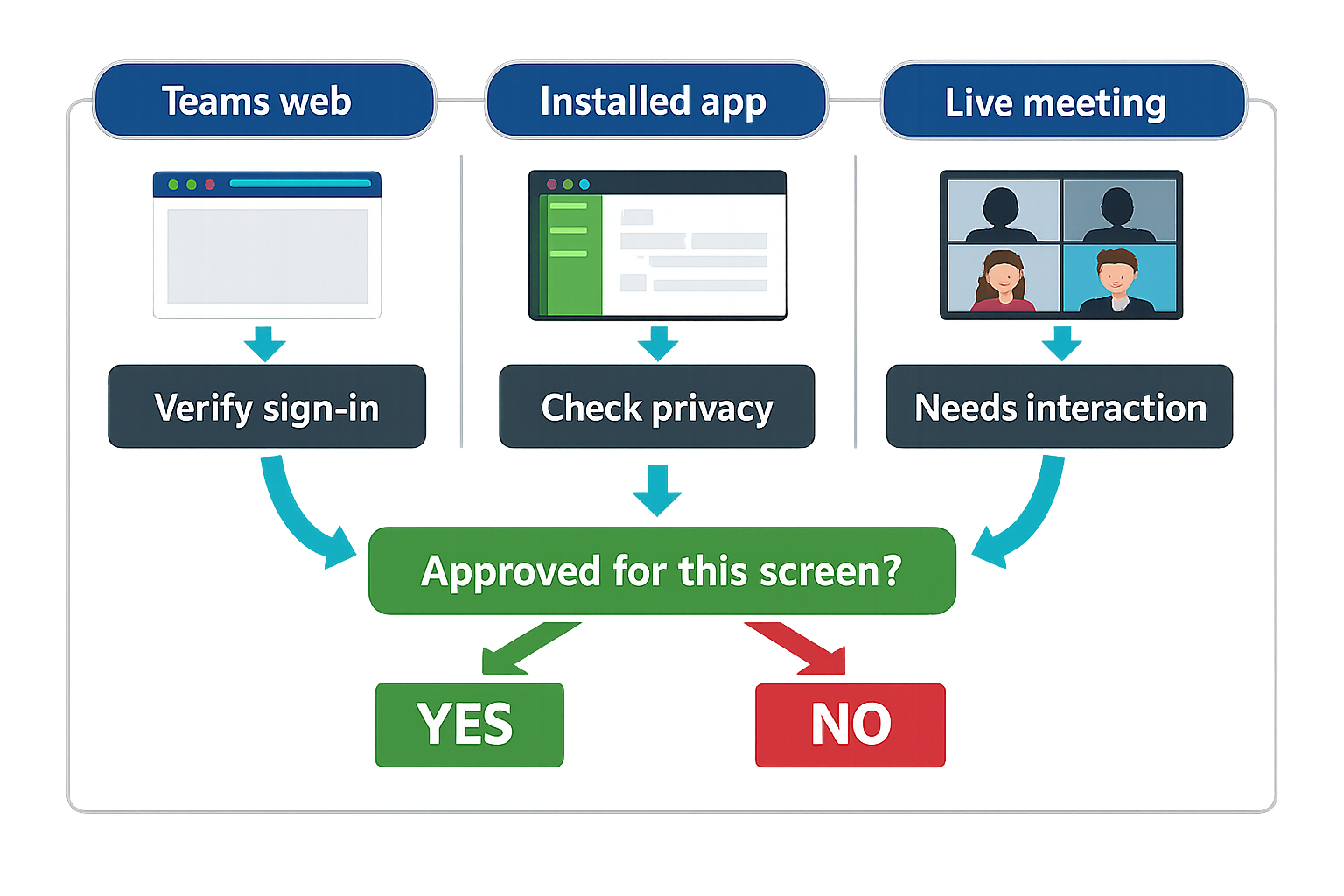
A practical comparison looks like this:
| Approach | Possible advantage | Main question to verify |
|---|---|---|
| Teams in a browser | Fits a web-content display workflow more naturally | Can the required page authenticate and remain usable without repeated input? |
| Installed Teams application | Provides the normal desktop experience for an active user | Does the signage player support the application and its unattended operating requirements? |
| Live Teams meeting | Shows real-time meeting content | Is the meeting content appropriate, private, stable, and safe to leave unattended? |
Variabl already provides a workflow for adding a web URL to a digital-signage display. Use that as the configuration starting point, but validate the specific Teams page and account policy before treating it as production-ready.
Which Teams content is appropriate for unattended displays?#
“Unattended” means nobody is expected to operate the screen continuously. That distinction matters. A page that works well on a laptop may be unsuitable when displayed all day without a person present.
Before publishing a Teams page, check whether it contains:
- Private chat messages or mentions.
- Personal names, profile details, or presence information.
- Customer, employee, financial, or health-related data.
- Links that could expose files or internal systems.
- Controls that might be triggered accidentally by a remote input device.
- Content that changes frequently without a clear monitoring purpose.
A useful rule is to display only information that the intended audience is already authorized to see and that your organization has approved for that physical location. If the answer depends on a specific employee keeping a session open, the setup is not yet an unattended-display solution.
Authentication, privacy, and account-session checks#
Authentication is often the deciding factor in a Teams web display. A page may require an interactive sign-in, expire after a period, request multifactor authentication, or redirect to a different Microsoft 365 page. These behaviors can interrupt a screen even when the original URL is correct.
Use a dedicated, appropriately permissioned account only if your organization approves that design. Do not place a personal account on a shared player, and do not store credentials in a location where screen operators or visitors could access them.
Before deployment, ask your IT or security team to review:
- Which account, if any, will be used for playback.
- Whether the account has access only to the necessary content.
- How sign-in expiration and multifactor authentication are handled.
- Whether conditional-access rules allow the playback device.
- What happens when the session expires or the network disconnects.
- How the account will be removed, rotated, or disabled later.
Do not use a shared display to bypass Teams permissions. If a viewer should not be able to see information in a normal Teams session, the information should not appear on the shared screen.
Make Teams content readable from a distance#
Teams pages are usually designed for close-up, interactive screens. A wall display has different requirements. Small navigation labels, dense message lists, and sidebars can become unreadable from several metres away.
Evaluate the page from the actual viewing distance and check:
- Text size and contrast.
- Whether important information is hidden below the fold.
- Whether menus or notifications cover the useful content.
- Whether the page changes layout at the display's resolution.
- Whether a persistent sidebar consumes valuable space.
- Whether the screen remains useful when nobody is touching it.
If the Teams page is too dense, consider displaying a purpose-built dashboard or announcement view instead. Variabl's Windows digital-signage guide may also help you assess the playback environment when Windows is part of the planned setup.
How to evaluate the setup with Variabl#
Treat the first deployment as a controlled evaluation rather than a promise that every Teams page will work.
1. Choose one low-risk page#
Start with non-sensitive content that has been approved for the intended location. Avoid a private chat, active meeting, or broad team page until the basic workflow is understood.
2. Confirm the URL and sign-in path#
Record the exact URL and observe whether it redirects, opens a sign-in screen, requests additional verification, or displays a browser warning. A URL that works in your personal browser may behave differently on a dedicated player.
3. Test unattended playback#
Leave the screen running for the period you expect in production. Check after sleep, restart, network interruption, browser refresh, and session expiration. Record whether recovery is automatic or requires a person.
4. Review the physical display#
Stand where viewers will stand. Check readability, glare, orientation, and whether private content can be seen from adjacent areas.
5. Define an owner and recovery process#
Someone should know what to do if the page signs out, becomes blank, shows stale content, or displays an unexpected notification. Include a way to remove the screen quickly if the account or content changes.
Troubleshooting common display problems#
The page opens but shows a sign-in screen#
This usually indicates that the session is not authenticated, has expired, or is blocked by an organization policy. Do not work around the sign-in requirement by sharing personal credentials. Confirm the approved account and authentication process with your administrator.
The page is blank or only partly rendered#
Check the URL, network access, redirects, browser compatibility, and whether the page depends on interactive scripts or pop-ups. Test the same page in the supported playback environment rather than assuming that a desktop browser result is conclusive.
The display works briefly and then stops#
Look for session expiration, device sleep, network changes, application restarts, or a page that requires user interaction. A short successful test is not enough for unattended deployment.
The content is visible but too difficult to read#
Reduce clutter, choose a more focused page, increase the viewing distance during testing, or use a purpose-built dashboard. A technically working page can still be an ineffective sign.
When a shared screen should not host a Teams call#
A live teams call is usually an interactive communication session, not ordinary signage. It may expose participant names, video, chat, notifications, audio, or meeting controls. It can also create privacy and consent issues if people enter the room or appear on camera without expecting the meeting to be displayed publicly.
Use a dedicated meeting-room setup when participants need to speak, share content, manage controls, or confirm who can see and hear the session. A shared signage screen may be appropriate only for a deliberately approved, non-sensitive broadcast scenario with clear ownership and operational controls.
Frequently Asked Questions#
Can I display Microsoft Teams in a web browser on a digital-signage screen?#
Possibly, but the specific page, authentication policy, browser environment, and playback product must be verified. A Teams URL working on a personal computer does not prove that it will remain signed in or render correctly on an unattended screen.
Should I use Teams web or the Teams installer?#
Start by evaluating the web experience if your signage workflow displays URLs. Use the installed application only after confirming that the playback device, operating system, account model, and unattended operation are supported. Installing Teams is not a substitute for validating signage behavior.
Can I display a Teams call on a shared screen?#
A Teams call should not be treated as ordinary signage. It may expose private information and generally requires interaction, meeting controls, or participant consent. Use a controlled meeting-room or broadcast design instead of an unattended public display unless your organization has approved the scenario.
Why does Teams keep asking me to sign in on the display?#
The session may have expired, the account may require additional verification, or an organizational access policy may block the device. Ask your administrator to review the approved authentication flow rather than saving personal credentials on the player.
What Teams content is safest for an office TV?#
Use information that is intentionally approved for that physical audience, contains no unnecessary personal or confidential data, and remains useful without interaction. A focused status or announcement view is usually easier to govern than a complete chat or team workspace.
A Teams web page can be a useful candidate for a shared display, but it should pass three tests before deployment: the account and privacy model are approved, the page remains stable without constant interaction, and the content is readable and appropriate for its location. If it fails any of those tests, choose a purpose-built dashboard, announcement, or other signage-friendly source instead.