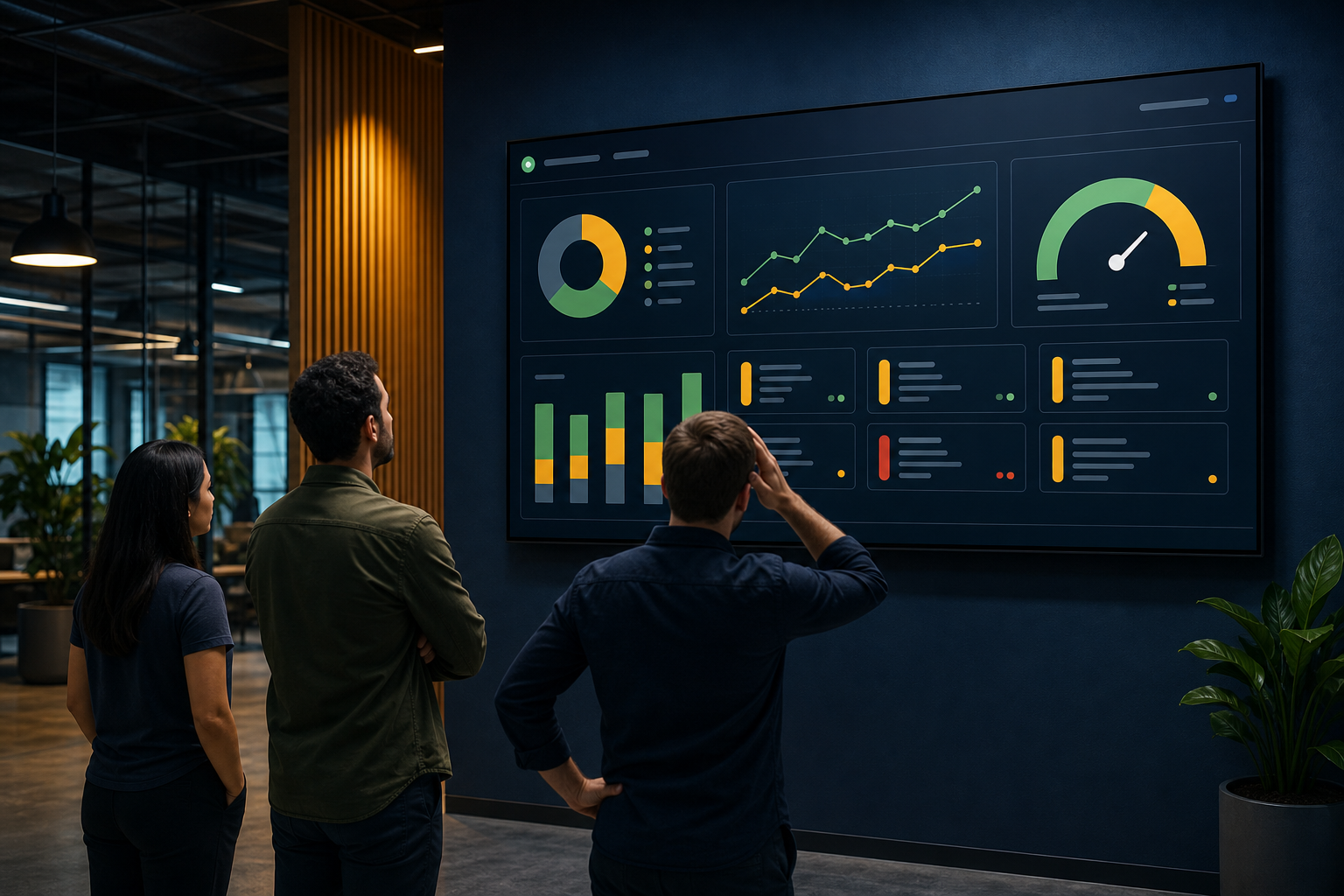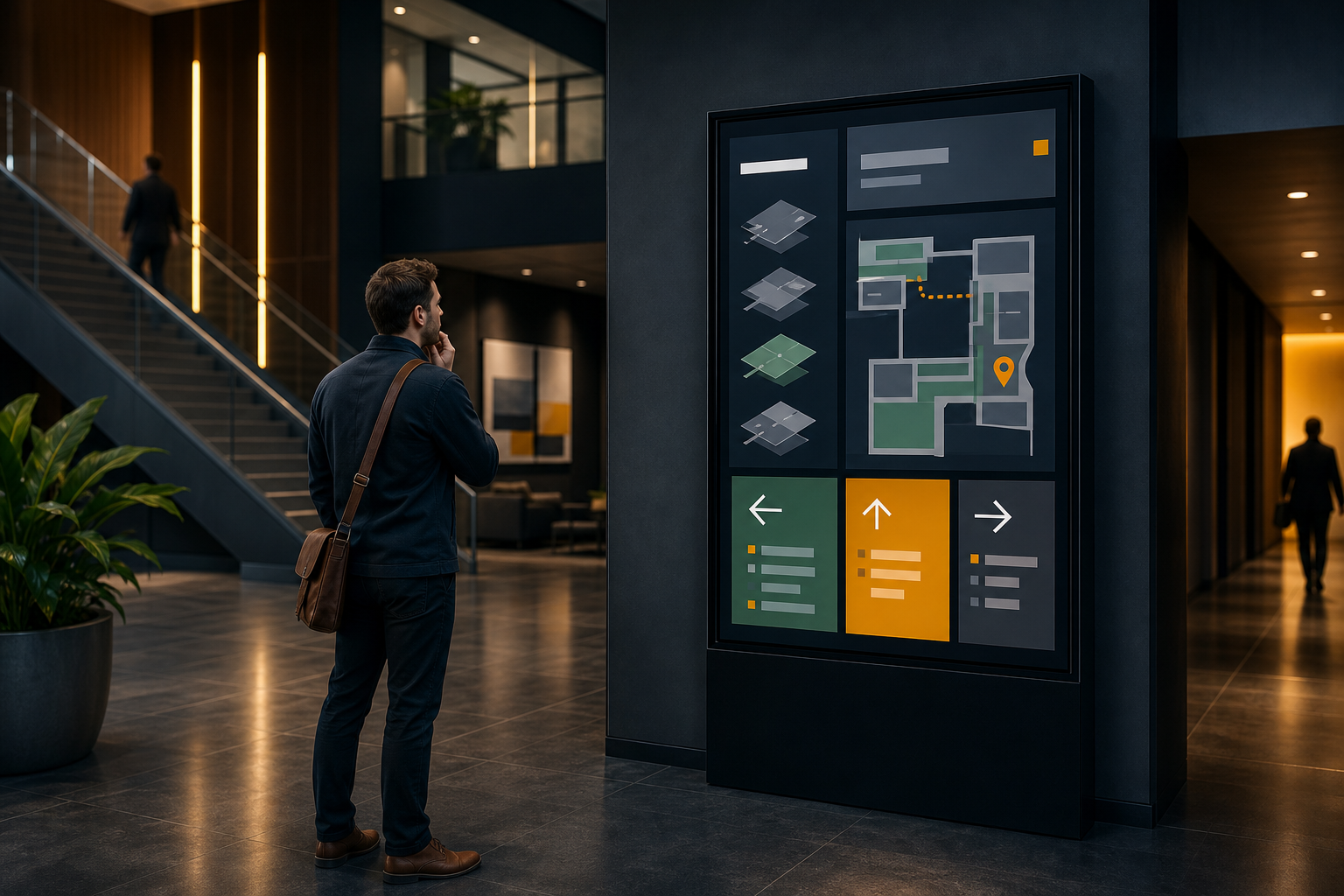
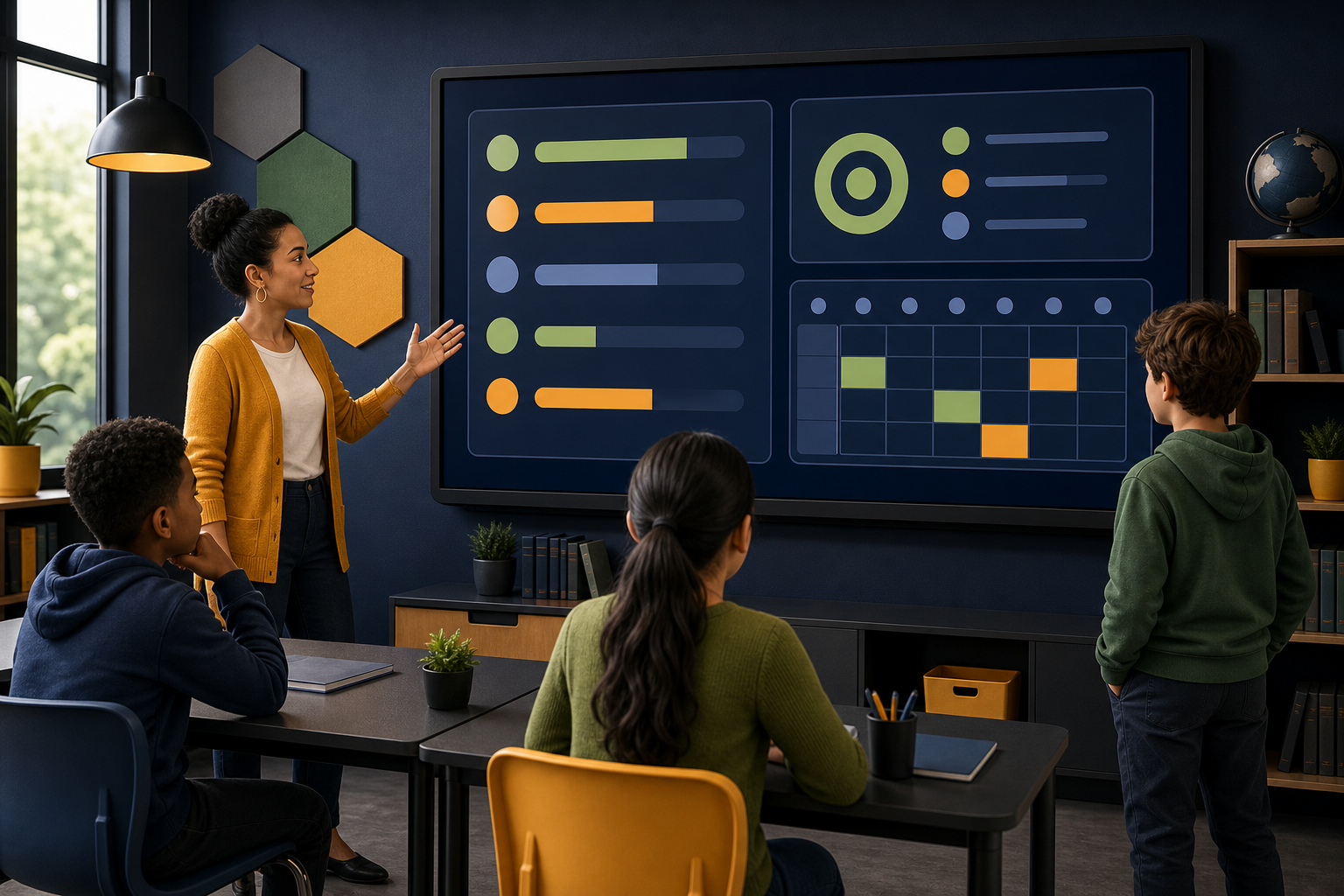
A classroom data wall can turn information that usually stays inside a spreadsheet or online dashboard into something a class, teaching team, or school community can see at a glance. The challenge is deciding what belongs on a shared screen—and what should remain private.
The best classroom data wall is not a live dump of every available metric. It is a deliberately designed display with a clear audience, a small amount of useful information, readable visuals, and an owner responsible for keeping it current.
This guide explains how to plan a digital data wall for a classroom or school display, including privacy decisions, layout, screen placement, refresh routines, and a practical pilot process.
What is a classroom data wall?#
A classroom data wall is a shared display that presents selected learning, progress, attendance, scheduling, or school-operation information in a physical space. Traditionally, a data wall might use paper charts, sticky notes, or a whiteboard. A digital data wall uses a monitor or TV to show a dashboard, web page, presentation, or other visual content.
The important distinction is that a classroom data wall is a communication workflow, not simply a screen. Someone must decide:
- Which information is appropriate for the audience
- How often it should change
- Who owns updates and corrections
- Whether viewers can identify individual students
- What happens if the source dashboard is unavailable
A dedicated screen can make information more visible, but visibility is not automatically the same as usefulness. The display should help people make a decision, start a conversation, or understand current priorities.
When is a school or classroom data wall useful?#
A shared display may be useful when the information is relevant to people in the room and does not require a private login or lengthy explanation.
Appropriate examples can include:
- Class goals or group progress shown in aggregate
- Current learning targets and assessment windows
- Reading, mathematics, or project milestones
- School event reminders and room schedules
- Attendance or arrival information shown at an appropriate summary level
- Staff-facing operational status in a restricted area
- Anonymous celebrations of completed work or shared achievements
- Links to a dashboard that teachers review during planning meetings
A data wall works less well when the information is highly detailed, changes too quickly, or requires personal context to interpret. In those cases, a private teacher dashboard, student conference, or authenticated workstation may be a better channel.
If you are deploying several screens around a building, first review guidance on managing multiple digital signage screens. A classroom display may need different content and permissions from a reception screen or staff-room monitor.
Choose information that belongs on a shared screen#
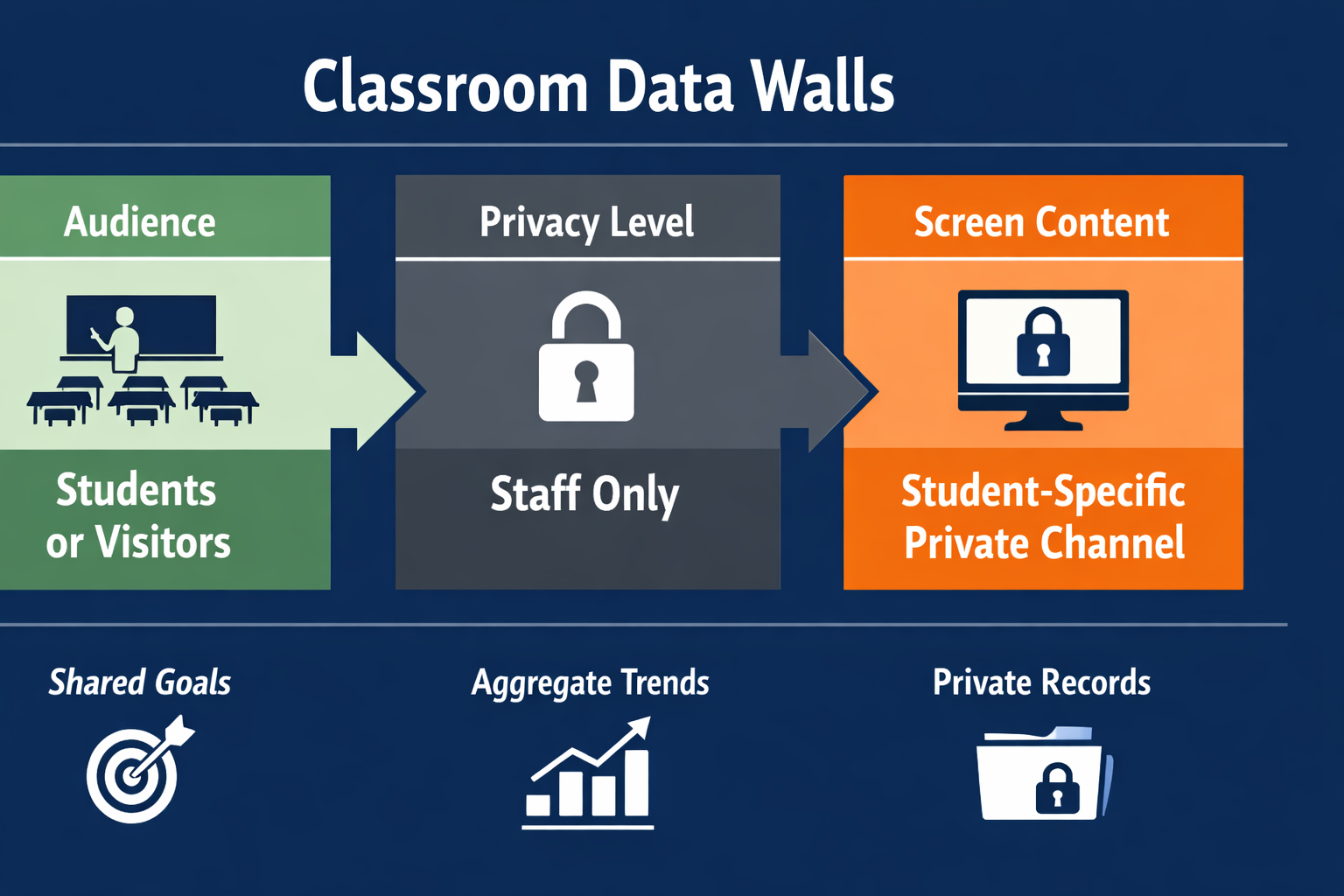
Start with the audience rather than the data source. Ask who will see the screen during a normal day:
| Audience | Suitable content direction | Information to treat carefully |
|---|---|---|
| Students | Class goals, schedules, shared milestones, anonymous progress | Individual scores, behavior records, identifiable rankings |
| Teachers | Planning reminders, aggregate trends, task status | Student-level details in open areas |
| School leaders | Operational summaries, attendance trends, room or campus status | Data that exposes personal records unnecessarily |
| Visitors or families | Events, general achievements, public announcements | Internal performance or student information |
A useful rule is to display the least specific version of the information that still supports the intended action. For example, a class may need to know that 80% of a group has completed a practice activity, but not which named students have or have not completed it.
Separate public, staff-only, and student-specific information#
Create three content categories before designing the screen:
- Public or community-safe: information suitable for hallways, reception areas, or visitors.
- Staff-only: information that may be useful to teachers or administrators but should not be visible to general foot traffic.
- Student-specific: information that requires an approved private channel, controlled access, or a one-to-one conversation.
Do not assume that a screen is private because it is inside a classroom. Students, substitutes, visitors, maintenance staff, and people passing the doorway may all be able to see it. Avoid displaying names, student IDs, individual grades, special education information, health information, or behavioral records unless your school has explicitly approved the setting and controls.
Privacy requirements vary by jurisdiction, school policy, and the type of record involved. Treat this article as a planning guide, not legal advice. Ask your data protection lead or school administrator to review the proposed content before deployment.
Design the layout for classroom viewing#
A dashboard that is comfortable to inspect on a laptop may be difficult to read from the back of a classroom. A shared display needs a simpler layout than a personal analytics workspace.
Use these design principles:
- Show one primary message or goal rather than many competing panels.
- Use large labels and strong contrast.
- Prefer short summaries over dense tables.
- Keep related metrics together.
- Make the time period obvious, such as “this week” or “as of Monday.”
- Use color as a supplement, not the only way to communicate status.
- Leave enough empty space for the display to feel calm rather than crowded.
- Avoid rapidly changing animations that make the screen hard to follow.
A viewer should be able to answer three questions quickly:
- What am I looking at?
- What period or group does it represent?
- Is there an action I should take?
If the answer to any of these questions is unclear, simplify the display before adding more data.
Choose screen placement and viewing distance#
Placement affects whether a data wall is actually used. Consider the viewing distance, glare, lighting, and whether people will stand in front of the screen.
A classroom screen might work near the front of the room if it supports a short daily review. A staff-facing screen may be better in a planning area where educators can pause and discuss the information. A hallway screen should use larger, simpler content because viewers may only see it for a few seconds.
Before installing a screen, check:
- Whether sunlight or overhead lighting creates glare
- Whether the lowest text can be read from the farthest normal viewing position
- Whether furniture or open doors block the screen
- Whether power and network access are available
- Whether the screen is visible to people who should not see staff-only information
- Whether a teacher can reach or report a problem with the device
The screen should support the activity in the room, not compete with instruction. A classroom data wall that is always visually demanding may become background noise.
Plan refresh, rotation, and ownership#
A data wall needs an operating routine. Without one, an attractive display can become outdated and lose trust.
Define the following before launch:
- Content owner: the person or team responsible for accuracy
- Refresh schedule: how often the source data is expected to change
- Review schedule: how often someone checks the screen and source
- Fallback content: what appears if the dashboard is unavailable
- Escalation path: who handles incorrect data, expired credentials, or a blank screen
- Retirement rule: when old goals, events, or reporting periods are removed
Not every item needs to be live. A daily or weekly refresh may be more appropriate than constant updates, particularly when frequent changes could distract students or create confusion.
If you are displaying a web-based dashboard, review the workflow for adding a web URL to a Variabl digital signage display. Confirm the source page's authentication, session timeout, reload behavior, and privacy settings before using it on a shared screen.
Evaluate a dashboard or web page before displaying it#
A data platform may be useful for teachers on a private computer but unsuitable for a public-facing display. Evaluate the source page with this checklist:
- Does it expose names or other identifying information?
- Does it require a login that could expire on the screen?
- Does it show navigation, notifications, or controls that viewers do not need?
- Is the text large enough at the planned viewing distance?
- Does the layout work in a wide-screen orientation?
- Does it refresh predictably?
- Does it reveal information when the screen is viewed from an angle?
- Can the school create a restricted, aggregate, or display-only view?
- What does the page show when there is no data or an error?
Do not assume that a platform's name proves it has a built-in “data wall” mode or a supported digital signage integration. In particular, the exact meaning of the search phrase “i-Ready data wall” may refer to a school-created workflow, a report, or a third-party process. Verify the intended platform, permissions, and display method with the school and vendor before naming or implementing an integration.
Pilot one screen under normal classroom conditions#
A short pilot can reveal problems that are easy to miss in a planning document.
- Choose one room and one narrowly defined purpose.
- Select aggregate or otherwise approved content.
- Display it at the intended screen size and position.
- Ask a teacher and several representative viewers what they can understand without explanation.
- Check readability at the back and sides of the room.
- Observe whether the screen distracts from teaching or becomes ignored.
- Test what happens after a network interruption, source update, or session timeout.
- Record changes and assign an owner before expanding the rollout.
The pilot should test the complete workflow, not just whether a browser can open the page. A technically working screen can still fail if the content is too small, too private, out of date, or difficult to interpret.
Questions to verify before deployment#
Use this checklist with educators, administrators, and your technology team:
- What decision or conversation should this display support?
- Who is the intended audience at each location?
- Is every field appropriate for that audience?
- Can the content be aggregated or anonymized?
- Who approves the layout and privacy level?
- Who owns updates and corrections?
- How often should the content refresh?
- What happens if the source page logs out or stops loading?
- Is the screen placement compatible with the viewing distance?
- How will teachers report inaccurate or inappropriate content?
- What is the removal process when a goal, term, or event ends?
For broader planning, the Windows digital signage guide for schools and campuses can provide platform context. Treat platform capability, authentication, and device-management details as items to verify for your specific environment rather than assumptions.
Frequently Asked Questions#
What should be displayed on a classroom data wall?#
Display information that is useful to the people in the room and safe for a shared setting. Examples include class goals, schedules, aggregate progress, learning milestones, and approved announcements. Avoid student-identifiable records unless the school has explicitly approved the privacy controls and viewing context.
Is a digital data wall the same as a dashboard?#
Not exactly. A dashboard is usually the source interface that organizes data for analysis. A digital data wall is the broader shared-display workflow, including audience selection, privacy decisions, screen placement, refresh routines, and ownership.
Can I display an education platform on a classroom screen?#
Possibly, but the answer depends on the platform, account permissions, authentication behavior, display layout, and school policy. Verify that the platform supports the intended viewing method and that the page does not expose private information on a shared screen.
Should a classroom data wall show individual student results?#
Usually, individual results should be handled through an approved private channel rather than an open classroom or hallway screen. Use aggregate or anonymized information when it can support the same instructional purpose.
How often should a classroom data wall update?#
Use the slowest refresh interval that keeps the information useful. Daily or weekly updates may be better than constant changes when the data is used for reflection, planning, or goal-setting. Assign someone to check that the displayed information remains current.
What should happen if the dashboard stops loading?#
Define a fallback before deployment. The screen might show an approved static message, a schedule, or other non-sensitive content while the owner investigates. It should not expose an error page, expired login form, or private account information.
A successful classroom data wall is small enough to understand, current enough to trust, and private enough for its setting. Start with one approved use case, test it in the real room, and expand only after the content and ownership process work reliably.