

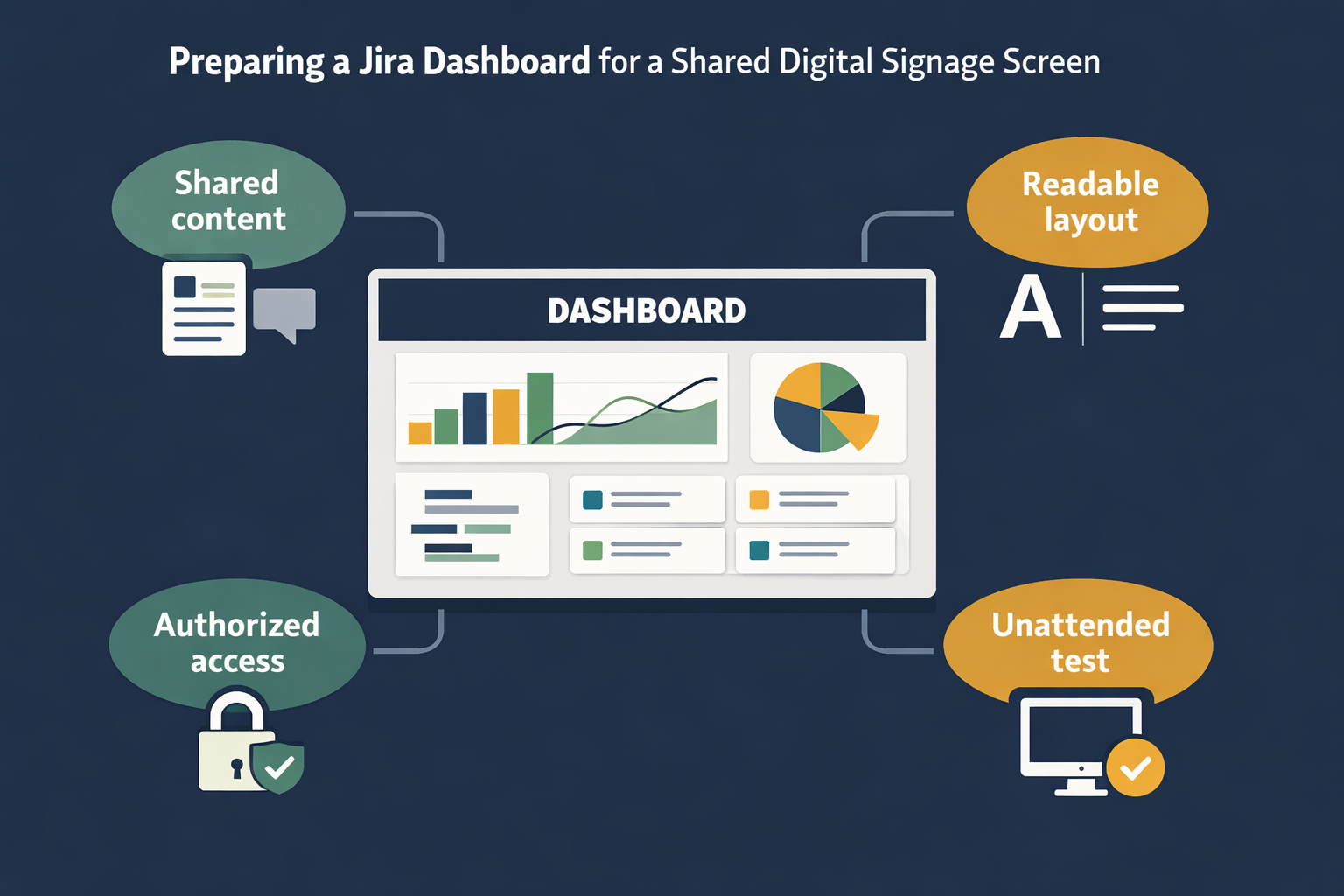
A Jira dashboard can be useful on a team screen, but displaying it on a shared monitor is different from opening it at your desk. The dashboard needs to be readable from a distance, safe for the audience, and able to recover from reloads or expired sessions without regular user interaction.
The practical workflow is:
- Choose information that is appropriate for a shared screen.
- Simplify the Jira dashboard for distance viewing.
- Check permissions, authentication, and session expiry.
- Add the dashboard URL as a web destination in Variabl.
- Test the dashboard unattended before relying on it.
Variabl can be used to display web pages and dashboards on dedicated screens. The exact behavior of a private Jira page depends on your Jira deployment, account permissions, authentication configuration, and the screen setup, so test the complete path rather than assuming that a dashboard visible in your browser will work unattended.
When a Jira dashboard belongs on a shared screen#
Jira dashboards often combine charts, filters, issue lists, and project information. That makes them useful for delivery teams, support groups, engineering departments, and operational areas—but not every dashboard widget belongs in a public or semi-public location.
Separate shared information from private ticket detail#
Before adding a dashboard to a digital signage screen setup, review every widget and field that may appear:
- Prefer aggregate information such as issue counts, sprint progress, status distributions, or trend summaries.
- Remove customer names, private comments, internal notes, sensitive project details, and personal information unless the audience is authorized to see them.
- Check whether issue titles reveal confidential work, security findings, unreleased products, or employee information.
- Use a dashboard account or permission model that exposes only the information needed on the screen.
A dashboard that is appropriate for a project room may not be appropriate for a reception area, shared office, or visitor-facing display. Treat the screen as a shared information surface, not as a private browser window.
For broader planning guidance, see Variabl's guide to command-center dashboard displays.
Prepare the Jira dashboard for distance viewing#
A dashboard that looks usable on a laptop may be difficult to read across a room. Start by viewing it at the approximate distance and screen size where people will see it.
Check labels, contrast, and dashboard scale#
Use a simple readability review:
- Can someone identify the dashboard's purpose within a few seconds?
- Are chart labels and issue statuses large enough to read without standing directly in front of the screen?
- Do colors have enough contrast against their backgrounds?
- Are color-only indicators understandable to people with color-vision differences?
- Are there enough widgets to provide context without making each widget too small?
- Are filters and date ranges visible so viewers understand what the numbers represent?
- Is the most important information placed where it will be noticed first?
Reduce clutter before increasing browser zoom. Enlarging the entire page can push important widgets below the visible area or create horizontal scrolling. A smaller number of clear widgets is usually more useful than a dense dashboard that technically contains more information.
Design for the screen's orientation#
A landscape display may suit several side-by-side charts, while a portrait display may work better for a vertical list or a narrow status view. If the dashboard does not fit the screen naturally, consider creating a Jira dashboard specifically for display rather than using the same view that team members use for detailed analysis.
Avoid relying on hover states, expandable panels, or controls that require a mouse. A dashboard display should communicate its key information without normal user interaction.
Check authentication and session behavior#
Authentication is often the deciding factor in whether a Jira dashboard works on digital signage. A page can load successfully in your personal browser because you already have an active session, while a newly opened browser on a screen may be sent to a sign-in page.
Test what happens after sign-out or session expiry#
Run these checks before deployment:
- Open the dashboard in a private or fresh browser session.
- Confirm whether the page requires a Jira account or another identity provider.
- Sign out, if possible, and check what a new visitor or device would see.
- Leave the page open long enough to understand what happens when the session expires.
- Check whether the page returns to the dashboard after a reload or remains at a login screen.
- Confirm that the account used for the screen has permission to view every widget and project represented.
Do not place a personal administrator session on a shared screen. Use the least-privileged access arrangement that meets the display's purpose, and follow your organization's security policy for shared credentials, service accounts, and identity-provider sessions.
Jira Cloud, Jira Data Center, company single sign-on, network restrictions, and multi-factor authentication can behave differently. Those differences must be verified in your own environment before you promise unattended operation.
Add and test the Jira dashboard as a web destination#
Once the dashboard is suitable for display, copy its URL from Jira. Use the dashboard's normal web address rather than a temporary link from a search result or a URL that contains a personal workflow state you do not want to share.
Then use Variabl's web URL setup workflow to add the dashboard as a web destination. Keep the configuration simple at first so you can isolate access and layout problems before adding the screen to a larger rotation.
Test the display without normal user interaction#
A useful acceptance test includes:
- Fresh launch: The screen opens the intended Jira dashboard rather than a browser start page or login prompt.
- Readability: Key charts, labels, and status information are visible from the normal viewing distance.
- Layout: No important content is hidden below the fold, behind a menu, or outside the display area.
- Reload behavior: Refreshing the page does not permanently break the display.
- Session behavior: The screen remains useful for the expected operating period, or there is a documented recovery process.
- Data expectations: Viewers understand whether the dashboard is live, periodically refreshed, or dependent on Jira's own update behavior.
- Security: The screen does not expose more information than its audience is allowed to see.
Watch the screen for a representative period rather than checking it only once. A dashboard can look correct immediately after sign-in and fail later when a session expires, a network connection changes, or a page reload occurs.
Troubleshoot common Jira display problems#
The screen shows a login page#
The device may not have an active session, the account may lack permission, or the organization's identity provider may require an interaction that cannot be completed unattended. Confirm the access path using a fresh browser session and check whether the display environment supports the required authentication flow. Do not bypass security controls just to keep the dashboard visible.
Widgets are empty or incomplete#
The viewing account may not have access to the underlying projects, filters, or fields. A dashboard owner may also have created a filter that depends on a user's personal permissions. Test each widget with the account intended for the screen and replace widgets that cannot be made reliably visible.
The dashboard is too small to read#
Remove low-priority widgets, shorten long labels where appropriate, simplify filters, or create a dedicated display dashboard. Increasing zoom can help, but it can also cause clipping and scrolling, so check the whole page after every scale change.
Information appears stale#
A visible dashboard is not automatically a real-time monitoring system. The freshness of the information depends on Jira's data updates, the dashboard's own behavior, the browser session, network connectivity, and the display platform's reload behavior. Define what “current” means for your team and include a timestamp or refresh indicator when the dashboard provides one.
The layout changes after a reload#
Responsive web pages can render differently depending on viewport size, browser state, and available network resources. Test with the same screen dimensions and display configuration that will be used in production. If the layout remains unstable, simplify the dashboard or use a purpose-built display view.
A practical Jira dashboard display checklist#
Before handing the screen over to the team, confirm:
- The dashboard contains only information appropriate for its audience.
- The display account has the required permissions and no unnecessary privileges.
- The page is readable from the intended viewing distance.
- The dashboard works in a fresh session, not only in a personal browser.
- Login, session expiry, and reload behavior have been observed.
- No essential information depends on hovering, clicking, or scrolling.
- The screen has been monitored for a representative operating period.
- Someone knows how to recover the display if Jira requests authentication again.
Frequently Asked Questions#
Can I display a Jira dashboard on a digital signage screen?#
Yes, a Jira dashboard can be treated as a web destination for a digital signage screen, provided the display environment can access the page and the required permissions and authentication flow work without unsafe workarounds. Test the specific Jira and identity configuration before deployment.
Do Jira dashboards need to be public to display them?#
No. A dashboard may remain protected, but the screen must have an authorized way to access it. Private dashboards introduce authentication, permission, and session-expiry considerations that must be tested on the actual display device.
Can I use a personal Jira account for a shared dashboard display?#
It is better to avoid using a personal account on a shared screen. Use an access arrangement approved by your organization and grant only the permissions needed for the dashboard. The appropriate solution depends on your Jira and identity-management policies.
Why does my Jira dashboard work on my laptop but not on the display?#
Your laptop may already have an active session, a different browser configuration, a larger viewport, or network access that the display does not have. Compare the two environments using a fresh session and check authentication, permissions, viewport size, and network restrictions.
How often does a Jira dashboard refresh on a digital signage screen?#
There is no single refresh interval that applies to every Jira dashboard display. Freshness can depend on Jira, the dashboard configuration, the browser session, the network, and the signage setup. Verify the actual behavior in your environment and do not describe the screen as real-time unless that has been established.
Next step#
Start with one non-sensitive Jira dashboard and one test screen. Make the layout readable, verify access in a fresh session, observe reload and expiry behavior, and only then expand the setup to additional screens or dashboards.