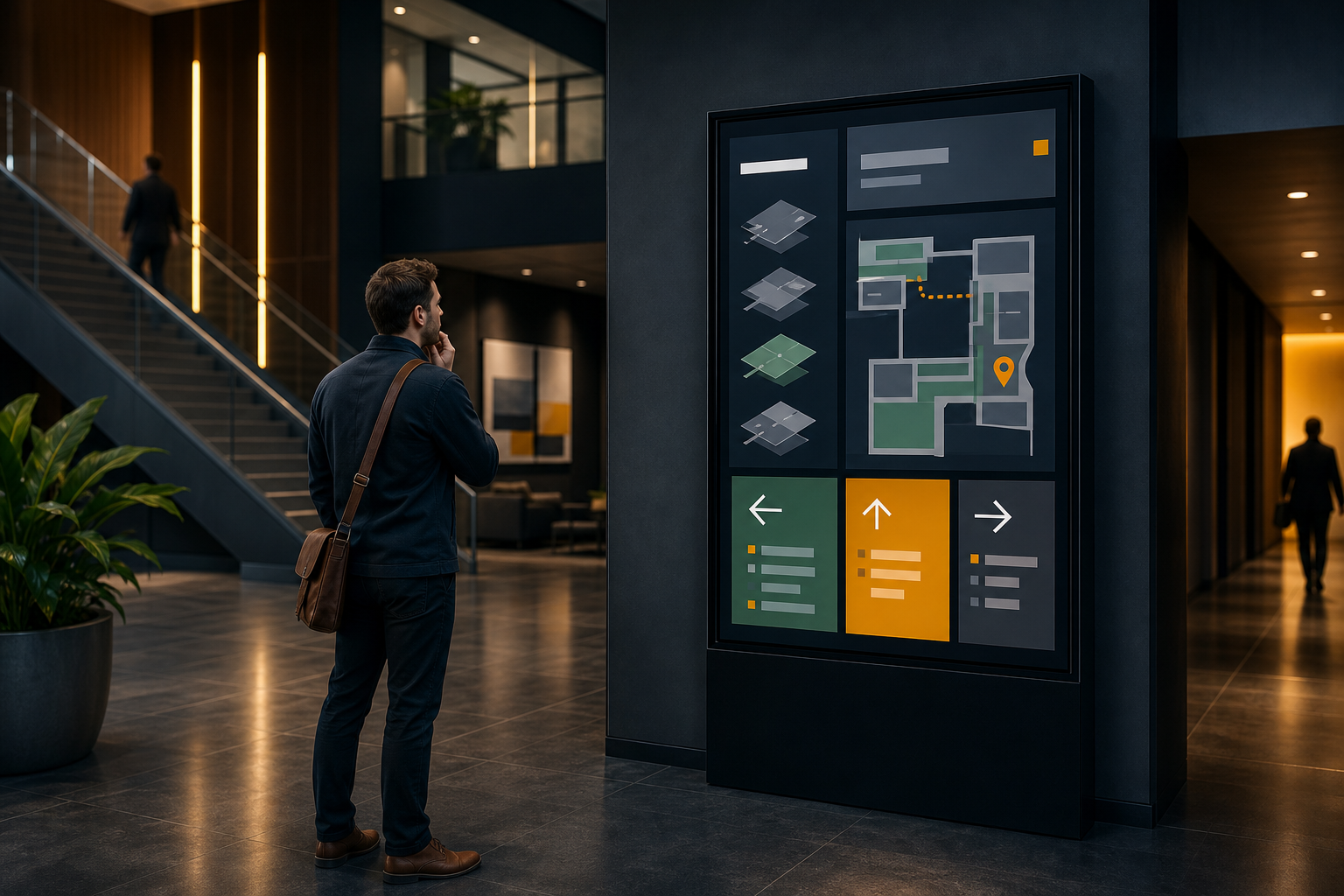
A visitor arrives at a large building, checks a paper directory, and still cannot tell which corridor leads to the right department. A well-planned digital wayfinding screen can make that first decision much easier—but only if the information is structured around the questions visitors actually have.
Digital wayfinding uses digital displays to help people identify destinations, understand where they are, and choose their next route. A digital building directory may show offices and departments by floor, while broader digital directory signage can also include entrances, amenities, services, and temporary notices.
The most effective projects begin with information architecture and visitor behavior—not with the screen itself. Before choosing hardware or designing slides, decide what a person must understand within a few seconds of arriving.
What digital wayfinding should help visitors do#
A directory screen should answer practical questions such as:
- Where am I now?
- Is the destination in this building or somewhere else on the site?
- Which floor or zone contains it?
- What is the simplest route from this screen?
- Is the destination temporarily unavailable or relocated?
- Is there an accessible route or another entrance to use?
A screen does not need to provide turn-by-turn navigation to be useful. In many buildings, a clear destination list, floor reference, and directional cue are enough to reduce uncertainty. More advanced experiences may add maps, QR codes, interactive search, or location-aware features, but those capabilities depend on the software and hardware selected.
For a broader screen-management workflow, see Variabl’s guide to planning digital signage across multiple displays. The same planning principles—grouping screens, assigning content, and managing changes—are useful for wayfinding deployments.
When a digital directory screen is useful#
Digital directory boards are particularly useful when information changes regularly or when a building has more destinations than a static sign can present clearly.
Common use cases include:
- Corporate offices with changing teams or tenants
- Hospitals and clinics with multiple departments
- Universities and campuses with several buildings
- Hotels, conference centers, and event venues
- Government buildings and public-service centers
- Shopping centers and mixed-use developments
- Manufacturing or industrial sites with visitor areas and restricted zones
A digital directory is not automatically better than a printed sign. A static sign may be the better choice for a small, stable location with only a few destinations. Digital signage becomes more valuable when updates are frequent, multiple screens need consistent information, or visitors benefit from time-sensitive notices alongside directory content.
Start with the visitor questions#
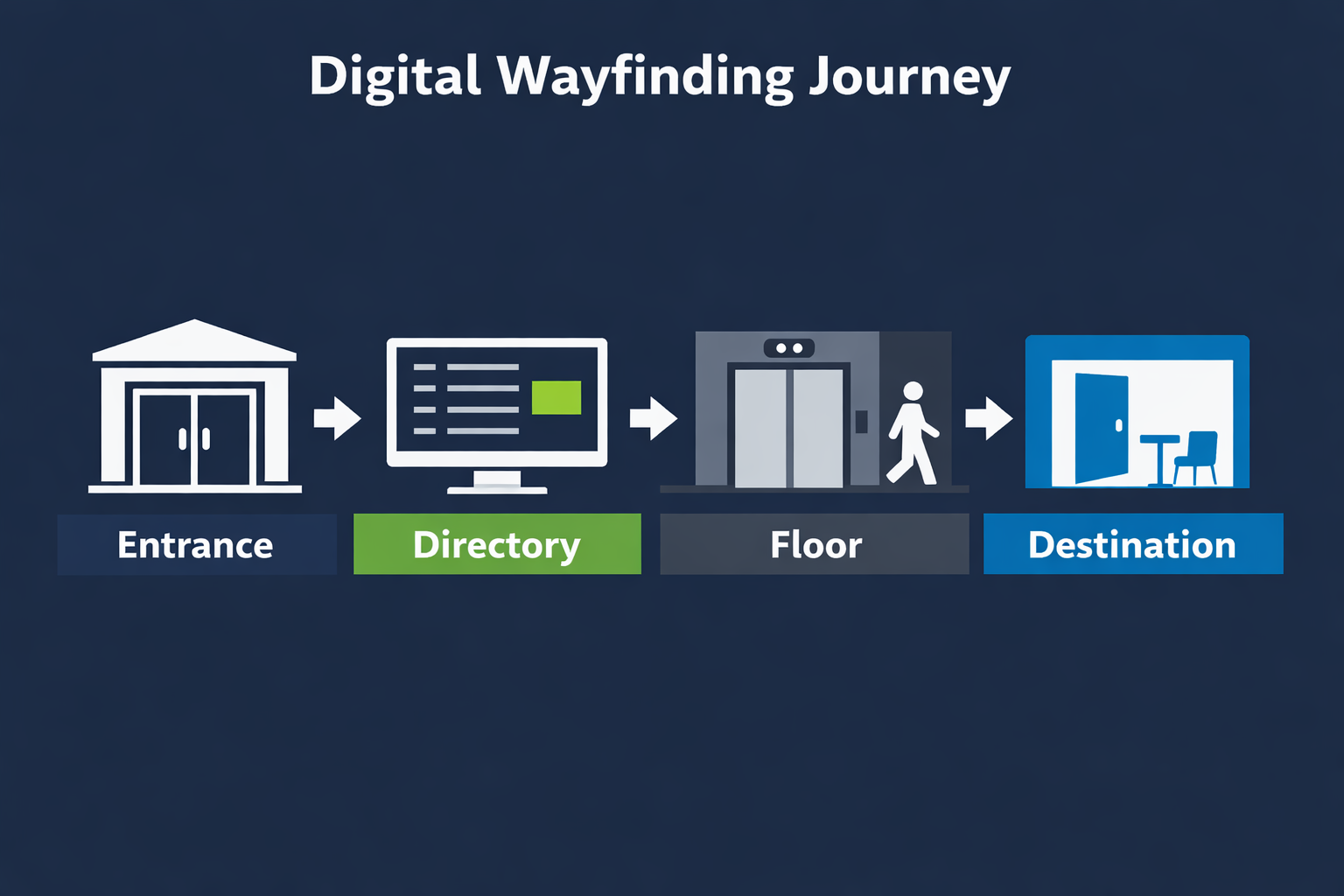
Before creating content, observe the journey from the entrance to the destination. List the decisions a visitor must make and the information available at each decision point.
For example, a visitor entering an office building may need to:
- Identify the correct building entrance.
- Find the host company or department.
- Learn the relevant floor.
- Choose an elevator, stairwell, corridor, or reception desk.
- Confirm the destination after leaving the lobby.
This exercise helps you avoid a common mistake: putting a complete directory on one screen without explaining what the visitor should do next. A screen can contain accurate information and still fail if the hierarchy is unclear.
Create a simple content brief for each screen location. Include:
- The visitor audience
- The decision the screen supports
- The destinations that must appear
- The next sign or landmark in the journey
- Any temporary information that may override normal content
- The person responsible for checking the information
Organize destinations by building structure#
Visitors usually scan directories according to a physical structure. Use labels that match the terminology people see elsewhere in the building.
A practical hierarchy might be:
| Level | Example information | Why it matters |
|---|---|---|
| Building or zone | North Tower, Visitor Center | Confirms the visitor is in the right place |
| Floor | Level 2, Ground Floor | Narrows the search |
| Destination | Cardiology, Room 214, Suite 300 | Identifies the target |
| Route cue | Elevators to the left | Supports the next decision |
| Additional detail | Accessible entrance, check-in desk | Handles important exceptions |
Avoid mixing different naming systems. If the building uses “Level 1” on elevators, do not label the directory “First Floor” unless the terms are clearly equivalent and familiar to visitors.
Sort destinations in a way people can predict. Alphabetical lists may work for offices or tenants; grouping by department, service, or floor may work better for hospitals and campuses. If visitors commonly search by room number, make room numbers easy to scan rather than burying them in long descriptions.
Choose screen locations based on decisions, not empty walls#
The best screen location is usually close to a point where visitors need to choose a direction. Typical locations include:
- Main entrances and reception areas
- Elevator and stairwell lobbies
- Intersections between major corridors
- Parking or shuttle arrival points
- Registration and check-in areas
- Building transitions on a campus
Consider what the visitor can see from the screen. A directional arrow is less useful if the referenced corridor is hidden behind a door or if several similar entrances are nearby.
Also check viewing distance, glare, lighting, wheelchair sightlines, queue patterns, and whether people can pause without blocking traffic. A screen placed where visitors cannot safely stop may need a shorter, simpler message that can be understood while moving.
For projects using several displays, Variabl’s multi-screen digital signage guide can help frame questions about screen groups and consistent content management.
Design readable digital directory signage#
A directory screen should be scannable before it is detailed. Use a strong visual hierarchy:
- Make the current building, floor, or zone obvious.
- Group destinations with clear headings.
- Keep destination names short and consistent.
- Separate room numbers from descriptive names when both matter.
- Use directional cues that point to a real route.
- Reserve space for urgent or temporary information without covering essential directions.
Do not rely on color alone to distinguish floors, routes, or categories. Color may be affected by lighting, display settings, or color-vision differences. Pair color with text, icons, position, or another visible cue.
The exact font size, contrast, and viewing distance should be validated at the intended location rather than copied from a generic template. A design that looks readable on a laptop may be difficult to scan from across a lobby.
Plan accessibility and language requirements early#
Accessibility is part of the information design, not a final visual adjustment. Review the directory with the people who will use it, including visitors with low vision, mobility limitations, cognitive disabilities, or limited proficiency in the primary language.
Consider:
- Sufficient contrast between text and background
- Clear, readable type and uncomplicated wording
- Consistent placement of headings and route cues
- Alternatives to color-only communication
- Accessible routes and entrances where relevant
- Language needs for the local visitor population
- Whether audio, tactile, staffed, or printed alternatives are needed
A screen should not be the only way to obtain critical information when visitors may be unable to see or interact with it. The appropriate solution depends on the building, audience, local requirements, and accessibility guidance applicable to the project.
Healthcare environments may need additional coordination around patient privacy, clinical terminology, emergency routes, and changing services. Variabl’s healthcare digital signage planning resource may be useful as a related starting point, but a hospital wayfinding project still requires site-specific review.
Decide what belongs in rotation#
Screen rotation can make room for announcements, events, or visitor instructions, but it can also hide the directory when someone needs it. Essential navigation information should remain visible long enough for a visitor to read and act on it.
Use rotation cautiously:
- Keep the core directory visible on a dedicated area when possible.
- Show temporary notices only when they are relevant to the location.
- Avoid placing a critical closure or route change on a brief, easy-to-miss slide.
- Use consistent timing across screens so visitors know what to expect.
- Give staff a way to publish urgent changes without rebuilding every screen manually.
If the directory is displayed as a web page or another supported content source, confirm how the screen-management system handles refreshes, sign-in sessions, connectivity loss, and fullscreen display before deployment. Do not assume that a normal desktop browser workflow will behave identically on a dedicated display.
Assign ownership for updates#
A digital directory is only trustworthy when someone owns the data. Assign responsibility for:
- Adding, removing, or renaming destinations
- Confirming room and floor information
- Reviewing temporary closures and relocations
- Approving emergency messages
- Checking screens after content changes
- Maintaining a record of the current directory structure
The owner does not have to be the person who designs the screen. Facilities, reception, communications, tenant services, IT, and security may each own different parts of the workflow. Define who can request a change, who approves it, and who confirms that it appears correctly.
Use a change process that matches the risk. A minor tenant-name correction may need one approval; a change to an emergency route should be reviewed by the relevant safety or facilities team.
Pilot the experience before rolling it out#
Test the complete visitor journey, not just the slide design. Ask people who did not create the directory to find several destinations using only the signs available to them.
Record where they:
- Stop or hesitate
- Misread a floor or zone label
- Choose the wrong corridor
- Need to ask for help
- Miss a temporary notice
- Cannot see the screen comfortably
Test at different times of day and under different lighting conditions. Include people using mobility aids and people unfamiliar with the building. Then revise the content, location, or route cues before installing the same design across the site.
A useful pilot checklist includes:
- Are all listed destinations real and current?
- Do the directions match the physical route?
- Are elevators, stairs, entrances, and accessible routes labeled consistently?
- Can visitors understand the screen without staff explanation?
- Does the screen remain useful when temporary content is displayed?
- Is there a documented owner for future updates?
How Variabl may fit the workflow#
Variabl is designed to display dashboards, web pages, and other content on dedicated screens. That can make it relevant when a wayfinding project uses a supported web-based directory or combines directory information with operational content.
Before committing to a specific workflow, verify the required capabilities for your deployment: content types, fullscreen behavior, screen grouping, refresh behavior, scheduling, connectivity handling, and permissions. A digital signage platform can help distribute and manage content, but it does not replace accurate directory data, route planning, accessibility review, or local ownership.
For basic setup context, see the Variabl guide to setting up screens. Confirm the current product workflow before publication or rollout because product capabilities and interfaces can change.
Frequently asked questions#
What is digital wayfinding?#
Digital wayfinding uses electronic displays or related digital tools to help people understand their location, find destinations, and choose routes through a building, campus, or venue. A directory screen is one common form of digital wayfinding.
What should a digital building directory display?#
At minimum, it should show the relevant building or zone, destination names, floor or room information, and clear route cues. Depending on the setting, it may also include accessible routes, temporary closures, reception instructions, or language alternatives.
Are digital directory boards better than printed signs?#
Not always. Printed signs may be simpler and more reliable for small locations with stable information. Digital directory boards are more useful when destinations change frequently, several screens need coordinated updates, or visitors need timely notices alongside directory information.
Can digital wayfinding include maps or QR codes?#
It can, but support depends on the chosen hardware, software, content source, and operating workflow. Treat maps, QR codes, interactive search, and location-aware navigation as requirements to verify rather than capabilities to assume.
How often should a digital directory be updated?#
Update it whenever a destination, route, floor, tenant, or service changes. The important requirement is not a fixed interval; it is clear ownership and a process that ensures changes are reviewed and reflected on every affected screen.
A practical next step#
Start with one entrance or high-traffic decision point. Document the visitor questions, map the destinations and routes, create a readable directory, assign an owner, and test it with people unfamiliar with the building. Once that experience works, extend the content model to other screens and locations.