Managing one display is usually straightforward. Managing ten, fifty, or several hundred digital monitors is an operating model—not just a bigger installation.
A successful digital signage multiple displays deployment starts with a clear inventory, sensible screen groups, defined content rules, and named owners. The goal is not to make every screen identical. It is to make each screen useful, maintainable, and consistent with the audience viewing it.
This guide explains how to plan a multi-screen digital signage system, roll it out in stages, and reduce the operational problems that appear when screens are added without a clear structure.
When a multi-screen signage system is useful#
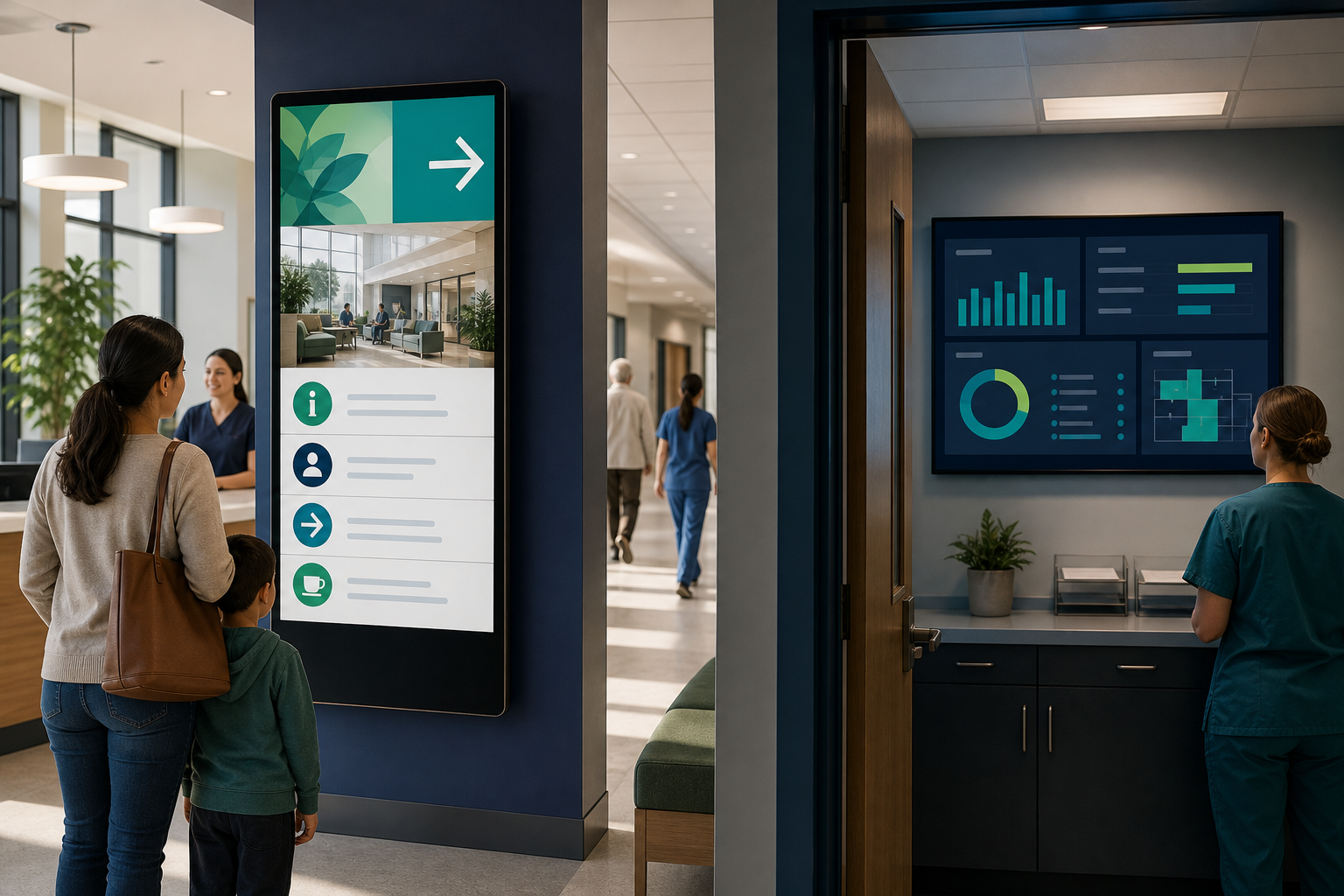
Multiple displays are useful when people need information in more than one place or when different audiences need different information. Common examples include:
- A reception display showing visitor information while staff see internal announcements.
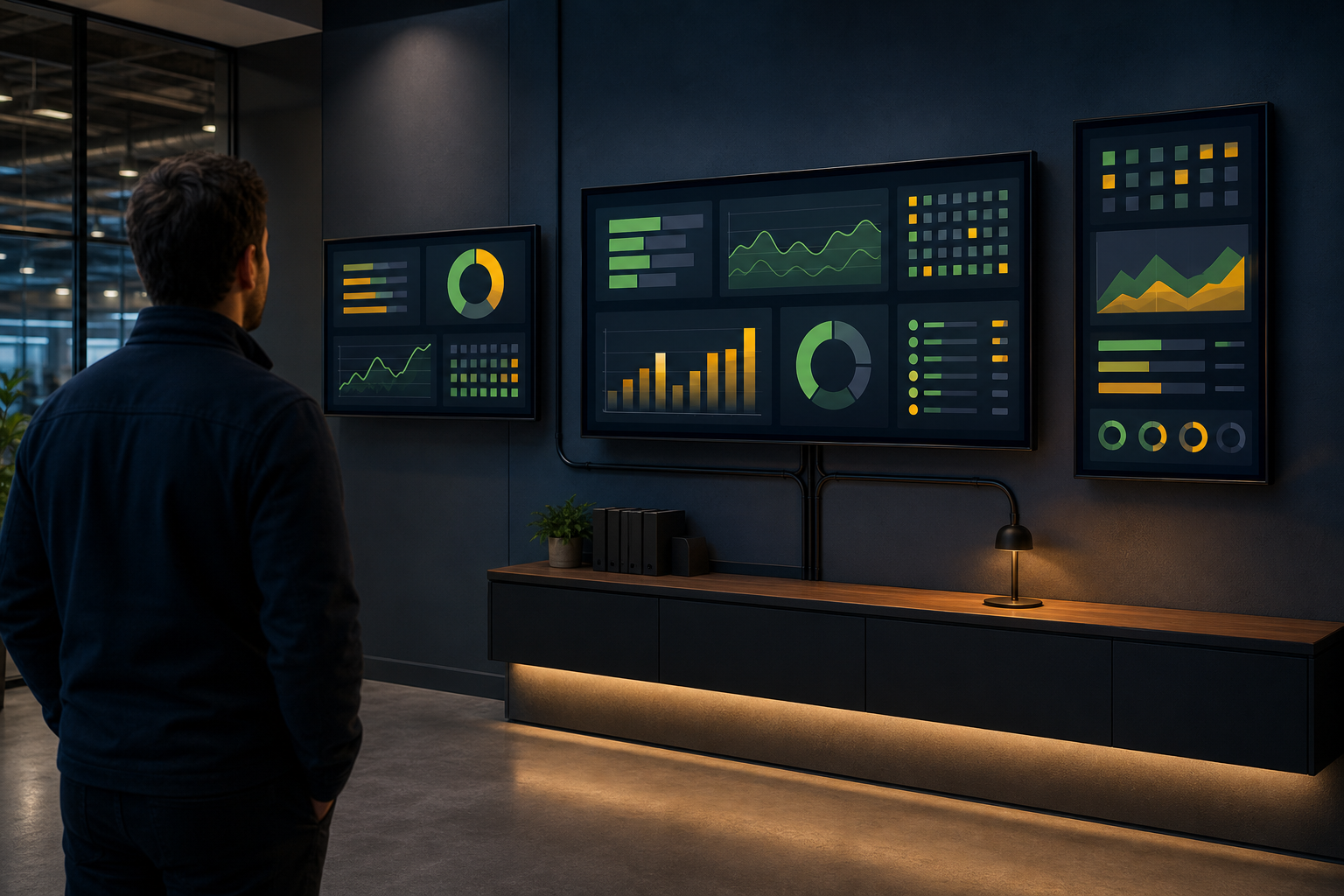
- Production-area screens showing work instructions, schedules, or operational metrics.
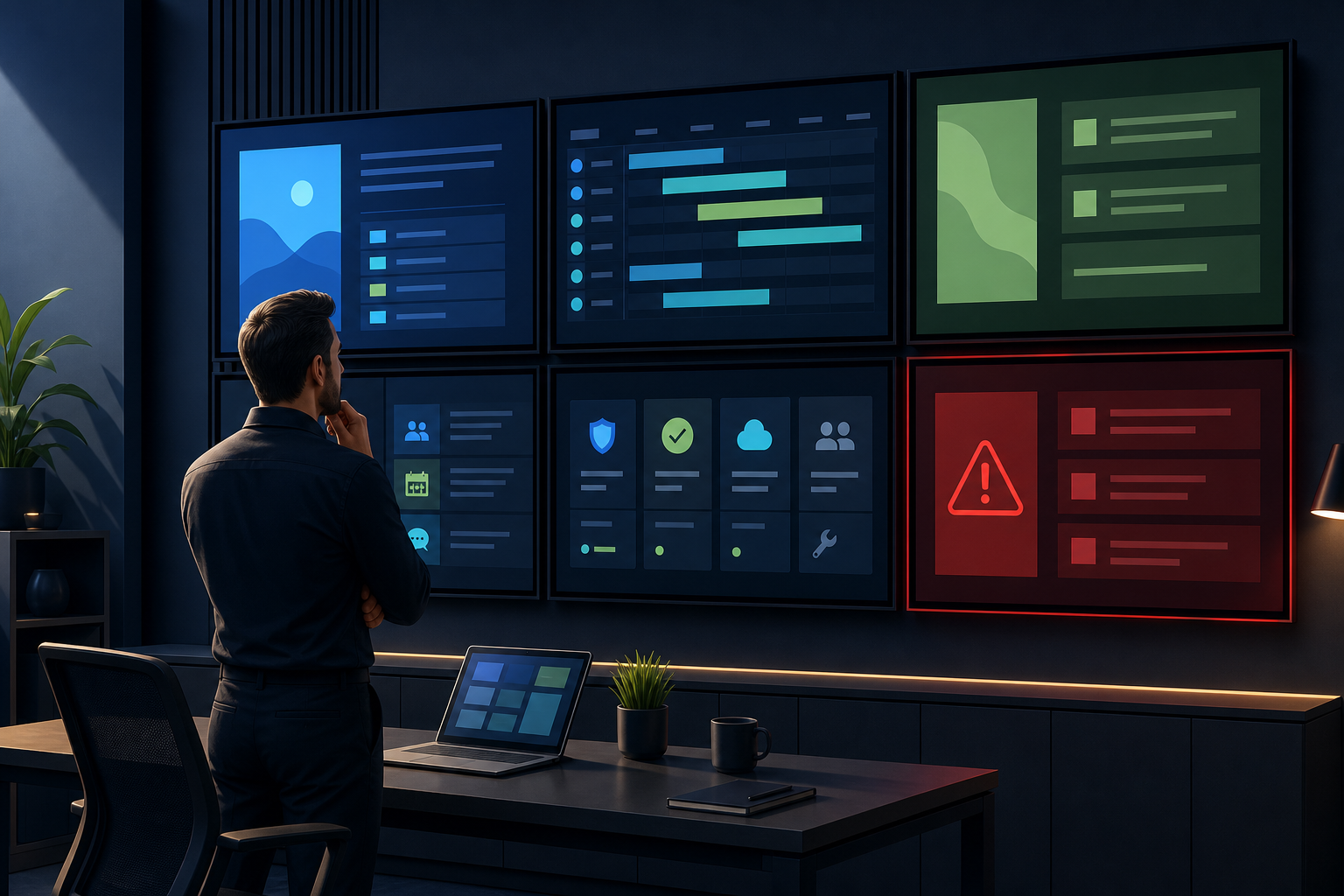
- A command center with several displays dedicated to different dashboards.
- Retail or hospitality locations using screens for menus, promotions, or service information.
- Distributed offices that need a shared announcement with local content for each site.
A multi-screen deployment does not always require synchronized playback. In many cases, the better approach is to let each screen or screen group show content appropriate to its location and audience.
Before choosing software or hardware, decide whether your screens need to show the same content, related content, or completely different content. That decision affects how you organize playlists, permissions, ownership, and support.
1. Create a screen inventory by location and audience#
Start with a simple inventory before installing anything. A screen name such as “TV 1” will not help someone troubleshoot it six months later. Use names that explain where the display is and what it is for.
A useful inventory can include:
| Field | Example | Why it matters |
|---|---|---|
| Screen name | Warehouse—Dispatch Board | Makes the display easy to identify |
| Location | Building A, loading area | Helps with physical support |
| Audience | Dispatch team and drivers | Guides content decisions |
| Purpose | Shipment status and priorities | Prevents unrelated content |
| Hardware or player | Display and connected device model | Supports troubleshooting |
| Network | Warehouse guest or operations network | Helps diagnose access issues |
| Owner | Operations manager | Establishes accountability |
| Backup contact | IT service desk | Provides an escalation path |
| Review date | Monthly | Encourages content maintenance |
Record whether the display is a remote display, a local screen, or part of a larger display wall. Also note viewing distance, screen orientation, operating hours, and any physical access restrictions.
Do not treat the inventory as a one-time spreadsheet. Update it whenever a display moves, changes purpose, or receives new equipment.
For the initial hardware and connection steps, use the relevant Variabl screen setup guide rather than assuming that every display and player combination behaves the same way.
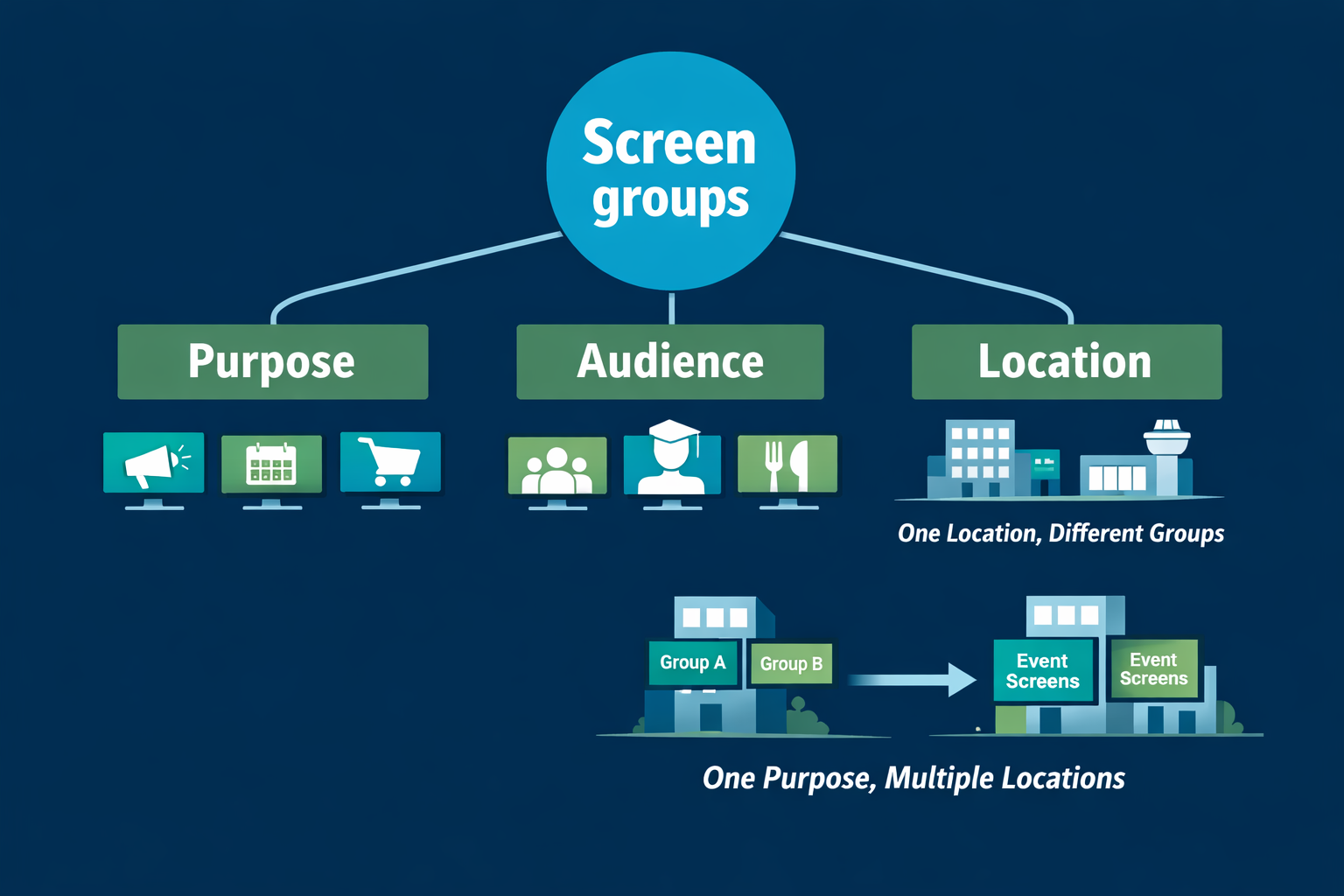
2. Group screens by purpose, not only by location#
Screen groups make a multi-screen deployment easier to manage. However, location alone is not always the best grouping method.
Useful grouping dimensions include:
- Purpose: reception, production, monitoring, training, or announcements.
- Audience: visitors, employees, supervisors, customers, or executives.
- Content policy: public information, internal information, or restricted operational data.
- Operating schedule: always-on, business hours, shift-based, or event-based.
- Location: building, floor, department, or region.
- Technical configuration: screens using the same player, browser, operating system, or network.
For example, three screens on different floors may belong to one “employee announcements” group. Two screens in the same room may need separate groups if one shows a live operations dashboard and the other shows general information.
A group should answer a practical question: “Which screens should receive the same change?” If the answer is unclear, the group is probably too broad or too narrow.
3. Decide what should be shared and what should be location-specific#
A common mistake in multi screen digital signage is trying to use one playlist everywhere. Shared content reduces duplicate work, but it can also make screens less relevant.
Use shared content when:
- The message applies to every location.
- The same brand or safety standard must appear everywhere.
- The content is intended for a broad audience.
- The update must be made once and distributed consistently.
Use location-specific content when:
- The information changes by site, department, or shift.
- The audience has different responsibilities.
- A dashboard contains local metrics or sensitive information.
- The display has a different viewing distance or physical orientation.
A practical structure is to combine both. For example, each screen may receive a shared announcement layer and a local playlist containing department-specific information. Whether a particular signage system supports this exact structure must be confirmed in its documentation before implementation.
Keep a written content policy for each group. It should state who can publish, what type of information belongs there, how often it should be reviewed, and what happens when content expires.
4. Plan playlists and rotation rules#
A playlist is an ordered collection of content items that a screen displays. It may contain web pages, dashboards, images, videos, announcements, or other supported sources.
When planning playlists, define:
- Which content is essential and should appear most often.
- Which content is supplemental.
- How long viewers need to understand each item.
- Whether the content has an expiration date.
- What should appear when a source is unavailable.
Avoid filling a playlist simply because space is available. If a viewer sees too many unrelated items in rotation, the display becomes background noise.
For dashboard-heavy screens, prioritize legibility over variety. A dashboard designed for a desktop monitor may be difficult to read from across a room. Review font size, contrast, chart density, and the amount of information visible without scrolling.
Variabl's existing guides for displaying dashboards on command-center screens and choosing monitors for dashboard displays can help with related planning decisions. Confirm the intended page layout and screen requirements before standardizing hardware.
5. Assign screen owners and escalation paths#
Every screen group should have an owner. Ownership does not necessarily mean that person performs technical support. It means they are responsible for deciding whether the content is correct and current.
Define at least three roles:
- Content owner: approves messages and removes outdated material.
- Technical owner: handles the player, display, network, and access issues.
- Escalation contact: decides what happens when the issue cannot be resolved quickly.
Write down the response for common incidents. For example:
- If a screen is blank, check power, input selection, player status, and network access.
- If content is outdated, contact the content owner before changing the playlist.
- If a dashboard is inaccessible, verify authentication, permissions, and whether the source itself is available.
- If only one screen fails, compare it with another screen in the same group before changing the entire deployment.
This separation prevents a technical fix from accidentally changing approved content or exposing information to the wrong audience.
6. Roll out one display group at a time#
A staged rollout is safer than configuring every display at once. Start with one representative group, preferably one that is important but not the most complex deployment.
Use this sequence:
- Confirm the inventory and screen names.
- Install or configure the player and display.
- Verify network access and authentication requirements.
- Publish a small, approved content set.
- Check readability from the normal viewing position.
- Observe the screen during its intended operating hours.
- Record problems and update the deployment checklist.
- Apply the refined process to the next group.
Include at least one screen with the most common hardware and one with a less common configuration. This can reveal compatibility or access problems before they affect the full signage system.
If your organization uses Windows devices for signage, review the Windows digital signage guide as part of the platform-specific planning process. The exact setup still depends on the device, operating system configuration, browser, network, and content source.
7. Check readability, access, and power settings#
A screen can be technically online and still fail its purpose. During acceptance testing, check the experience from the audience's normal position.
Review:
- Text size and contrast.
- Whether important information is below the fold or requires scrolling.
- Landscape or portrait orientation.
- Browser zoom and display scaling.
- Screen sleep, power, and automatic restart settings.
- Network access to every required content source.
- Authentication behavior for protected dashboards.
- Time zones and clock settings where schedules are used.
- Physical brightness and glare.
Do not assume that a page that looks correct on a laptop will work well on a wall-mounted or remotely located screen. Test the actual display and player combination.
8. Monitor stale content and playback failures#
Operational checks should cover both content and equipment. A screen may be powered on while showing an old page, an expired announcement, or an authentication error.
Create a regular review process for:
- Blank screens and incorrect input sources.
- Expired announcements or promotions.
- Pages stuck on a loading state.
- Authentication prompts.
- Unexpected scrolling or layout changes.
- Screens that are offline or unreachable.
- Content that no longer matches the screen's audience.
The precise monitoring, status, alerting, synchronization, and recovery features available in a signage platform vary by product and configuration. Confirm those capabilities in the current product documentation before promising automatic detection or recovery to stakeholders.
A simple operational record can still help when automation is limited. Note the screen, symptom, time observed, likely cause, action taken, and person responsible for follow-up.
9. Scale without creating duplicate work#
The best multi-screen deployments make routine changes once whenever possible. Use naming conventions, reusable content templates, clear groups, and documented ownership.
Before adding another display, ask:
- Does it belong to an existing group?
- Does it need the same content or a local variation?
- Who owns its content?
- Is its hardware and network configuration documented?
- How will someone know if it becomes stale or unavailable?
- Does the new screen introduce a different privacy or access requirement?
Avoid creating a new playlist for every screen unless the content truly differs. At the same time, do not force unrelated screens into one group just to reduce the number of playlists. The right structure minimizes both duplication and accidental over-sharing.
A practical multi-screen deployment checklist#
Before considering a deployment complete, confirm that:
- Every display has a meaningful name and recorded location.
- Each screen belongs to an intentional group.
- The audience and purpose are documented.
- Shared and local content rules are clear.
- Content owners and technical contacts are assigned.
- Hardware, network, and authentication details are recorded.
- Readability has been checked at the normal viewing distance.
- Power, sleep, orientation, and scaling settings are appropriate.
- A process exists for stale content and failed playback.
- The rollout was tested on representative equipment.
- Product-specific monitoring and recovery claims have been verified.
Frequently Asked Questions#
What is the best way to organize digital signage across multiple displays?#
Create groups based on the change you expect to make together. Purpose, audience, location, schedule, and technical configuration can all be useful grouping criteria. Avoid grouping screens only because they are physically close.
Should every screen show the same content?#
No. Shared content is useful for organization-wide messages, but local playlists are usually better for department-specific dashboards, schedules, or instructions. Combine shared and local content when your signage system supports the required structure.
Can remote displays show different dashboards?#
They may be able to, depending on the signage platform, player configuration, permissions, and source applications. Confirm support for per-screen content, authentication, and remote administration before designing the deployment around those capabilities.
How do I troubleshoot one failed display without disrupting the others?#
Compare the failed screen with another screen in the same group. Check power, input selection, player status, network access, authentication, and the content source. If only one screen is affected, avoid changing the group-wide playlist until the local cause is understood.
How often should a multi-screen signage system be reviewed?#
Review operational status and content freshness on a schedule appropriate to the use case. Screens showing frequently changing operational information may need daily checks, while stable informational screens may need less frequent review. Assign an owner so the review does not become nobody's responsibility.
A multi-screen deployment is manageable when the screens are treated as an organized service rather than a collection of televisions. Start with an inventory, create useful groups, separate shared content from local information, assign owners, and expand in controlled stages. Then document the product capabilities you actually rely on and review the system as part of normal operations.