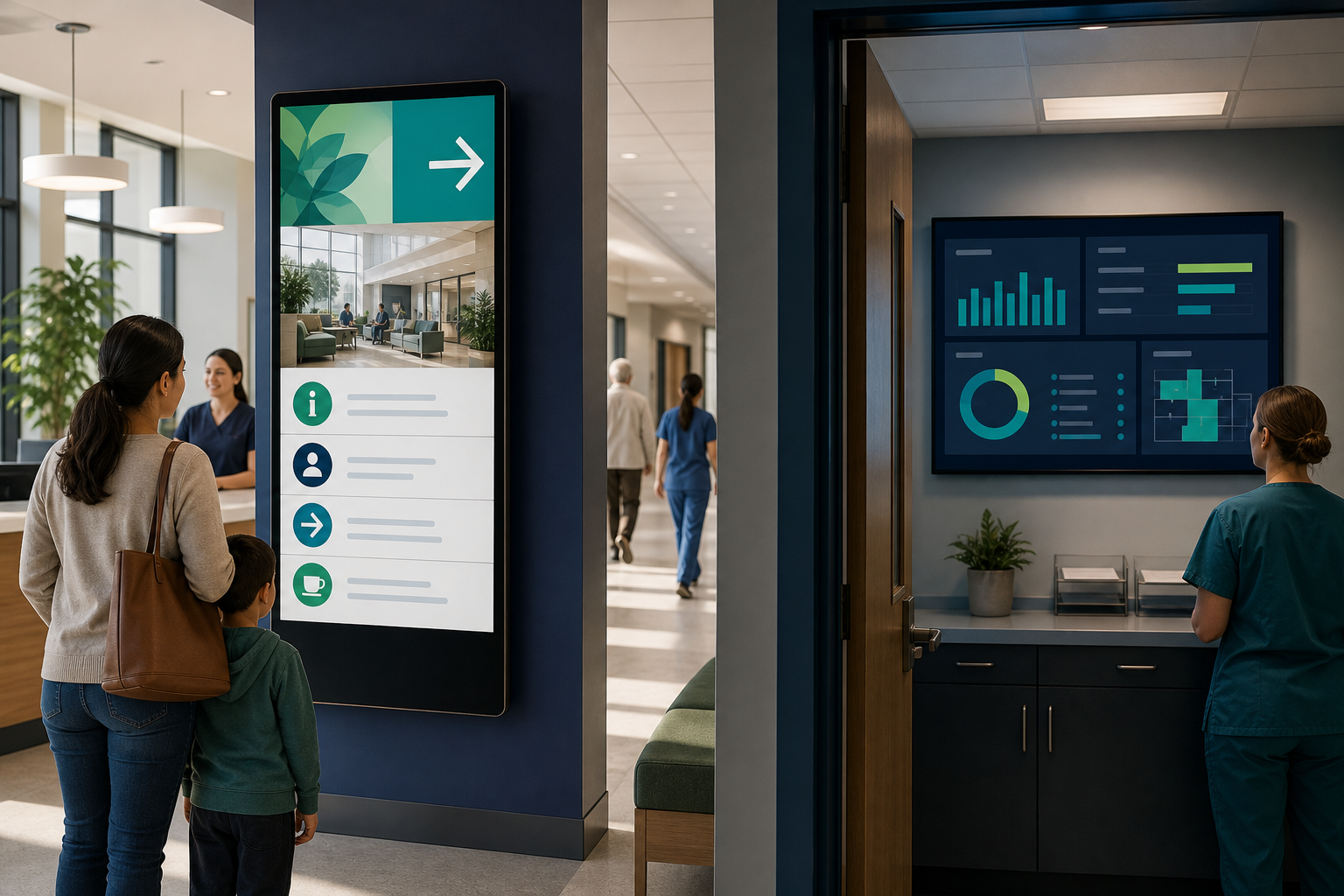
A hospital screen has to do more than fill an empty wall. It may help a visitor find the right department, give staff a timely operational update, or display a queue, announcement, or dashboard. But the wrong content in the wrong location can create confusion, expose sensitive information, or become background noise.
Digital signage for hospitals works best when each screen has a defined audience, a limited purpose, and an accountable owner. Before choosing hardware or publishing content, decide who will see the screen, what they need to know, and how the information will be reviewed and removed.
This guide explains how to plan healthcare digital signage for patient-facing, visitor-facing, and staff-facing environments.
What is healthcare digital signage used for?#
Healthcare digital signage is the use of managed screens to show visual information in hospitals, clinics, medical offices, and other care environments. The content might include announcements, wayfinding instructions, educational material, service information, schedules, or operational dashboards.
Common goals include:
- Helping visitors understand where to go.
- Sharing general announcements in waiting areas.
- Showing department or facility information.
- Supporting staff communication in controlled areas.
- Displaying operational dashboards to authorized teams.
- Reinforcing general health, safety, or facility guidance.
- Reducing reliance on printed notices that become outdated.
A screen is not automatically appropriate for every message. Patient-specific information, clinical information, credentials, or other sensitive data require a separate review before they are displayed. Digital signage should complement approved communication and clinical systems, not replace them.
Start by separating hospital audiences#
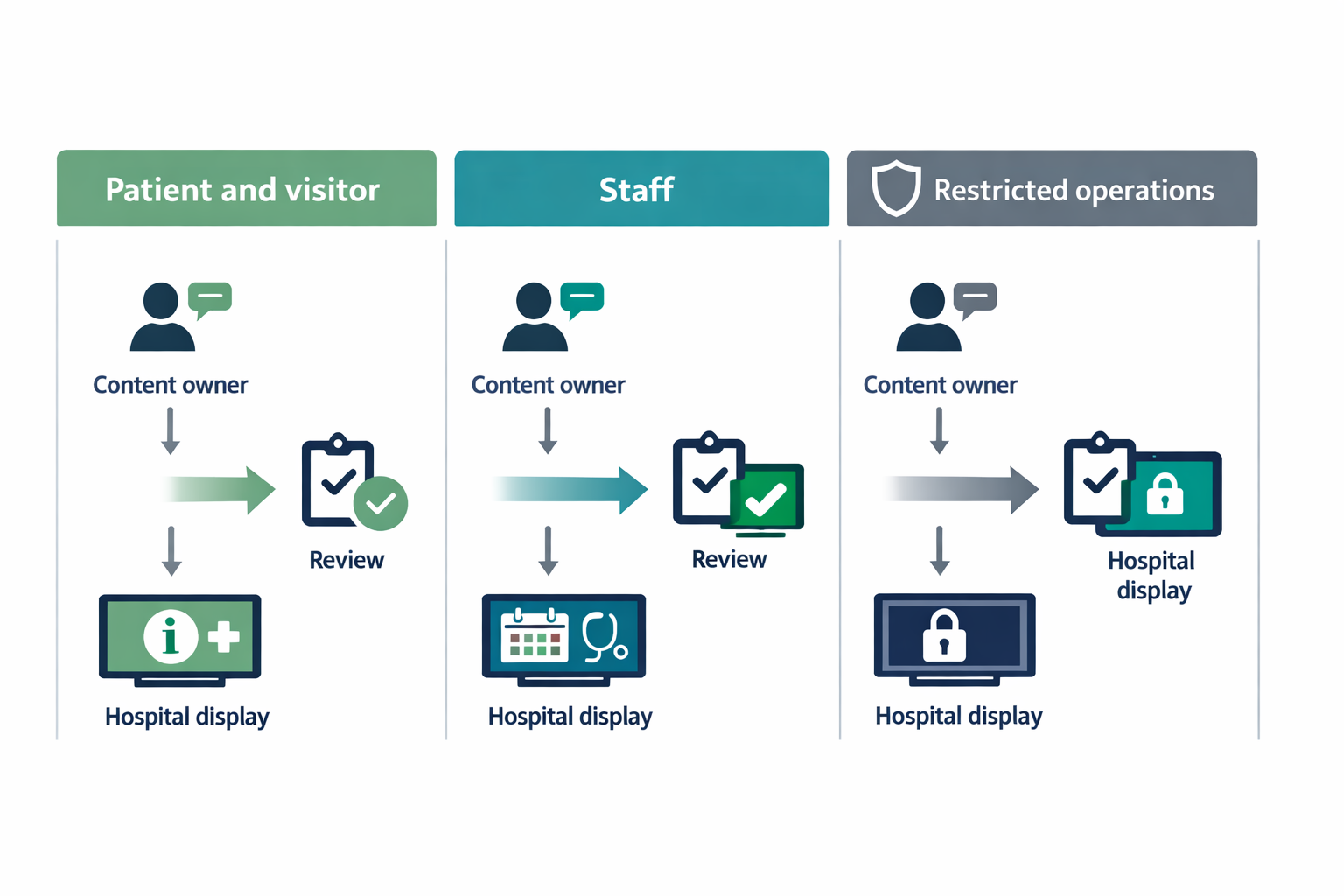
One of the most important planning decisions is whether a screen is intended for patients and visitors or for staff. These audiences have different information needs and different privacy risks.
| Audience | Suitable content examples | Planning considerations |
|---|---|---|
| Patients and visitors | General announcements, facility directions, department names, visiting information, educational content | Use plain language, strong contrast, and no identifiable personal information |
| Staff in shared areas | General operational notices, team reminders, service updates, non-sensitive metrics | Confirm that the information is appropriate for everyone who can see the screen |
| Authorized staff in restricted areas | Operational dashboards, workflow indicators, service-level information | Control physical access, screen visibility, and account permissions |
| Contractors or public-facing areas | Facility notices, safety instructions, opening hours, general logistics | Avoid internal details that are not intended for public viewing |
Do not assume that a screen in a staff area is private. Visitors, vendors, patients, or employees from other departments may still be able to see it. Treat visibility as part of the security review.
Choose locations according to the job of the screen#
The best screen location depends on what the audience should do with the information.
Entrances and reception areas#
These screens can support general orientation and reduce avoidable questions at the front desk. Consider content such as:
- Department names and general directions.
- Facility hours and service information.
- General visitor guidance.
- Non-sensitive announcements.
Avoid treating a general welcome screen as a substitute for accessible, human assistance. Visitors may have limited vision, limited English proficiency, mobility needs, or an urgent reason for being in the building.
Waiting areas#
Waiting-room content should be calm, readable, and easy to understand from a distance. General education and facility information may be appropriate, but avoid showing information that could identify a patient or imply a patient's status.
A rotating playlist can be useful, but only if each item remains on screen long enough to be read. Rapid transitions may make the display look active while making the information less usable.
Staff areas#
Screens in staff-only areas may support team coordination, but they still need ownership and review. A dashboard that is useful during a morning handoff may be distracting or misleading later in the day if its data is stale.
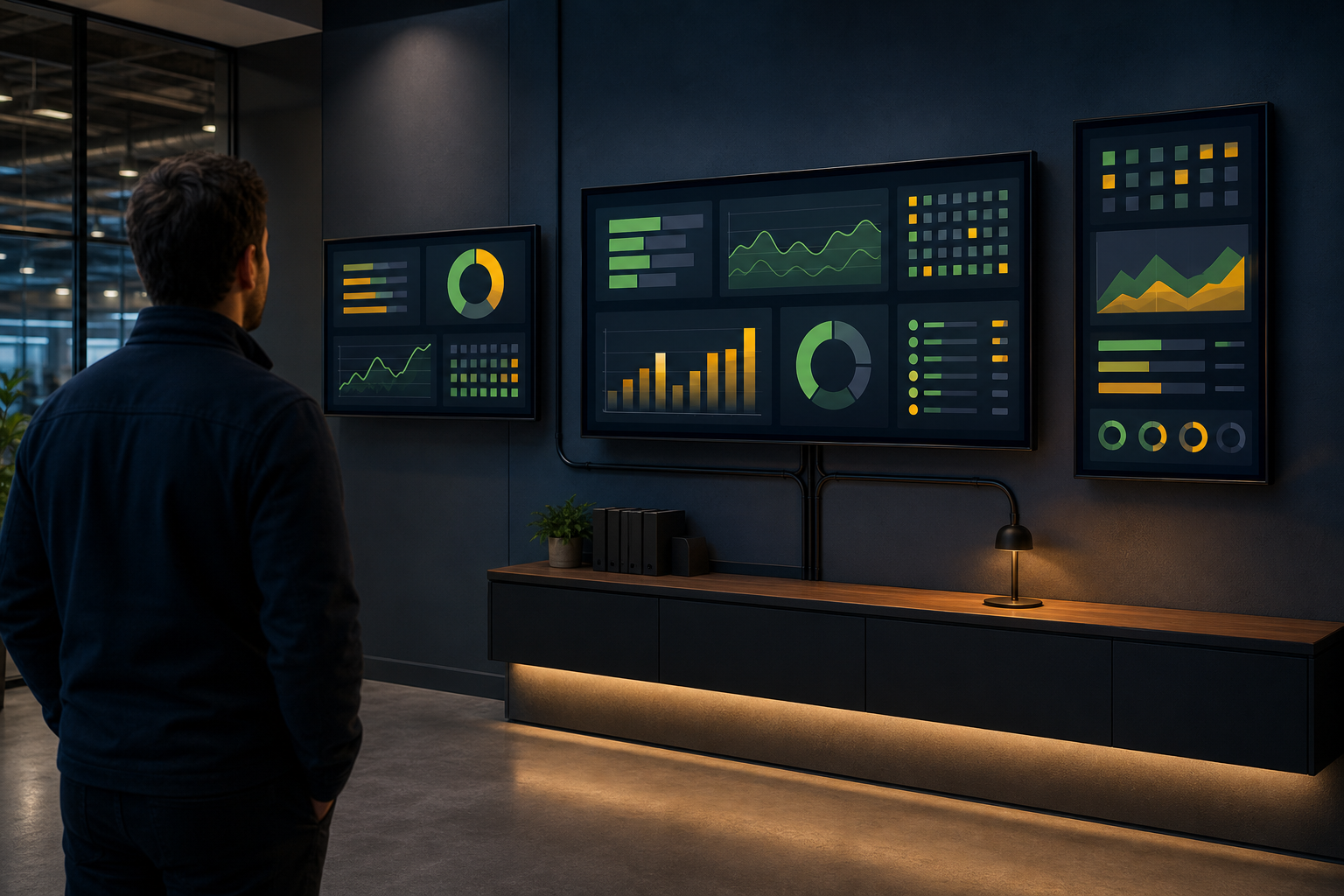
For readers planning operational or monitoring displays, Variabl's guide to command-center dashboard displays may provide useful context for thinking about screen purpose, layout, and monitoring workflows.
Clinical or restricted areas#
A screen in a restricted area is not automatically safe for sensitive information. Before using one, determine:
- Who can physically see the screen.
- Whether the screen can be photographed or viewed from a doorway.
- Whether the device is shared by multiple users.
- How the content is authenticated.
- What happens if the device is lost, moved, or left unattended.
If the information is patient-specific or otherwise sensitive, involve the hospital's privacy, security, and compliance teams before deployment.
Plan content by risk and usefulness#
A simple content inventory can prevent a general announcement, a staff notice, and a sensitive dashboard from being managed as though they were the same thing.
For each proposed item, record:
- Audience: Who is expected to see it?
- Purpose: What should the viewer understand or do?
- Source: Where does the information come from?
- Owner: Who is responsible for its accuracy?
- Review date: When must it be checked?
- Expiry date: When should it disappear automatically or be removed?
- Sensitivity: Could the content identify a person, reveal restricted operations, or expose credentials?
- Fallback: What should appear if the source is unavailable?
For example, a visitor announcement might have a facilities owner and a short expiry date. A staff dashboard might have an operations owner and a documented escalation process. A patient-specific display should not be treated as ordinary signage simply because it appears on a television.
Use dashboards carefully on hospital screens#
Dashboards can make operational information visible to a team, but visibility is not the same as understanding. Before placing a dashboard on a dedicated screen, ask:
- Is the data updated frequently enough for the decision being made?
- Does the viewer know what action to take when a value changes?
- Are labels and units clear from the viewing distance?
- Does the screen show more information than the audience needs?
- Could the display reveal personal or restricted information?
- Is there a documented response when the data is delayed or unavailable?
A dashboard should not be displayed merely because it fits on a screen. If nobody owns the response, the display may become decorative rather than operational.
Variabl can be relevant when a team needs to display web pages or dashboards on dedicated screens, but the exact hospital workflow, authentication method, and content source should be verified before making a deployment commitment. For general examples of displaying web content, see the guide to adding a web URL in Variabl digital signage.
Resolve privacy and authentication questions before deployment#
Privacy should be designed into the screen plan rather than handled after the first display is installed. The appropriate requirements depend on the organization, location, content, and applicable rules.
Create a review checklist that covers:
- Whether any displayed information can identify a patient, employee, or visitor.
- Whether the screen is visible from public areas, windows, doors, or cameras.
- Whether dashboards require sign-in or another access control.
- Whether credentials could appear in URLs, browser bars, notifications, or screen content.
- Whether the display device can be used for unrelated browsing.
- Whether local storage, browser sessions, or cached content need to be cleared.
- Who can publish, edit, pause, or remove content.
- What happens when an employee changes role or leaves the organization.
- How lost, stolen, or repurposed devices are handled.
Do not display usernames, passwords, access tokens, patient identifiers, appointment details, or clinical notes on a general-purpose signage screen. If a dashboard cannot be safely shown without exposing sensitive information, use a redacted view, a controlled workstation, or another approved channel instead.
Make hospital signage readable and accessible#
A screen may be technically online and still fail its audience. Review the display from the actual viewing distance and under the lighting conditions where it will be used.
Check for:
- Sufficient text size and contrast.
- Short sentences and familiar terminology.
- Captions or text alternatives for audio and video.
- Color choices that do not rely on color alone.
- Content that remains visible long enough to read.
- Clear directional language and recognizable symbols.
- A non-screen alternative when the information is important.
- A way to request assistance or report confusing information.
Accessibility is not only a design preference. In a hospital, people may be tired, stressed, visually impaired, unfamiliar with the building, or using a mobility aid. A message that is easy to read in an office may be difficult to use in a busy corridor.
Assign ownership and content expiry#
Healthcare digital signage needs an operating model, not only a playlist. Define responsibilities before launch:
- Content owner: approves what may be published.
- Subject-matter owner: confirms that the information is accurate.
- Technical owner: manages devices, connectivity, and access.
- Privacy or security reviewer: evaluates sensitive workflows.
- Escalation contact: responds when a display is wrong, offline, or showing stale data.
Every time-sensitive item should have a review or expiry date. This is especially important for temporary closures, visiting guidance, construction notices, service interruptions, and emergency-related messages.
A useful rule is: if nobody can name the person responsible for removing a message, it is not ready to publish.
Plan a small pilot before expanding#
A pilot can reveal problems that are difficult to identify in a planning document. Choose one screen, one audience, and one clearly defined purpose.
A practical pilot process#
- Select a low-risk location. Start with general information rather than sensitive operational data.
- Document the audience and purpose. Write down what a viewer should learn or do.
- Prepare a small content set. Include only approved items with owners and expiry dates.
- Check the physical environment. Review viewing angles, brightness, sound, glare, accessibility, and nearby privacy risks.
- Test the operational workflow. Confirm who publishes, reviews, pauses, and removes content.
- Observe real use. Ask whether people can read and act on the information without additional explanation.
- Record failure cases. Note what happens during network interruptions, source outages, expired content, or device restarts.
- Decide whether to adjust, expand, or stop. Use the findings rather than assuming that more screens will solve the problem.
Useful pilot measures may include content-expiry compliance, reported confusion, support requests, display uptime, and whether staff can complete the publishing workflow without unnecessary effort. Avoid measuring success only by how attractive the screen looks.
Teams evaluating the device setup itself can also review Variabl's screen setup guide, while confirming that the documented workflow matches the hospital's security and IT requirements.
Common mistakes to avoid#
Treating every screen as public information#
A staff dashboard may contain information that is inappropriate for patients, visitors, or contractors. Separate audiences and use physical placement as part of the control.
Publishing without an expiry process#
Old announcements reduce trust and can cause people to follow instructions that are no longer correct. Assign an owner and removal date to every temporary item.
Using color as the only warning signal#
A red or green indicator may not be enough for people with color-vision differences or for viewers in poor lighting. Pair color with text, icons, or clear status labels.
Assuming a dashboard is safe because it is already online#
A web dashboard can still expose personal information, browser notifications, account details, or restricted operational data. Review the actual view that will appear on the screen.
Expanding before the workflow is stable#
More screens multiply the consequences of incorrect content and unclear ownership. Prove the publishing, review, and support process with a small pilot first.
Frequently asked questions#
What is digital signage for hospitals used for?#
It can be used for general announcements, wayfinding, visitor information, education, staff communication, and selected operational dashboards. The content should match the audience, location, privacy requirements, and available ownership process.
Can hospitals display dashboards on digital signage screens?#
Yes, a dashboard may be suitable for a controlled staff or operations area, but it should be reviewed for sensitive information, viewing access, readability, data freshness, authentication, and response ownership before deployment.
Should patient-facing and staff-facing signage use the same content?#
Usually not. Patient and visitor screens should focus on general, accessible information. Staff screens may show internal operational content, but only when the information is appropriate for everyone who can view the display.
How can hospitals protect privacy on digital signage?#
Start by excluding identifiable or sensitive information from general-purpose screens. Review physical visibility, account access, browser behavior, device management, publishing permissions, and content expiry with the organization's privacy and security teams.
What should a hospital test during a signage pilot?#
Test readability, placement, accessibility, content approval, expiry, device recovery, network or source outages, user permissions, and the support process. Also confirm that viewers understand what action the information is intended to prompt.
A practical next step#
Before purchasing screens, create a one-page plan for the first display. Name the audience, location, purpose, content owner, technical owner, review schedule, privacy checks, and fallback message. If those answers are clear, a small pilot can test whether healthcare digital signage is genuinely useful in that setting. If they are not clear, more hardware will not solve the underlying problem.