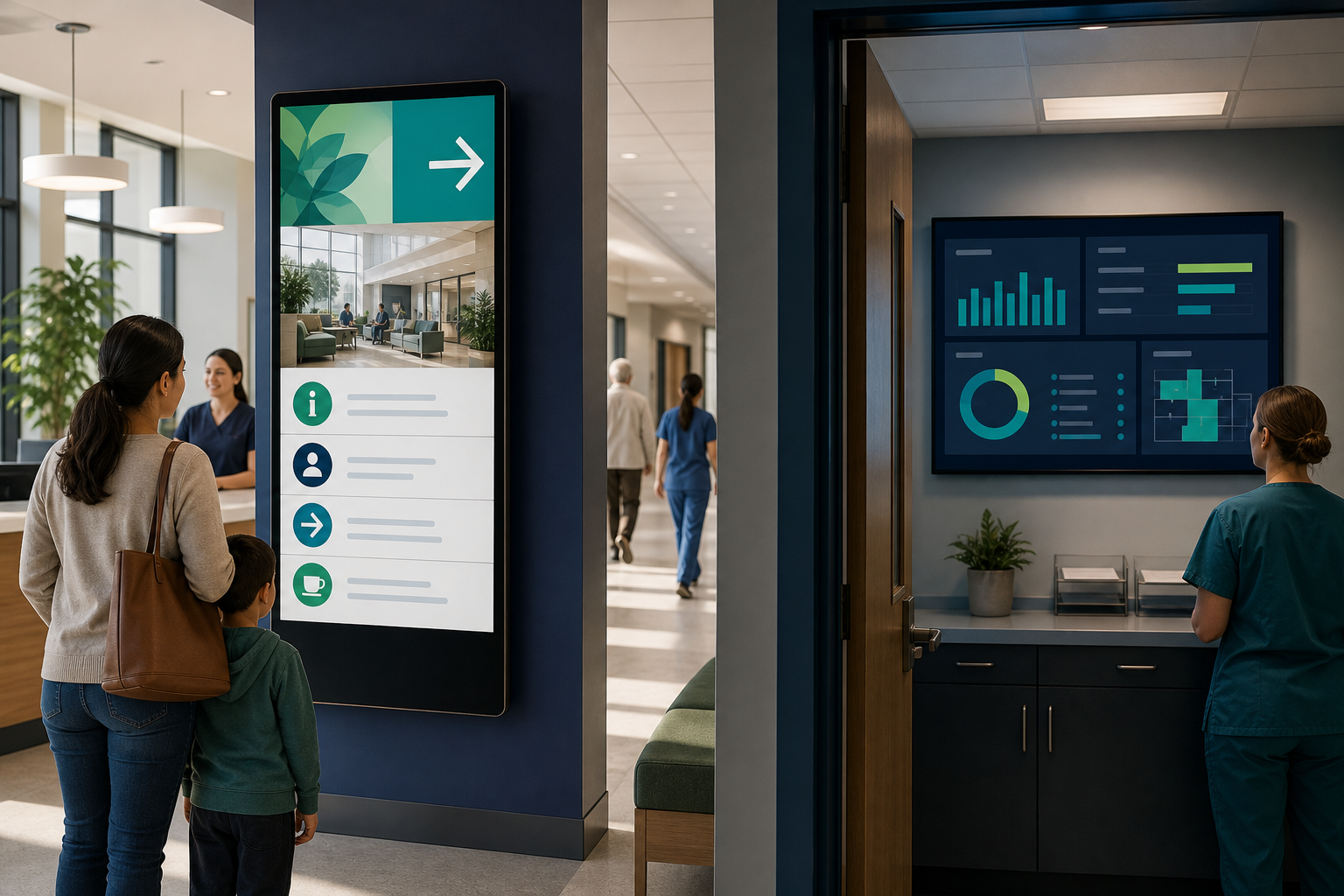
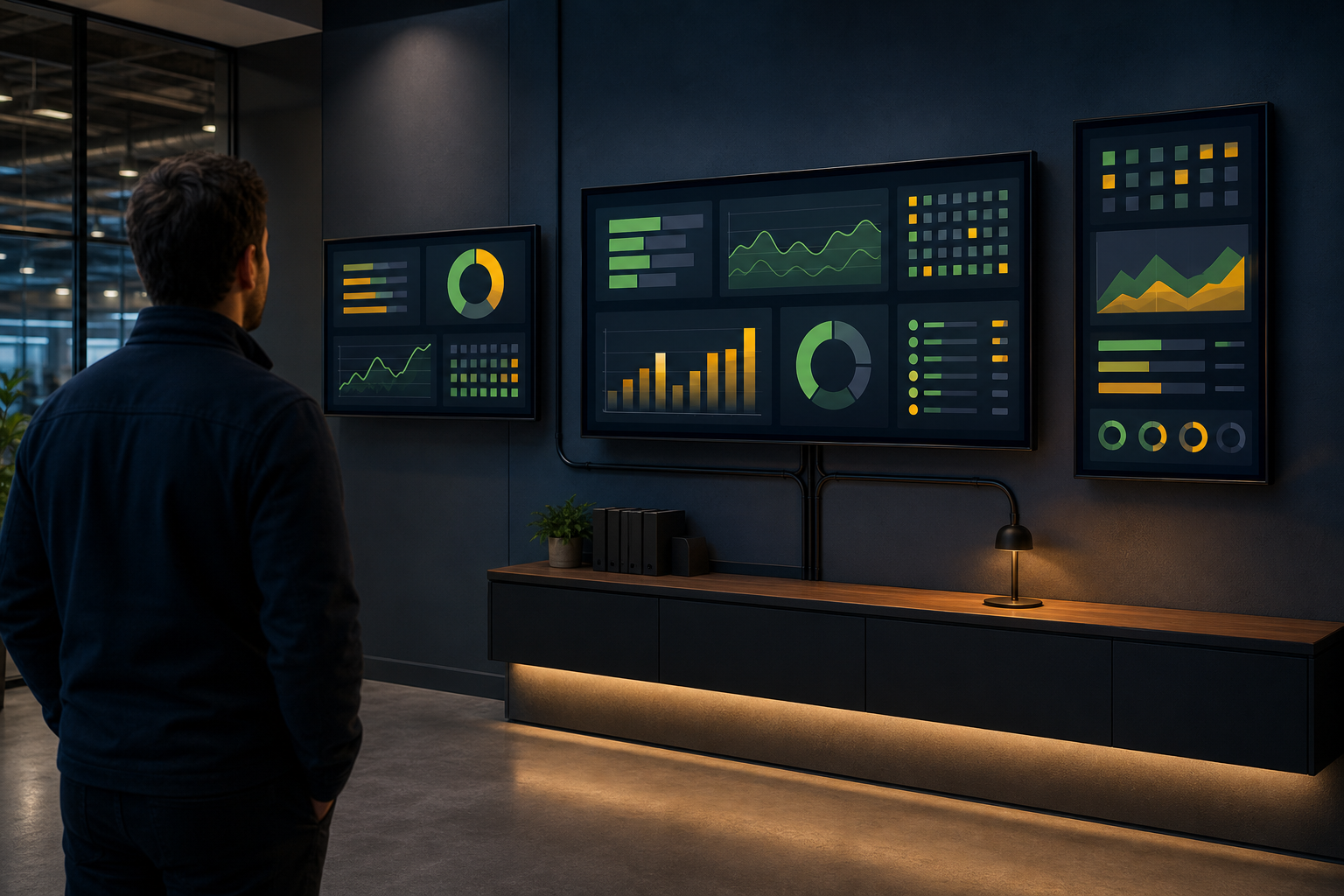
A monitor that works well on a desk may be a poor choice for a shared dashboard or digital signage screen. The right display depends on more than resolution: you also need to consider viewing distance, screen layout, ambient light, orientation, operating hours, ports, and how the screen will be mounted.
The simplest approach is to choose the display around the audience and the content. For a nearby single-user dashboard, a compact 21.5-inch or 22-inch monitor may be enough. For a shared display viewed across a room, a larger screen with better brightness, wider viewing angles, and an appropriate mounting position is usually more useful. If your content is tall rather than wide, choose a display and mount that support portrait orientation instead of assuming any monitor can safely rotate.
This guide explains the main monitor types and gives you a practical way to choose one for a dedicated screen running dashboards, web pages, or signage content.
What makes a monitor suitable for a dedicated dashboard or signage screen?#
A suitable monitor should make the content readable from the intended viewing distance and remain practical to operate in its final location. Before comparing brands, define these requirements:
- What will be displayed? A table-heavy dashboard, a web application, announcements, video, and status tiles have different layout needs.
- How far away will viewers stand or sit? A small screen can work at a desk but become difficult to read across a room.
- Will people view it from the side? Shared spaces benefit from stable image quality across wider viewing angles.
- How bright is the room? Window light and overhead lighting can make a glossy screen difficult to read.
- How long will it run each day? Operating hours affect the importance of thermal design, warranty terms, power use, and manufacturer suitability guidance.
- How will it be mounted? Check the stand, wall-mount pattern, clearance, ventilation, and cable routing before purchase.
A monitor is only one part of the system. You also need a player or computer, a reliable network where the content requires one, power, and software for presenting the selected content. Variabl's Windows digital signage guide can provide useful context when planning the computer and signage side of the setup.
Choose monitor size based on viewing distance and layout#
Screen size is measured diagonally, so a 22-inch monitor is not 22 inches wide. The usable width and height also depend on the aspect ratio and bezel design. Two screens with the same diagonal size can provide slightly different working areas.
Use this planning method rather than choosing a size from the keyword alone:
- Measure the available wall, desk, counter, or enclosure space. Include room for cables, airflow, and the mounting hardware.
- Identify the smallest text viewers must read. A dashboard with dense tables needs more usable area than a screen showing a few large status indicators.
- Estimate the normal viewing distance. Consider the furthest regular viewer, not only the person standing directly in front of the screen.
- Test the layout at the intended scale if possible. A dashboard that looks comfortable on a laptop may be too dense when displayed across a room.
- Choose the next practical size if the layout is crowded. Increasing screen size can improve readability, but only if the content layout also uses the available space well.
When is a 21.5-inch or 22-inch monitor useful?#
A 21.5-inch monitor or 22-inch monitor can be a sensible choice when:
- The viewer is relatively close to the display.
- The screen shows a focused dashboard rather than many small panels.
- Space is limited, such as at a reception desk, workstation, or small operations area.
- You plan to use several compact displays side by side.
- The display needs to fit a standard desk or small wall mount.
A compact display may be less suitable when the screen is mounted high, viewed from several metres away, or expected to show detailed text to a group of people. In those cases, consider a larger display or simplify the dashboard before buying more hardware.
Standard landscape versus portrait orientation#
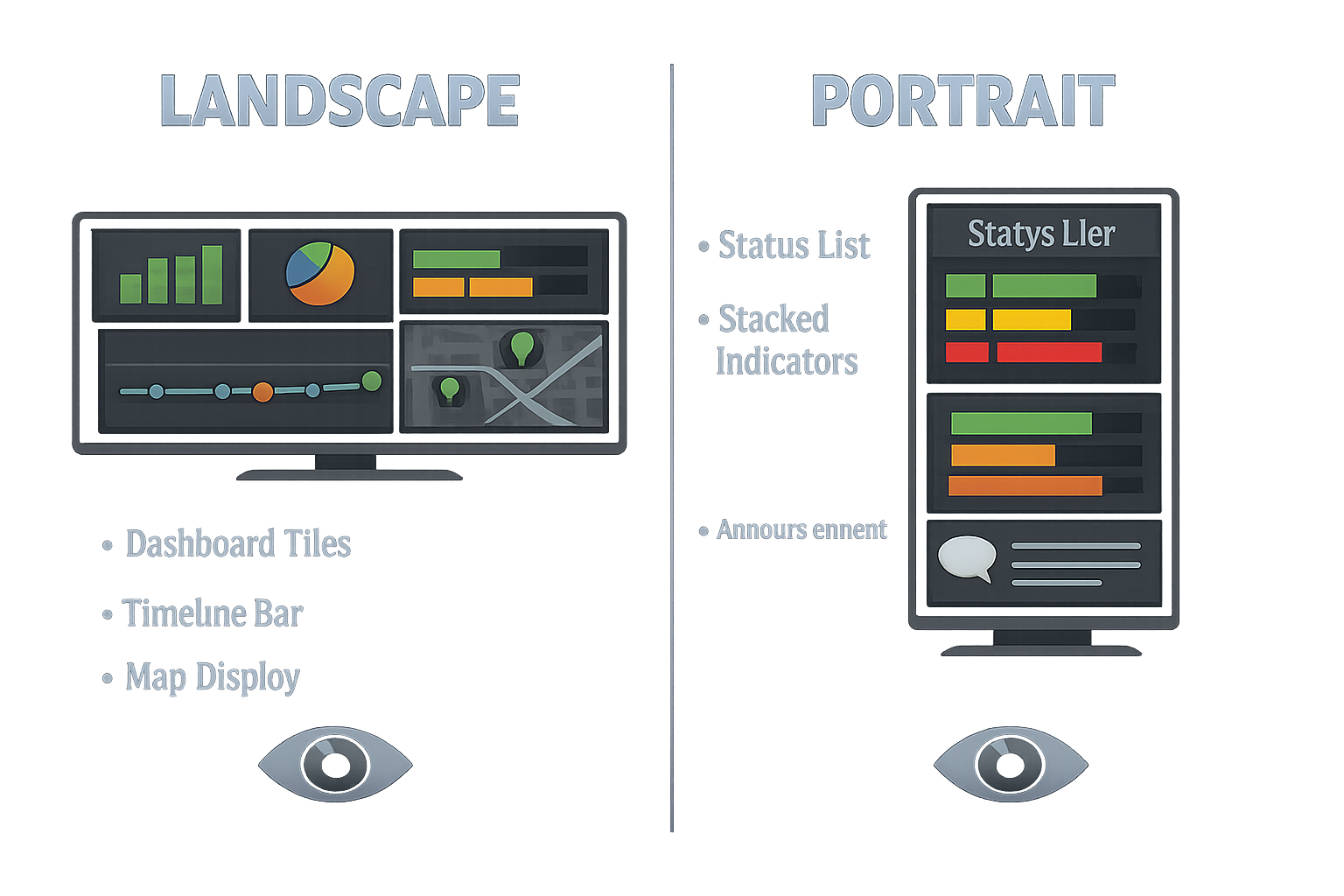
Most monitors are designed to be used in landscape mode, with the longer edge horizontal. Portrait mode rotates the screen so the longer edge is vertical. This can work well for content such as:
- Long web pages or status lists.
- Tall announcement layouts.
- Narrow dashboards with vertically stacked indicators.
- Queue, schedule, or checklist displays.
- Content designed for a phone-like or poster-shaped composition.
A portrait mode monitor is not automatically better for every dashboard. Wide tables, timelines, maps, and multi-column analytics usually benefit from landscape orientation. The orientation should follow the shape of the content and the way people will scan it.
How to choose a monitor for portrait mode#
Check all of the following before planning a computer monitor portrait mode setup:
- Physical rotation: The stand or mount must support rotation, or the display must be mounted with suitable hardware.
- VESA compatibility: Confirm that the monitor's mounting pattern matches the intended arm or wall mount.
- Cable clearance: Rotating a display can place strain on HDMI, DisplayPort, USB, or power cables.
- Operating-system support: The computer or player must be able to rotate the output. Verify this for the operating system and hardware you plan to use.
- Menu orientation: Some monitors rotate their on-screen menus; others do not. This usually affects setup and maintenance rather than the displayed content.
- Ventilation: Do not block vents when a display is rotated or enclosed.
- Content layout: A rotated screen may still show a landscape webpage unless the content or display output is configured for portrait use.
Searches for a vertical monitor for coding reflect a common use case for tall screens, but the same physical arrangement is not automatically ideal for signage. Coding often benefits from long vertical text; a public dashboard may need larger type, fewer columns, and more visual spacing.
Monitor types and image characteristics to compare#
The phrase “monitor types” can refer to several different things. For a signage or dashboard project, separate the physical panel technology from the features that affect day-to-day readability.
| Feature to compare | Why it matters for signage and dashboards | What to check |
|---|---|---|
| Panel technology | Affects viewing angles, contrast, color, and motion appearance | Manufacturer specifications and the intended viewing position |
| Resolution | Determines how much content can fit and how sharp text appears | Match the resolution to the player, content, and screen size |
| Brightness | Helps content remain visible in bright rooms | Compare manufacturer brightness specifications with the actual room lighting |
| Surface finish | Reflections can obscure small text and status indicators | Prefer a finish appropriate for windows, overhead lights, and viewing angles |
| Viewing angles | Important when people view the display from the side | Check whether colors and contrast remain acceptable off-axis |
| Refresh and response characteristics | More relevant for video and animated content than static dashboards | Consider the motion content you will display |
| Duty-cycle guidance | May matter when a screen runs for long periods | Review the manufacturer's intended-use and warranty information |
Do not choose a panel solely because it has the highest resolution or refresh rate. For a mostly static dashboard, glare, viewing angle, text size, and reliable mounting may matter more than gaming-oriented specifications.
Brightness, glare, and shared spaces#
A display can have a sharp image and still be hard to read if light reflects directly into the viewer's eyes. Before purchasing, look at the screen location at different times of day. Note direct sunlight, bright windows, ceiling lights, and reflections from polished surfaces.
Practical improvements include:
- Repositioning the screen so it does not face a window directly.
- Choosing a less reflective screen surface when appropriate.
- Increasing text size and contrast in the dashboard.
- Using a display with brightness suitable for the room rather than assuming maximum brightness is always better.
- Adding shade or controlling nearby lighting where possible.
Very bright displays can also be uncomfortable in a dim room. The goal is readable, stable content—not the brightest specification on the product page.
Connectivity and player compatibility#
List the equipment that will drive the screen before selecting the monitor. At minimum, check the available video output and input connections. Common possibilities include HDMI and DisplayPort, but the exact ports vary by device and monitor.
Also confirm:
- The player can output the monitor's selected resolution and refresh rate.
- The required cable length is practical for the installation.
- Audio is needed, and if so, where it will be produced.
- The player can remain accessible for updates and troubleshooting.
- The monitor resumes correctly after power interruptions if the installation requires unattended operation.
- The chosen software and operating system support the required orientation and fullscreen behavior.
For setup planning, Variabl's screen setup help page is a relevant next step. If the project is part of a larger operations room, the command-center dashboard display guide can also help connect screen selection with layout and monitoring requirements.
When a regular monitor may not be the right display#
A standard computer monitor can be appropriate for an office dashboard, reception screen, or small signage installation. It may not be the best choice for every environment, however.
Consider a commercial or purpose-built display when you need requirements such as:
- Extended operating schedules covered by the manufacturer.
- Higher brightness for a difficult lighting environment.
- Built-in scheduling or remote-management features.
- A larger format for group viewing.
- Protection from dust, heat, moisture, or accidental contact.
- A mounting system designed for public or semi-public spaces.
The correct choice depends on the installation, warranty, maintenance plan, and budget. Avoid assuming that a consumer monitor is unsuitable—or that a commercial display is automatically necessary—without defining those requirements first.
A practical pre-purchase checklist#
Before ordering a display, confirm:
- The screen size fits the space and viewing distance.
- The dashboard or signage layout is readable at the intended distance.
- Landscape or portrait orientation matches the content.
- The stand or mount supports the required orientation.
- The mounting pattern and weight are compatible with the hardware.
- Brightness and surface finish suit the room's lighting.
- Viewing angles are suitable for the audience.
- The player has a compatible video output and cable.
- The operating system and software support the chosen orientation.
- Ventilation and service access are available.
- Warranty and operating-hour guidance fit the deployment.
- You have a plan for power, network access, and maintenance.
The best monitor is the one that makes the content readable and keeps the installation manageable. Start with the audience, content shape, and viewing environment; then compare monitor specifications against those requirements.
Frequently Asked Questions#
Is a 21.5-inch monitor large enough for digital signage?#
It can be, especially for close viewing, compact spaces, or a focused dashboard with large text. For group viewing across a room, a larger display or a simpler layout may be more appropriate.
Can any computer monitor be used in portrait mode?#
Not necessarily. The display may need a rotatable stand or compatible mount, and the computer or player must support rotating the output. Check the monitor, mount, cable clearance, and operating-system requirements together.
Is a vertical monitor good for dashboards?#
It depends on the dashboard shape. Vertical orientation is useful for long lists, schedules, and stacked status panels. Wide tables, maps, and multi-column dashboards usually work better in landscape mode.
What is more important than resolution for a shared dashboard?#
Viewing distance, text size, glare, brightness, viewing angles, mounting position, and content density can have a greater practical effect on readability than resolution alone.
Can I use a normal monitor for a digital signage screen?#
Often, yes, if its operating hours, brightness, mounting, connectivity, and environmental requirements fit the installation. Review the manufacturer's guidance and plan how the player and software will be maintained.
Should I choose a 22-inch monitor or a larger screen?#
Choose a 22-inch monitor when the audience is close and the content is focused. Choose a larger screen when viewers are farther away, the display is shared by a group, or the dashboard needs more room for readable content.