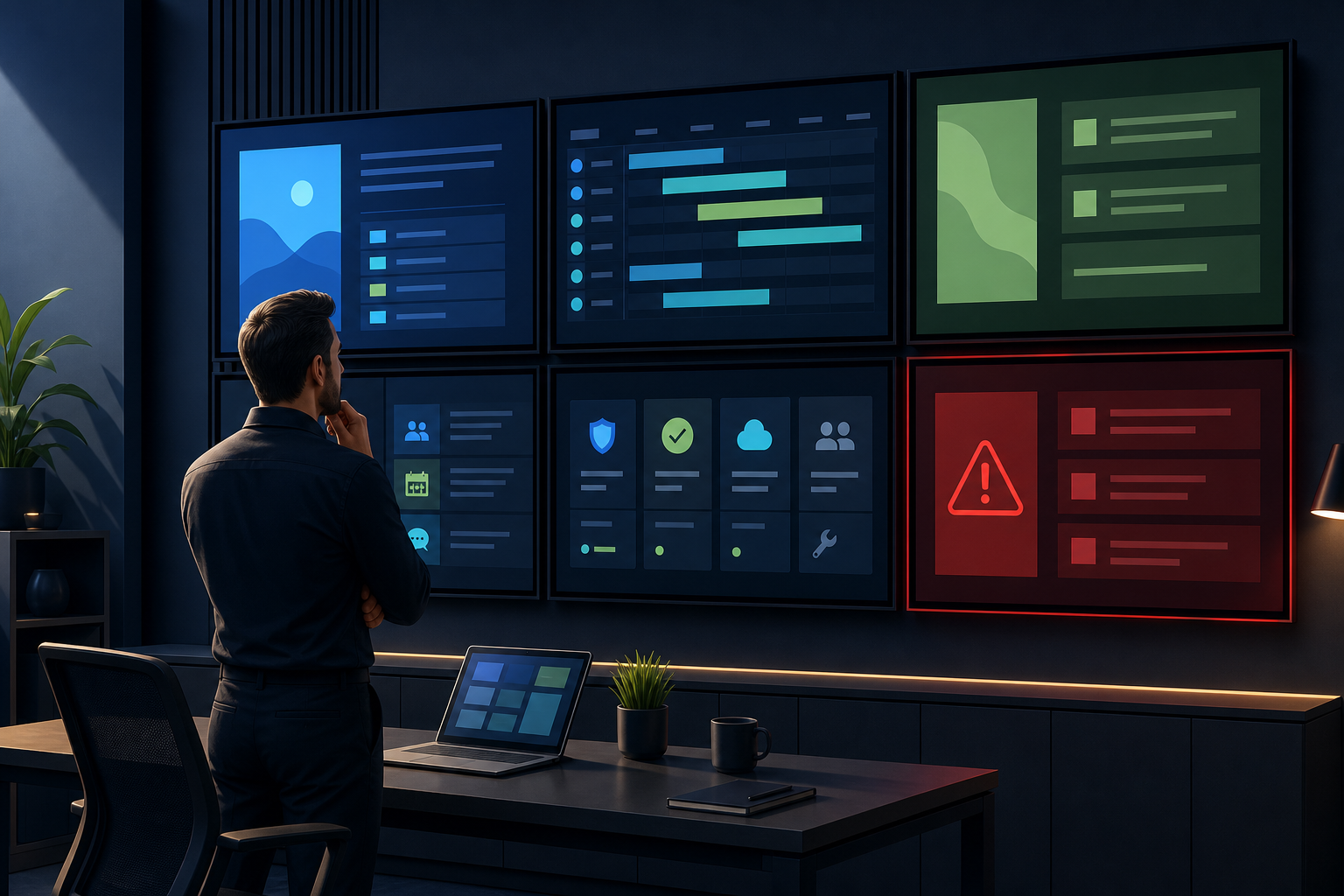
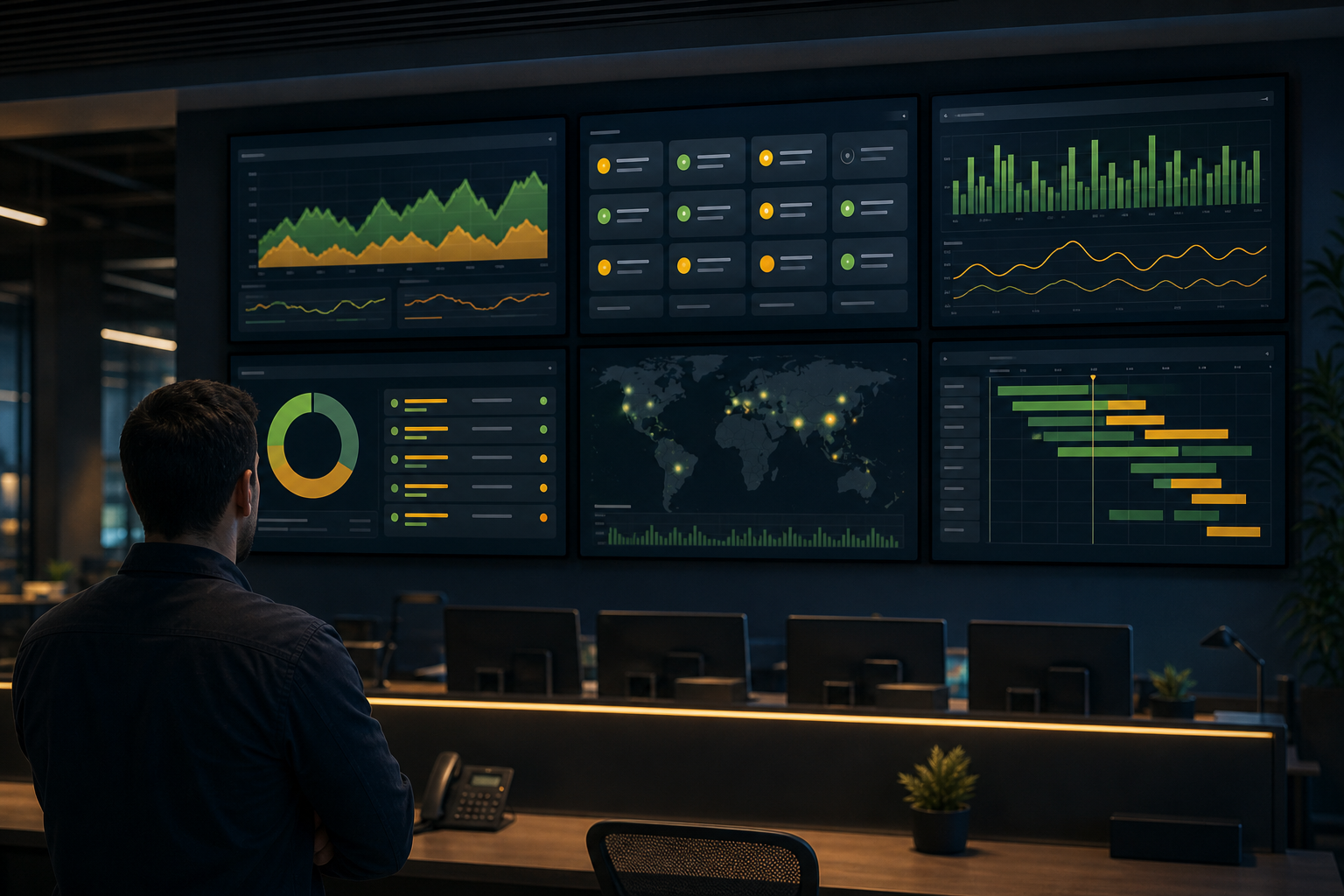
A Datadog dashboard can be useful on a wall-mounted screen in an operations room, engineering area, or support center—but only if the view is readable, safe to share, and able to remain signed in. The practical workflow is to prepare a dedicated dashboard view, confirm its access requirements, add its URL to a display workflow, and test it under the same conditions people will experience on the screen.
This guide explains how to approach displaying Datadog dashboards on dedicated screens without treating a private monitoring page like an ordinary public website.
When a Datadog dashboard belongs on a shared screen#
A shared screen is most useful when the information needs to be noticed by a group rather than checked by one person at a time. Suitable examples may include:
- Service health and availability indicators
- Current incidents and alert status
- Deployment or release monitoring
- Infrastructure capacity trends
- Queue, ticket, or support metrics
- A high-level summary for an operations or NOC area
Avoid displaying data that contains secrets, customer information, personal information, internal URLs, or detailed event payloads unless the screen location and access controls have been approved by your security and privacy teams.
A wall display should usually show a summary, not every diagnostic detail. Engineers can open the full dashboard on an authenticated workstation when deeper investigation is required.
Choose the right Datadog view for unattended display#
Start with a dashboard designed for viewing at a distance. Before adding it to a screen, check that it:
- Places the most important status indicators near the top or in the first visible area.
- Uses a small number of clearly labeled widgets.
- Avoids dense tables that require close reading.
- Uses time ranges that make sense for the team watching it.
- Makes warning and critical states distinguishable without relying on color alone.
- Fits the intended screen orientation and resolution.
If the dashboard is primarily a troubleshooting workspace, create a separate display-oriented view. This reduces the chance that a person changes filters or time ranges during an investigation and unintentionally changes what everyone else sees.
For broader guidance on selecting a screen for operational metrics, see Variabl's guide to choosing a monitor for digital signage dashboards.
Check authentication, privacy, and session behavior first#
Datadog dashboards are often protected by an organization’s login, single sign-on, or other access controls. A URL that works in your browser may not work unattended on a dedicated device after the login session expires.
Before deployment, confirm these points with the person responsible for your Datadog account:
- Is the selected dashboard allowed to be viewed on a shared screen?
- Does it contain restricted metrics, names, hostnames, log content, or customer data?
- Does the display device need an approved account or managed browser session?
- What happens when the session expires?
- Does multifactor authentication require an interactive response?
- Can the screen be placed where visitors or unauthorized staff cannot view it?
- Is a public or unauthenticated sharing option being considered? If so, has security approved it?
Do not place credentials, API keys, session tokens, or private access links in the signage configuration or in the dashboard URL. A display workflow should not be used to bypass Datadog permissions.
Add the dashboard to a dedicated display workflow#
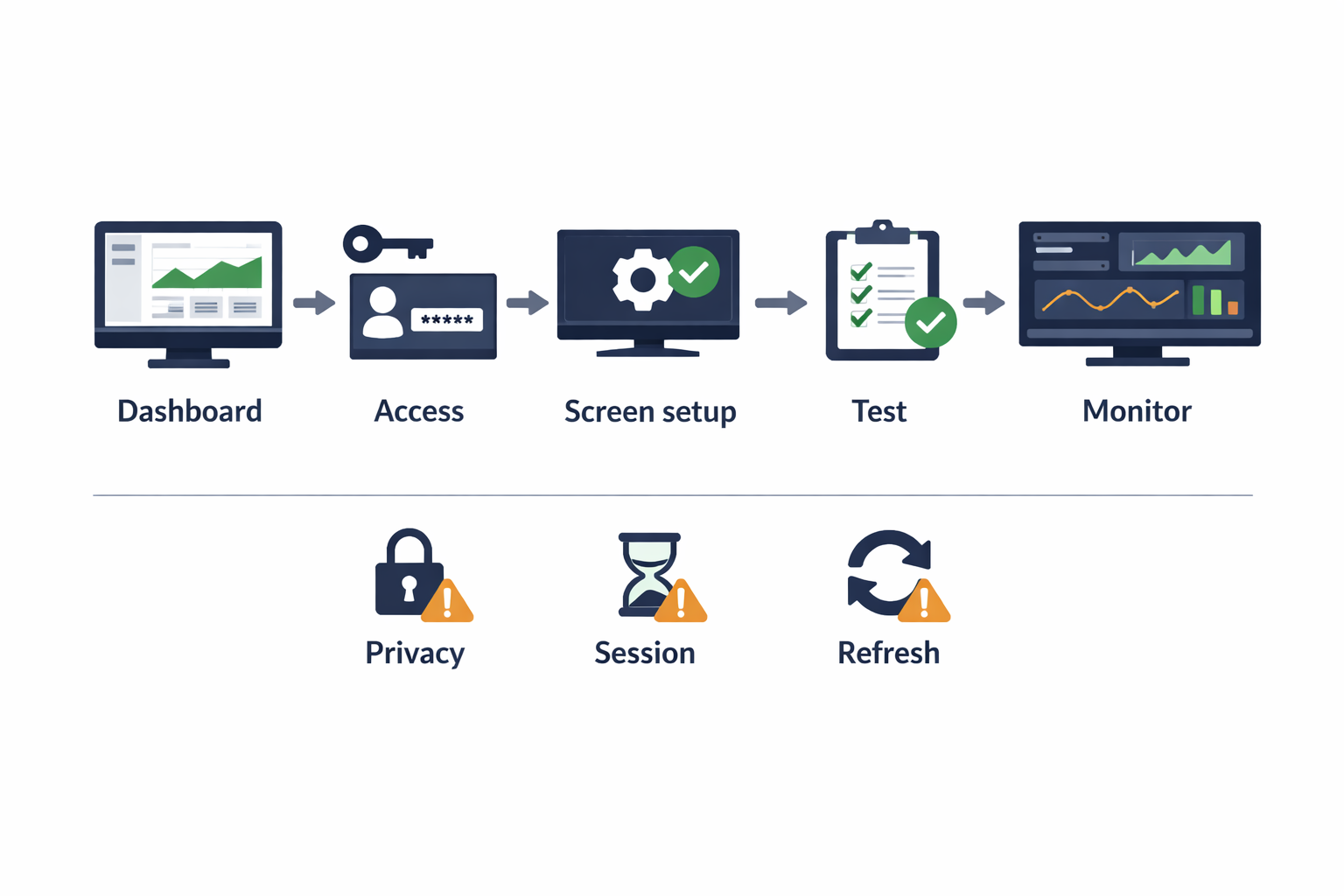
The exact steps depend on the Variabl plan, device, and the authentication method supported by the deployment. The general workflow is:
- Prepare the Datadog dashboard. Remove unnecessary widgets and configure a useful default time range.
- Copy the dashboard URL. Use the normal dashboard URL provided by Datadog. Do not copy credentials or tokens into the link.
- Open the Variabl content or screen setup. Add the dashboard as a web URL if your Variabl setup supports the required Datadog page and authentication state.
- Assign it to the intended screen. Check the screen orientation, resolution, and viewing distance.
- Save and preview the result. Look for login prompts, blocked content, horizontal scrolling, or widgets that fail to load.
- Leave the screen running for a meaningful test period. A page that loads once may still fail after a session timeout, browser restart, network interruption, or dashboard refresh.
Variabl's guide to adding a web URL is the relevant general workflow. The Datadog-specific questions—especially authentication, session persistence, and refresh behavior—must be confirmed for your deployment before relying on the screen operationally.
Plan refresh, rotation, and ownership#
A dashboard display is not self-managing simply because the page is open. Decide who owns the display and what should happen when the data becomes stale or the page stops loading.
Document:
- The dashboard owner
- The person responsible for Datadog access
- The screen or device owner
- The expected refresh interval
- The escalation path for a red or critical state
- The action to take if the page signs out
- Whether the screen should rotate between multiple views
- How often the dashboard layout should be reviewed
If multiple dashboards are needed, keep the rotation short enough that an operator can remember what each view represents. A large collection of screens or pages can make important changes easier to miss.
For a wider monitoring-wall setup, compare this workflow with Variabl's article about using command-center dashboard displays.
Test the display before wider deployment#
Use a checklist rather than relying on the initial preview:
- The dashboard opens at the expected URL.
- The screen is authenticated through an approved method.
- No login form, consent prompt, or error banner is visible.
- Text and charts are readable from the normal viewing distance.
- Widgets are not cropped by the screen dimensions.
- The selected time range is visible and correct.
- Data updates after the expected interval.
- The screen recovers from a temporary network interruption.
- A browser or device restart does not create an unexpected access problem.
- No confidential content appears outside the intended audience.
Test at the actual installation location. A dashboard that looks clear on a laptop may be too small when viewed across a room.
Troubleshoot common display problems#
The screen shows a login page#
The display session may have expired, the device may not have retained an approved session, or the account may require an interactive authentication step. Do not solve this by embedding credentials in a URL. Review the approved authentication design with your administrator and verify whether the Variabl setup supports it.
The dashboard is blank#
Check the network connection, browser console or device error information where available, access permissions, and whether the page depends on blocked scripts or an unsupported browser state. Also confirm that the URL was copied correctly and that the dashboard still exists.
The data looks stale#
A stale view may result from the dashboard's own update settings, a paused or sleeping device, a broken session, cached content, or a network problem. Compare the screen with the same dashboard in an authenticated workstation session before changing the display configuration.
Widgets are cropped or difficult to read#
Reduce the number of widgets, simplify the layout, increase the size of key values, or use a screen with a more suitable resolution and orientation. Do not assume that scaling the entire page will make every chart readable.
The screen displays too much sensitive information#
Remove restricted widgets and replace detailed diagnostic data with approved summary metrics. Treat the physical location as part of the access-control decision: a screen visible through a window or in a reception area has a different risk profile from one inside a restricted operations room.
When a dedicated display workflow is not the right choice#
A persistent screen may not be appropriate when the dashboard requires frequent interaction, contains highly restricted data, or cannot remain authenticated without manual intervention. In those cases, use an approved workstation, a controlled kiosk, or a purpose-built integration rather than attempting to keep a private session running unattended.
The goal is not simply to put a data dog dashboard or dashboard Datadog URL on a TV. The goal is to provide a reliable, understandable view while preserving the access controls around the underlying monitoring data.
Frequently Asked Questions#
Can I display a Datadog dashboard on a digital signage screen?#
Possibly, if the display workflow can load the dashboard URL and maintain an approved authentication state. Confirm Variabl's current support for the specific Datadog page, browser, device, and login method before deployment.
Do I need a public Datadog dashboard URL?#
Not necessarily. A private dashboard may be appropriate for a restricted screen when it can be accessed through an approved account or session. Making monitoring data public should not be treated as a default solution and requires security review.
Why does my Datadog dashboard work on my laptop but not on the screen?#
The devices may have different authentication sessions, browser capabilities, permissions, network access, or screen dimensions. Test the display device itself, including after a restart and after the expected session lifetime.
How should I design Datadog dashboards for a wall display?#
Use a small number of high-priority widgets, clear labels, readable text, an appropriate time range, and a layout that matches the screen orientation. Keep detailed investigation views separate from the shared summary view.
Can I rotate several Datadog dashboards?#
Rotation may be useful when the screens support it, but verify how refresh, authentication, and session expiry behave for every page. Keep the rotation focused so important changes are not hidden for too long.
What should I do if the screen signs out?#
Follow the approved recovery process rather than storing credentials in the URL or bypassing access controls. Confirm whether the account, identity provider, device, and Variabl configuration support unattended viewing.