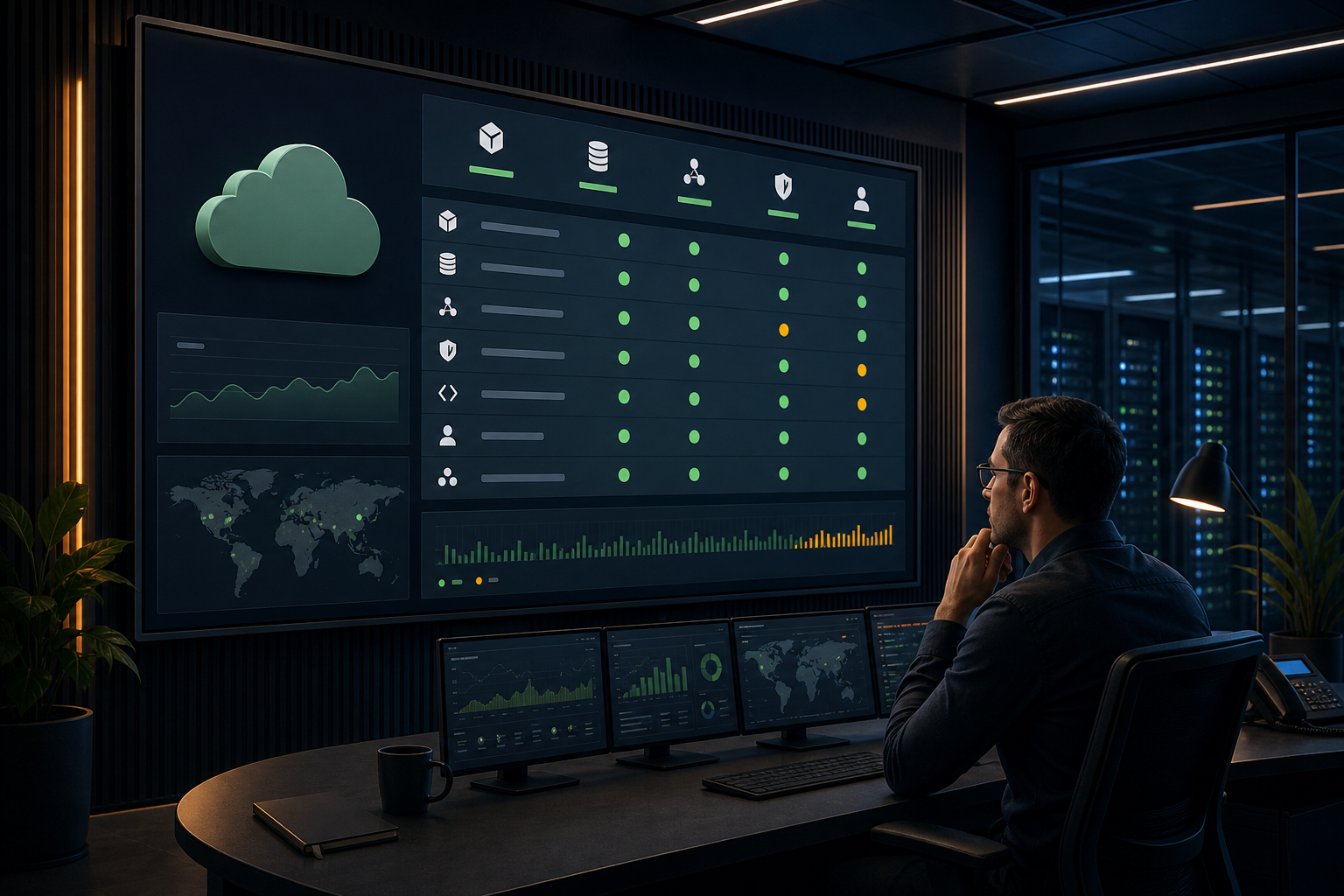
A Google Workspace status dashboard can help an IT team, service desk, or operations group see whether a Google service is experiencing an incident. The challenge is not simply opening the page in a browser. A shared screen must remain useful without exposing an employee account, stopping at a login prompt, or showing information that looks current but is actually stale.
The practical approach is to treat the status page as an operational display: choose the correct view, confirm how it behaves without a user present, make it readable from a distance, and test what happens after a restart or network interruption.
What a Google Workspace status dashboard shows#
Google Workspace service-status information is intended to communicate the availability of supported Google services and the progress of reported incidents. It is different from an internal performance dashboard:
- It reports service availability or incident information from the provider.
- It does not show your organization's complete user, device, or network health.
- A normal status view does not prove that every employee can access every Workspace application.
- An incident update may lag behind local reports or may not explain an organization-specific problem.
That distinction matters on a monitoring screen. Label the display clearly so viewers understand whether they are looking at Google's service status, an internal alerting system, or both.
When status information belongs on a shared screen#
A dedicated display can be useful when several people need the same high-level information, such as:
- An IT service desk monitoring common SaaS dependencies.
- A network operations or command-center area.
- A workplace operations team coordinating during a widespread incident.
- A support area where staff need a quick external-service reference.
It may not be appropriate for every office. If the screen is in a public area, a provider status page could attract unnecessary attention or create confusion during a minor incident. Decide who needs the information and what action they should take when the status changes.
For broader monitoring-wall planning, see Variabl's guide to command center dashboard displays. If you are combining the status page with internal metrics, that article can help you think through screen purpose and layout.
1. Choose the appropriate status view#
Start with Google's official Workspace status destination rather than a search-result copy, screenshot, or third-party status aggregator. Because URLs and access rules can change, confirm the current address from Google's official documentation or Workspace administration resources before adding it to a production display.
Then determine which view your audience needs:
- Public service-status information: appropriate when the page is designed to be viewed without an individual employee account.
- Administrator-only information: appropriate only when your organization has explicitly approved the account and access method for a shared device.
- Internal monitoring alongside provider status: useful when your team needs to compare external incidents with local checks.
Do not assume that a page associated with Google Workspace is safe to display publicly. A page can be related to a business service while still requiring authentication or revealing information intended only for administrators.
2. Check privacy and account exposure#
Before putting the page on an unattended screen, open it in a clean browser profile or on a test device that is not signed in to an employee's account. Check whether it:
- Loads without a login prompt.
- Redirects to an organization sign-in page.
- Displays an account name, email address, domain, or administrator information.
- Shows controls that viewers should not be able to use.
- Stores a session that could remain active after the display is reassigned.
If authentication is required, involve your IT or security team. Avoid placing a personal employee account on a screen player. If a managed service account is approved, define its permissions, password-rotation process, session timeout behavior, and response if the device is lost or compromised.
A public view is simpler, but it still deserves a privacy review. Consider the physical location, camera visibility, and whether incident details could reveal information your organization does not want displayed to visitors.
3. Add the page to the dedicated screen#
Once the URL and access model are approved, add it as a web page in your signage workflow. Variabl provides a guide to adding a web URL to digital signage, which is the relevant starting point for configuring a browser-based status view.
Use a dedicated content item or playlist entry for the status page. Keep the configuration easy to identify so an administrator can replace the URL if Google changes the destination.
Before assigning it to a live screen, test the page on the same type of player, browser, or operating system used in production. A page that works on an administrator's laptop may behave differently on a kiosk-style device because of browser policies, blocked scripts, certificate inspection, or authentication handling.
For device-side considerations, Variabl's Chrome OS kiosk-mode dashboard guide may help when the screen runs in a locked-down browser environment.
4. Design for distance viewing#
A status page is usually designed for interactive browsing, not for a television across a room. Before publishing it, check the following:
- The text is readable from the intended viewing distance.
- The important service names and incident states are visible without scrolling.
- Browser controls, cookie notices, and consent dialogs do not cover the content.
- The page is not cropped by the screen's aspect ratio.
- Color is not the only way an incident state is communicated.
- The screen has enough contrast for bright and low-light conditions.
If the page is too dense, consider displaying it on a larger screen, using a closer viewing position, or pairing it with a short internal label that explains what viewers are seeing. Do not hide important context behind a tiny browser zoom level simply to fit more rows on screen.
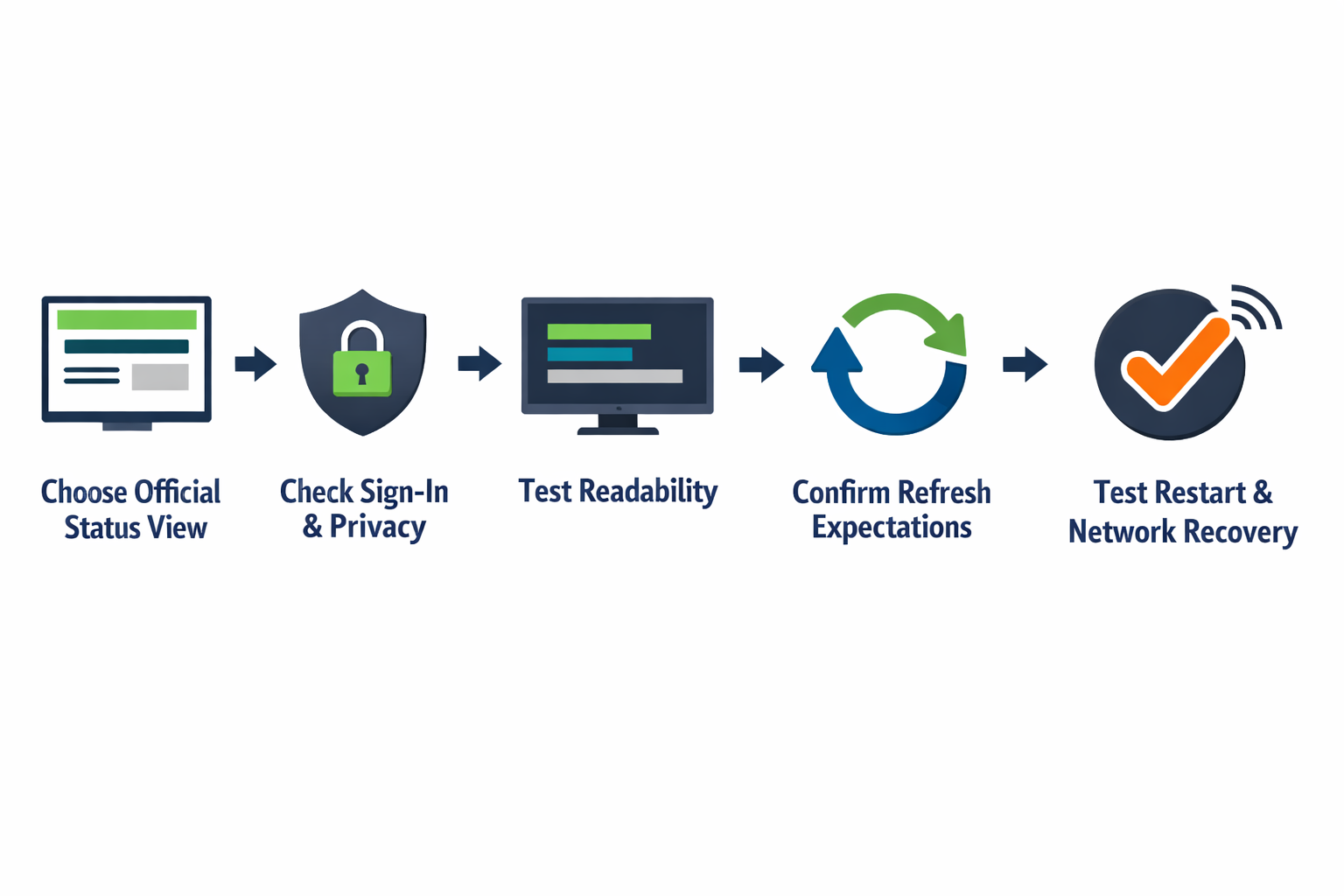
5. Set realistic freshness expectations#
A screen can refresh a browser page, but refreshing does not guarantee that the underlying status information has changed. Provider updates may be published on their own schedule, and a local browser may retain cached content or lose its session.
Define what “fresh enough” means for your use case. For example:
- A general office reference screen may only need periodic visual confirmation.
- A service desk may need a more deliberate check against the official page and internal monitoring tools.
- A critical incident process should not rely on a wall display as its only alerting mechanism.
If the display platform supports scheduled reloads, use a conservative interval that does not create unnecessary requests. Verify the behavior in your environment rather than assuming that a refresh setting will work with every page.
6. Test unattended playback and recovery#
Run the status display without touching it for at least one normal operating period. Test the situations most likely to expose a weak setup:
- Start the player while signed out, if the intended view is public.
- Restart the device and confirm that the page returns automatically.
- Disconnect the network briefly, then restore it.
- Wait long enough to observe session expiry or an idle timeout.
- Check the display after the screen has been powered off and on.
- Confirm that a login page, error page, or blank panel is not silently left on screen.
- Verify that the page remains legible at the actual viewing distance.
A useful operational rule is to show a clear fallback state if the page cannot load. That might be a separate internal notice or a message telling staff where to check service status. Do not present an old page as live information without a visible indication that the connection has failed.
For general screen failures, use Variabl's monitor-not-displaying troubleshooting checklist to separate player, display, network, and content problems.
Common problems and what they mean#
The screen shows a login page#
The selected view requires authentication, the session expired, or the browser was redirected. Do not solve this by embedding a personal account. Confirm whether an approved public view exists or work with IT on a managed access design.
The page looks stale#
The browser may be offline, the page may be cached, the refresh process may not be working, or the provider may not have posted a new update. Compare the screen with the official page from a separate device and check the player's network state.
The content is cropped#
The status page may not be designed for the screen's dimensions. Test orientation, browser zoom, and player resolution. If scrolling is unavoidable, consider whether the page is suitable for unattended display at all.
The screen is blank#
Possible causes include a failed network request, blocked scripts, an expired session, browser restrictions, or an unsupported page behavior. Test the URL directly on the same device and review the player's logs or content status before changing several settings at once.
Google Workspace status display checklist#
Before publishing, confirm that:
- The URL came from an official Google source.
- The view is approved for shared-screen use.
- No personal account is stored on the player.
- Privacy and physical placement have been reviewed.
- The page is readable without interaction.
- Login, consent, and cookie prompts have been handled.
- Refresh and session behavior have been observed.
- Network-loss and restart recovery have been tested.
- Viewers know whether the page shows provider status or internal health.
- The display is not the only channel used for critical incident alerting.
Frequently asked questions#
Can I display a Google Workspace status dashboard without signing in?#
That depends on the specific status view and its current access rules. Test the official page in a clean, signed-out browser before deploying it. Do not assume that every Workspace-related page is public.
Is a provider status page the same as an internal Google Workspace monitoring dashboard?#
No. A provider status page communicates Google's reported service availability. It does not replace internal checks for user access, network connectivity, identity systems, device problems, or organization-specific configuration issues.
How often should a Google Workspace status dashboard refresh?#
There is no universal interval. Choose a rate appropriate to the screen's purpose, then verify that the player actually reloads the page and that the underlying information is current. A refresh cannot force Google to publish an update sooner.
Is it safe to use an employee account on an unattended screen?#
Generally, it should be avoided. An unattended device can expose account information or remain authenticated after a handoff. If an authenticated view is necessary, have your security or IT team approve a managed account and its permissions.
What should I do if the status page stops loading?#
Check the player's network connection, open the URL directly on the same device, look for an expired session or browser prompt, and confirm that the page has not changed. Use a fallback message or alternate monitoring source rather than leaving an apparently current but disconnected page on screen.
A Google Workspace status dashboard is most useful when it is treated as one carefully tested signal, not as a complete incident-management system. Confirm the official view, protect account access, design for distance viewing, and test unattended recovery before relying on it during an outage.