author: name: "Sam Reed" picture: "/author/sam.png" cover_image: "/assets/blog/monitor-not-displaying-troubleshooting-checklist-cover.jpg"#
A monitor that suddenly goes blank can be caused by something as simple as the wrong input, a sleeping computer, or a loose cable. It can also indicate a failed power supply, damaged port, or problem with the source device.
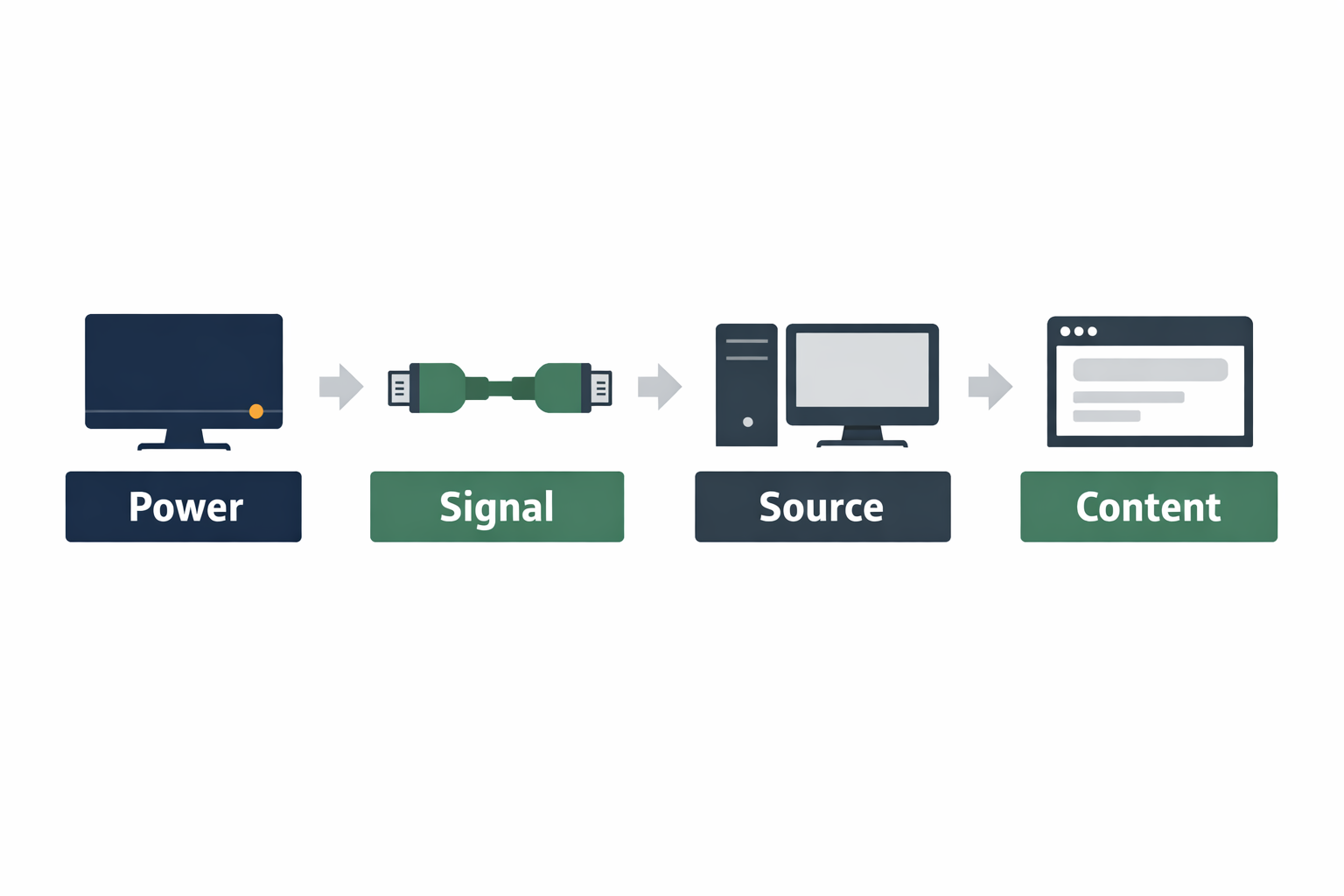
The fastest way to find the cause is to test one part of the display chain at a time: monitor, power, input, cable, source device, settings, and content. Follow the checklist below in order, and stop when you identify where the signal disappears.
1. Identify what “not displaying” means#
Before changing settings, look closely at the symptom:
- No power light: The monitor may not be receiving power, or its power system may have failed.
- Power light but black screen: The monitor may be asleep, set to the wrong input, or receiving a black image.
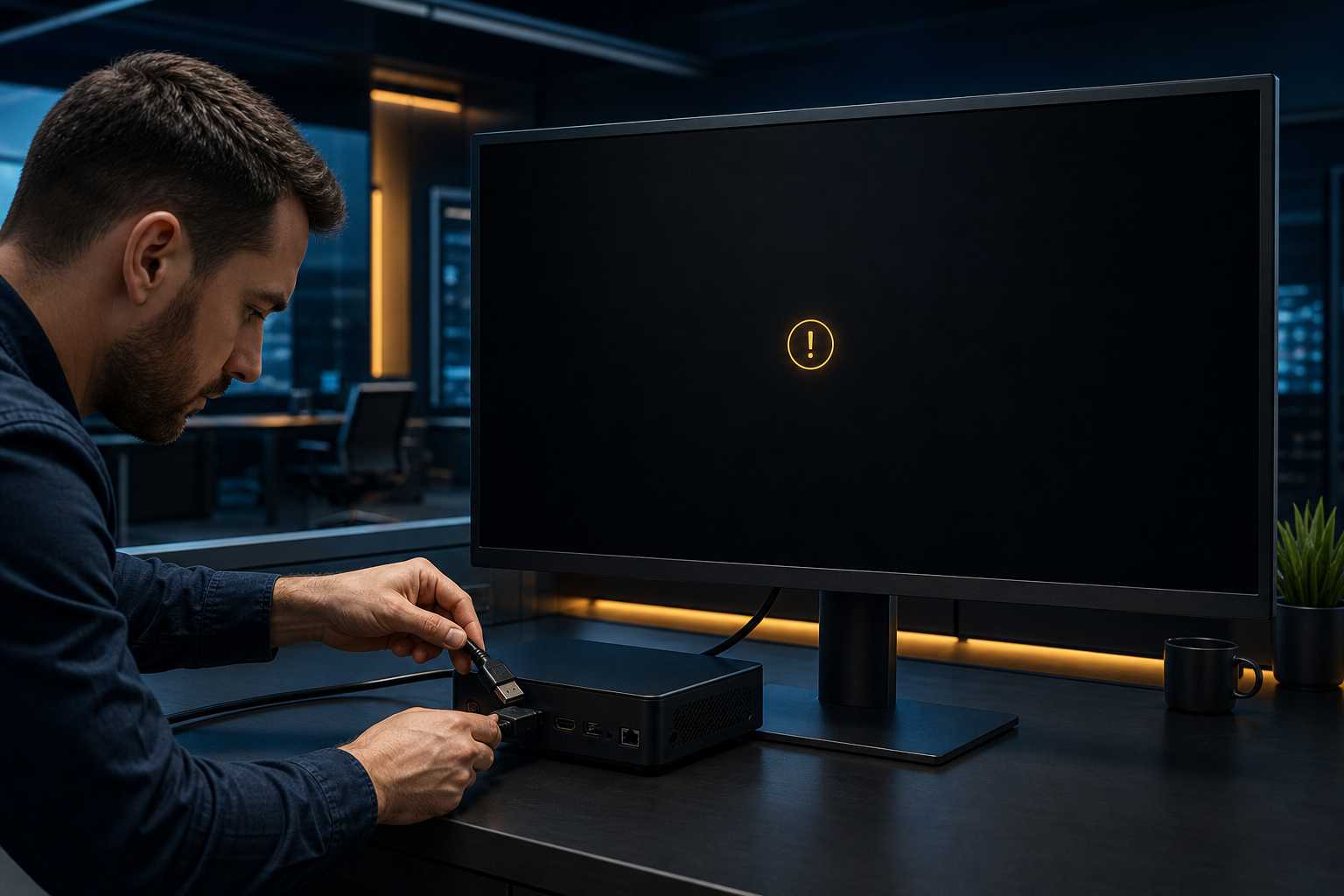
- “No signal” message: The monitor is working, but it is not receiving a usable video signal.
- A frozen image: The display may be fine; the computer, browser, dashboard, or signage player may have stopped updating.
- A distorted or flickering image: The cable, port, refresh rate, resolution, or monitor hardware may be involved.
This distinction matters. A monitor showing a “No signal” message has already passed a basic power and self-display test. A completely unlit monitor has a different starting point.
2. Check power, sleep state, and input selection#
Start with the physical monitor rather than the dashboard or web page.
- Press the monitor’s power button once. Some displays have buttons on the underside, rear, or side.
- Check whether the power indicator changes color or turns on.
- Confirm that the power cable is firmly connected to the monitor and wall outlet or power strip.
- Test the outlet with another device if there is any doubt.
- If the monitor is connected to a switched power strip, verify that the strip is on.
- Move the mouse or press a key on the source device to wake it from sleep.
- Open the monitor’s on-screen menu. If the menu appears, the panel itself is receiving power and can render an image.
- Use the monitor’s input or source control to select the port in use: HDMI, DisplayPort, USB-C, VGA, or another supported connection.
A monitor can be powered on while listening to the wrong input. This is especially common after a source device has been moved or a cable has been connected to a different port.
3. Check cables, ports, and adapters#
Turn off or disconnect the source device before reseating cables when practical. Then:
- Unplug the video cable at both ends and reconnect it firmly.
- Look for bent pins, crushed sections, loose connectors, or visible damage.
- If you use an adapter, dock, splitter, or converter, check every connection in the chain.
- Try another cable of the same supported type.
- Try another input on the monitor.
- If possible, connect the source directly to the monitor without a dock or adapter.
Adapters and docks can introduce another failure point. A monitor test that bypasses the adapter can quickly show whether the problem is the display or the connection path.
Do not force a connector into a port. If a port feels physically damaged or unusually loose, stop testing that port and use a different connection or arrange service.
4. Test the monitor with another source#
The most useful diagnostic test is to connect the monitor to a source that is known to work, such as another computer or laptop.
Interpret the result like this:
| Test result | Most likely area to investigate |
|---|---|
| Monitor menu does not appear and power light stays off | Power, outlet, power cable, or monitor hardware |
| Monitor menu appears, but no source works | Input, cable, adapter, port, or monitor signal circuitry |
| Another source works on the monitor | Original computer, player, settings, or content |
| The original source works on another monitor | Monitor, cable, adapter, or selected input |
| Both sources fail with the same cable and port | Cable, port, adapter, or monitor hardware |
This is more useful than repeatedly refreshing a dashboard. It separates a physical display problem from a problem in the computer or player sending the image.
5. Check resolution, refresh rate, and orientation#
If the monitor works with one source but not another, the source may be sending a display mode the monitor cannot use correctly.
Check the source device’s display settings and temporarily choose a standard resolution and refresh rate supported by the monitor. If the problem started after changing display settings, revert to the previous configuration or use the operating system’s display recovery options.
Also check:
- Whether the correct display is selected in a multi-monitor setup.
- Whether the operating system is set to extend, duplicate, or show the desktop only on another screen.
- Whether the monitor is being detected at all.
- Whether a rotation or orientation setting is producing an unexpected layout.
- Whether a graphics driver update or system update happened immediately before the failure.
A resolution problem usually does not mean the LCD panel is permanently damaged. Test with a basic supported mode before replacing hardware.
6. Separate monitor failure from computer or player failure#
Dedicated dashboard and signage screens often use a small computer, media player, Chromebook, Raspberry Pi, or another source device. Test that device separately from the monitor.
If the source device has no visible output anywhere#
Check whether it has power, network activity, status lights, or signs of booting. Connect it to another working display if available. If it fails there too, investigate the source device, operating system, graphics output, power supply, or boot process.
If the source device works on another display#
The source is probably functioning. Return to the original monitor’s input, cable, adapter, and supported display mode.
If the monitor shows a desktop but not the dashboard#
The physical display path is likely working. Continue with the browser, kiosk, signage player, dashboard URL, authentication, and network checks instead of replacing the monitor.
7. Check browser, kiosk, or signage-player behavior#
A screen can appear blank even when the monitor and computer are healthy. The browser or signage application may be showing a blank tab, waiting for authentication, stuck after an update, or failing to load the page.
Try these checks on the source device:
- Exit fullscreen or kiosk mode if you can do so safely.
- Open a simple, known-working web page.
- Check whether the dashboard loads in a regular browser window.
- Confirm that the device is connected to the network.
- Check whether the page requires a login, VPN, certificate, or additional permission.
- Reload the page or restart the signage player only after noting the current symptom.
- Check the device’s date and time if secure pages refuse to load.
For Chromebook-based unattended screens, the Chrome OS kiosk mode guide for dashboard and digital signage may help you review the kiosk setup after the monitor itself has passed testing.
Variabl can help organize and display web pages and dashboards on dedicated screens, but it cannot repair a failed monitor, damaged cable, faulty computer, or electrical connection. Diagnose the hardware and source device first.
8. Check whether the dashboard or web page is the real cause#
If a simple web page appears but the dashboard does not, investigate the content rather than the monitor.
Possible causes include:
- The dashboard URL changed.
- The account is signed out or no longer has access.
- The dashboard is unavailable.
- The page depends on a blocked script, expired session, or unsupported browser feature.
- A network, DNS, VPN, or firewall change prevents the page from loading.
- The page has loaded but is displaying a dark or empty state.
Use the browser’s normal error message or developer tools only if you are comfortable doing so. For a managed screen, record the URL, time of failure, source device, and visible error before restarting anything.
If your goal is to show several dashboards or web applications on dedicated screens, review how to display dashboards on digital signage screens after the immediate failure has been isolated.
9. Use a monitor test to confirm the panel is working#
A basic monitor test, LCD screen test, or LCD monitor test should answer three questions:
- Does the monitor power on?
- Can it display its own menu or a no-signal message?
- Can it display a known-good source through a known-good cable?
You do not need a specialized website for the first two checks. The monitor’s built-in menu and no-signal screen are useful tests that do not depend on the computer, browser, internet, or dashboard.
If you want to test my screen—or your own screen—use a simple full-screen color or pattern test only after the monitor displays an image. Look for dead pixels, persistent lines, uneven brightness, flicker, or color problems. A web-based test cannot reliably diagnose a monitor that has no power or no usable signal.
Avoid pressing hard on the LCD panel or using liquids directly on the screen. Follow the manufacturer’s cleaning and service instructions.
10. For unattended signage, check the whole display chain#
A screen in a lobby, control room, factory, or meeting area may fail while nobody is nearby to restart it. Check the chain in this order:
- Wall outlet or power distribution.
- Monitor power and input.
- Video cable, adapter, dock, or splitter.
- Media player or computer power.
- Operating system and display detection.
- Browser, kiosk mode, or signage player.
- Network connection and dashboard access.
- The dashboard or web page itself.
If several screens fail at the same time, look for a shared cause such as a power event, network change, account issue, signage configuration change, or common content source. If only one screen fails, start with that screen’s local power, cable, input, and source device.
For multi-screen deployments, the guide to displaying dashboards on multiple digital signage screens provides useful context for thinking about individual screens and shared configuration separately.
11. Document the fix for the next incident#
Once the screen works again, write down:
- Which screen failed and where it is located.
- The visible symptom, such as “power light off” or “no signal.”
- The cable, input, adapter, and source device in use.
- The test that identified the cause.
- The action that fixed it.
- Whether the issue affected one screen or several.
- Any replacement part, setting, or account change involved.
For a team managing multiple displays, this record prevents repeated trial and error. It also helps distinguish an intermittent cable problem from a recurring player, network, or content issue.
When to replace the monitor or escalate the issue#
Escalate for repair or replacement when:
- The monitor has no power with a confirmed working outlet and cable.
- It cannot show its own menu or no-signal message.
- Multiple known-good sources and cables fail on the same monitor.
- There are signs of physical damage, burning, liquid exposure, or electrical damage.
- The display repeatedly turns off, flickers, or loses signal after the connection path has been tested.
Do not open a monitor or attempt internal electrical repairs unless you are qualified and the equipment is safely disconnected. For a business-critical display, replacing a low-cost cable or adapter may be reasonable, but repeated failures should be documented before purchasing new hardware. If the current display is unsuitable for its environment, compare requirements using this guide to choosing a monitor for digital signage and dashboard displays.
Quick checklist#
- The monitor has power.
- The monitor’s own menu or no-signal message appears.
- The correct input is selected.
- The video cable is firmly connected and undamaged.
- Another cable, port, or source has been tested.
- The source device is powered and detected by the operating system.
- Resolution, refresh rate, and display mode are supported.
- A simple web page loads.
- The browser, kiosk, or signage player is running correctly.
- The dashboard URL, login, network, and permissions have been checked.
The key is to test from the outside in. First prove that the monitor can power on and display its own message. Then test the cable and source. Only after those checks pass should you troubleshoot the browser, dashboard, or signage application.
Frequently Asked Questions#
Why is my monitor not displaying anything but the power light is on?#
The monitor may be on the wrong input, receiving no signal, connected through a faulty cable or adapter, or receiving an unsupported display mode. Confirm the input, reseat the cable, test another cable or source, and check whether the monitor’s own menu appears.
How do I perform an LCD screen test?#
Start with the monitor’s built-in menu and no-signal screen. Then connect a known-good source and look for dead pixels, lines, flicker, or uneven brightness. A web-based screen test is useful only after the monitor can display an image.
Can a dashboard make a monitor look broken?#
Yes. A dashboard page can fail to load, show a blank state, lose authentication, or be blocked by a network or browser problem. Test a simple web page or the source device’s desktop before concluding that the monitor has failed.
Why does my monitor say “No signal”?#
“No signal” usually means the monitor is powered but is not receiving a usable video signal. Check the selected input, cable, adapter, source-device output, and display settings. Testing the monitor with another source can isolate the cause.
Should I restart Chrome when a dashboard screen is blank?#
Restarting the browser can help when the browser or page is stuck, but it should not be the first or only test. First confirm that the monitor has power, the correct input is selected, and the source device can display other content. Record the symptom before restarting an unattended screen.