

A Kibana dashboard can be useful on a wall-mounted operations screen, NOC display, production monitor, or team dashboard—but a dashboard designed for an individual analyst is not automatically ready for shared, unattended viewing.
The practical workflow is to choose a safe Kibana view, simplify it for distance viewing, confirm how authentication and session expiry work, then add the dashboard URL to your digital signage setup. Before deployment, verify that the specific Kibana deployment can load correctly in the supported Variabl environment. The available product information does not establish that every private Kibana configuration, authentication method, or embedding mode is supported.
This guide focuses on the decisions that matter when turning a Kibana dashboard into a reliable dashboard display.
When a Kibana dashboard belongs on a shared screen#
A shared screen works best when the dashboard answers a recurring operational question without requiring someone to click, filter, or interpret private information.
Good candidates include:
- Service health and availability views
- Application or infrastructure alerts
- Production throughput and status indicators
- Security or incident-monitoring summaries
- Queue, logistics, or support-operation metrics
- Read-only team dashboards used during stand-ups or handoffs
A shared screen is a poor fit when the dashboard contains personal records, customer data, investigation notes, credentials, or controls that viewers could accidentally change. If the information is sensitive, consider whether the screen's physical location and the dashboard's access permissions are appropriate before displaying it.
For broader planning guidance, see the guide to command-center dashboard displays.
1. Choose the right Kibana view#
Start in Kibana, not in the signage console. Identify the saved dashboard or view that should be displayed and decide whether it is suitable for people who may only glance at it for a few seconds.
Check the following:
- Audience: Who needs to see this information?
- Purpose: What decision or response should the screen support?
- Sensitivity: Does the dashboard expose private, regulated, or customer-specific information?
- Scope: Are the time range, data sources, and filters appropriate for everyone viewing it?
- Stability: Is the dashboard a maintained shared view, or is it a personal working space that changes frequently?
Avoid displaying an analyst's temporary investigation dashboard as a permanent website dashboard. Create or select a dedicated shared view instead, with a clear name and deliberately chosen panels.
2. Remove private detail before sharing the screen#
A dashboard can be technically accessible and still be unsuitable for a public or semi-public display. Review every panel and filter for information that viewers do not need.
Before publishing the display, look for:
- Usernames, email addresses, IP addresses, hostnames, or customer identifiers
- Detailed log messages that reveal secrets or internal architecture
- Search terms, query fragments, or investigation notes
- Filters that accidentally narrow the view to one person or customer
- Links or controls that allow viewers to change the dashboard
- Data that could create a security or privacy issue if photographed
Use the least amount of information needed for the operational purpose. A high-level status, trend, or alert count may be safer and easier to read than a full event table.
3. Prepare the layout for distance viewing#
A Kibana dashboard viewed on a laptop can contain more detail than a dashboard display viewed from across a room. Prioritize legibility over panel quantity.
Useful preparation steps include:
- Remove panels that do not support the screen's purpose.
- Put the most important status or alert near the top or in the strongest visual position.
- Reduce long tables and dense legends.
- Use short, descriptive panel titles.
- Check that labels and values remain readable at the expected viewing distance.
- Use a time range that matches the operational question—for example, recent activity for incident response or a longer trend for production planning.
- Leave enough visual space around important indicators.
Do not assume that making every panel visible creates a better monitoring screen. A smaller number of readable panels is usually easier to interpret during a quick glance.
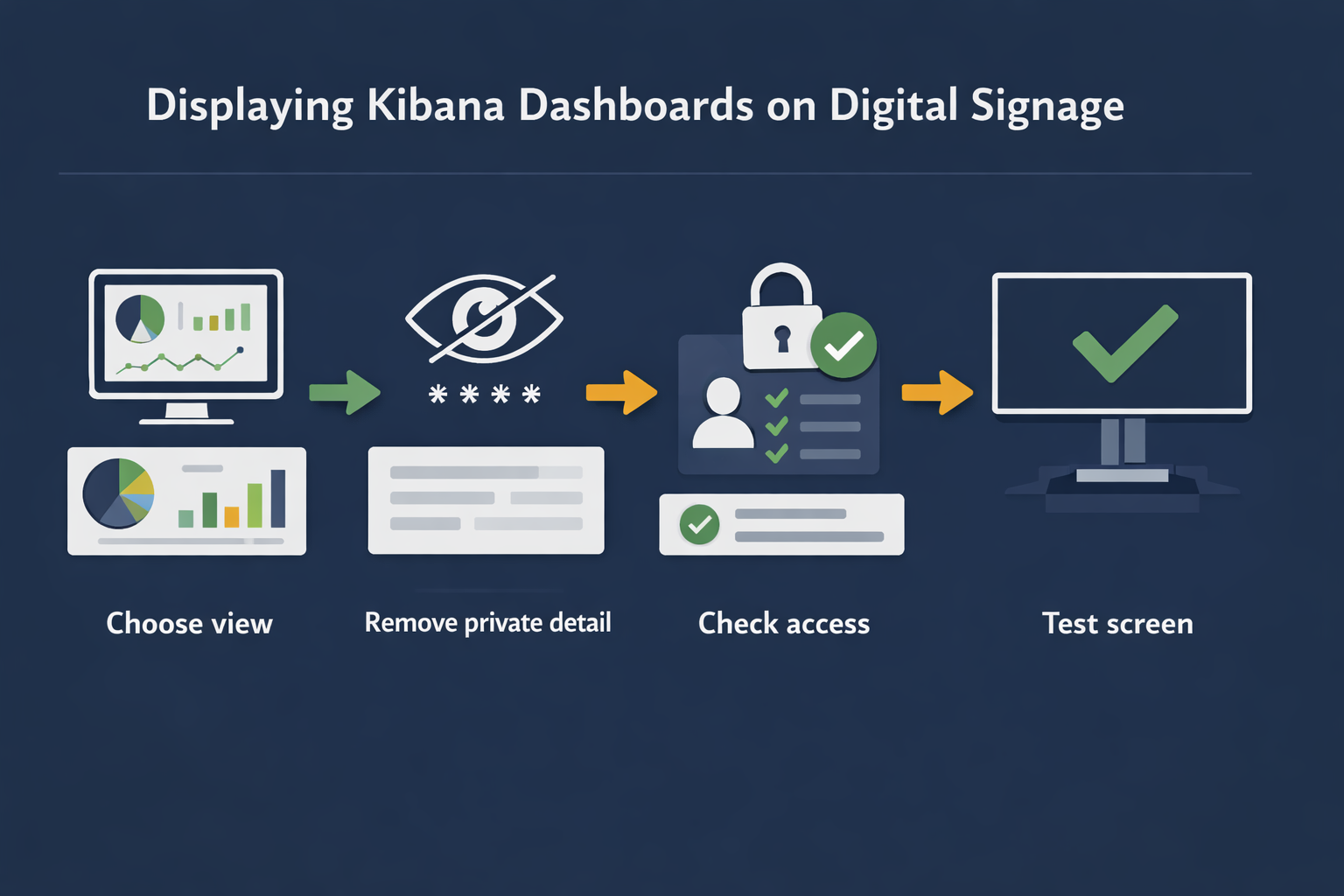
4. Check authentication, permissions, and session behavior#
Authentication is often the most important difference between displaying a public web page and displaying a private Kibana dashboard.
Before adding the URL to a dedicated screen, document how the Kibana deployment handles:
- Sign-in requirements
- Single sign-on or identity-provider redirects
- Multi-factor authentication
- Session expiration
- Permission changes
- Network or VPN access
- Browser cookies and local storage
- Access from the location where the screen will operate
Do not assume that a browser session will remain authenticated indefinitely. Do not put a username, password, API key, or other secret in a dashboard URL or signage configuration.
A safer approach is to work with your Kibana and identity administrators to define an appropriate read-only access method for the screen. Whether that method works with Variabl depends on the deployment environment and should be verified before publication or rollout.
5. Set realistic refresh and freshness expectations#
A dashboard display is only useful if viewers understand how current its data is. Review the Kibana dashboard's refresh configuration and the data pipeline behind it.
Ask:
- How often does the underlying data arrive?
- How often should the dashboard query for new data?
- Is a delayed result acceptable for this use case?
- Could frequent refreshes create unnecessary load on Kibana or its data store?
- Will a stale screen be obvious to viewers?
A refresh interval cannot make data current if ingestion is delayed. If freshness matters, include a visible update timestamp or status indicator where the dashboard supports one. If the display platform or browser session stops updating, the screen may continue showing an old view, so unattended testing is essential.
6. Add the dashboard as a web destination#
Once the dashboard is prepared and access behavior is understood, use the dashboard's appropriate URL as the web destination in your digital signage workflow.
The exact Variabl steps and supported authentication behavior should be confirmed against the current product documentation and deployment environment. In general, the workflow should include:
- Copy the intended Kibana dashboard URL.
- Add it as a web or URL-based content item in the signage system.
- Assign the content to the intended screen or playlist.
- Save or publish the configuration according to your normal screen-management process.
- Open the screen and verify that the dashboard loads without manual intervention.
Variabl's existing guide to adding a web URL may be a useful related resource for the URL-content portion of this workflow. It should not be treated as confirmation that every Kibana authentication or embedding setup is supported.
If your team already displays other technical dashboards, the Grafana dashboard setup guide provides related context for dashboard-oriented signage workflows. Grafana and Kibana are different products, so their authentication and rendering behavior should not be assumed to match.
7. Test unattended playback and recovery#
A dashboard that loads once on an administrator's laptop has not yet been proven for unattended display. Test the complete screen workflow in the environment where it will run.
Check the following:
- The screen can reach the Kibana host over the required network.
- The intended dashboard opens rather than a login or error page.
- The layout fits the screen without important panels being cropped.
- Text and charts are readable from the normal viewing distance.
- The dashboard remains usable after the expected session duration.
- Refreshes do not create visible errors or excessive loading loops.
- The display recovers appropriately after a temporary network interruption or device restart.
- No private information appears outside the intended audience.
Record what the viewer sees when something fails. A blank page, login prompt, stale timestamp, permission error, and cropped layout point to different causes.
Troubleshooting common Kibana display problems#
The screen shows a login page#
The screen may not have a valid session, may be outside the required network, or may be redirected through an identity provider that requires interaction. Confirm the access path and authentication policy with the Kibana administrator. Do not bypass security controls simply to keep the screen running.
The dashboard is blank or shows an error#
Check the URL, network access, Kibana permissions, and browser compatibility in the supported deployment environment. A blank display can also result from a failed data request or a dashboard that depends on access to another internal service.
The dashboard loads but stays stale#
Compare the dashboard's visible update time with the source system. Then check the refresh configuration, data-ingestion delay, session state, and whether the screen is still actively rendering the page.
Panels are cropped or difficult to read#
Reduce the number of panels, shorten titles, simplify tables, and adjust the dashboard for the screen's aspect ratio. Test at the actual display resolution rather than relying only on a desktop preview.
The screen repeatedly returns to sign-in#
This may indicate session expiry, blocked cookies, an identity-provider policy, or a configuration that requires interactive authentication. Treat repeated sign-in as an access-design issue, not merely a display glitch.
Kibana display checklist#
Before putting a Kibana dashboard on a shared screen, confirm that:
- The dashboard has a clear operational purpose.
- Private and unnecessary details have been removed.
- The selected view is readable from the expected distance.
- The URL and required network path are documented.
- Permissions provide only the access the screen needs.
- Authentication and session expiry have been tested.
- Refresh behavior matches the freshness required by the use case.
- The screen has been tested after restart and temporary connectivity loss.
- Someone owns the dashboard's ongoing maintenance.
Frequently asked questions#
Can I display a Kibana dashboard on a digital signage screen?#
Potentially, if the supported signage environment can load the Kibana URL and maintain the required access session. Verify the specific Kibana authentication, network, browser, and session configuration before deployment.
Is a public Kibana dashboard easier to display than a private one?#
Usually, a public or unauthenticated page has fewer session-related obstacles, but public access can create privacy and security risks. Review whether the information is safe to expose before choosing that approach.
Will a Kibana dashboard refresh automatically on a shared screen?#
That depends on the Kibana dashboard configuration, the underlying data pipeline, the browser session, and the signage environment. Test the complete setup rather than assuming that a configured refresh interval guarantees fresh data.
How should I make a Kibana dashboard readable from a distance?#
Reduce panel density, prioritize key indicators, simplify tables and legends, use concise labels, and test the view at the screen's actual resolution and viewing distance.
What should I do if a Kibana dashboard keeps asking for a login?#
Check session expiry, cookies, identity-provider redirects, network access, and permissions with the relevant administrator. Avoid embedding credentials or disabling security controls to force unattended access.
A Kibana dashboard can be a useful monitoring display when it is designed for shared viewing rather than simply copied from an analyst's workspace. Prepare the view, protect sensitive information, verify access behavior, and test the screen unattended before relying on it for operations.