
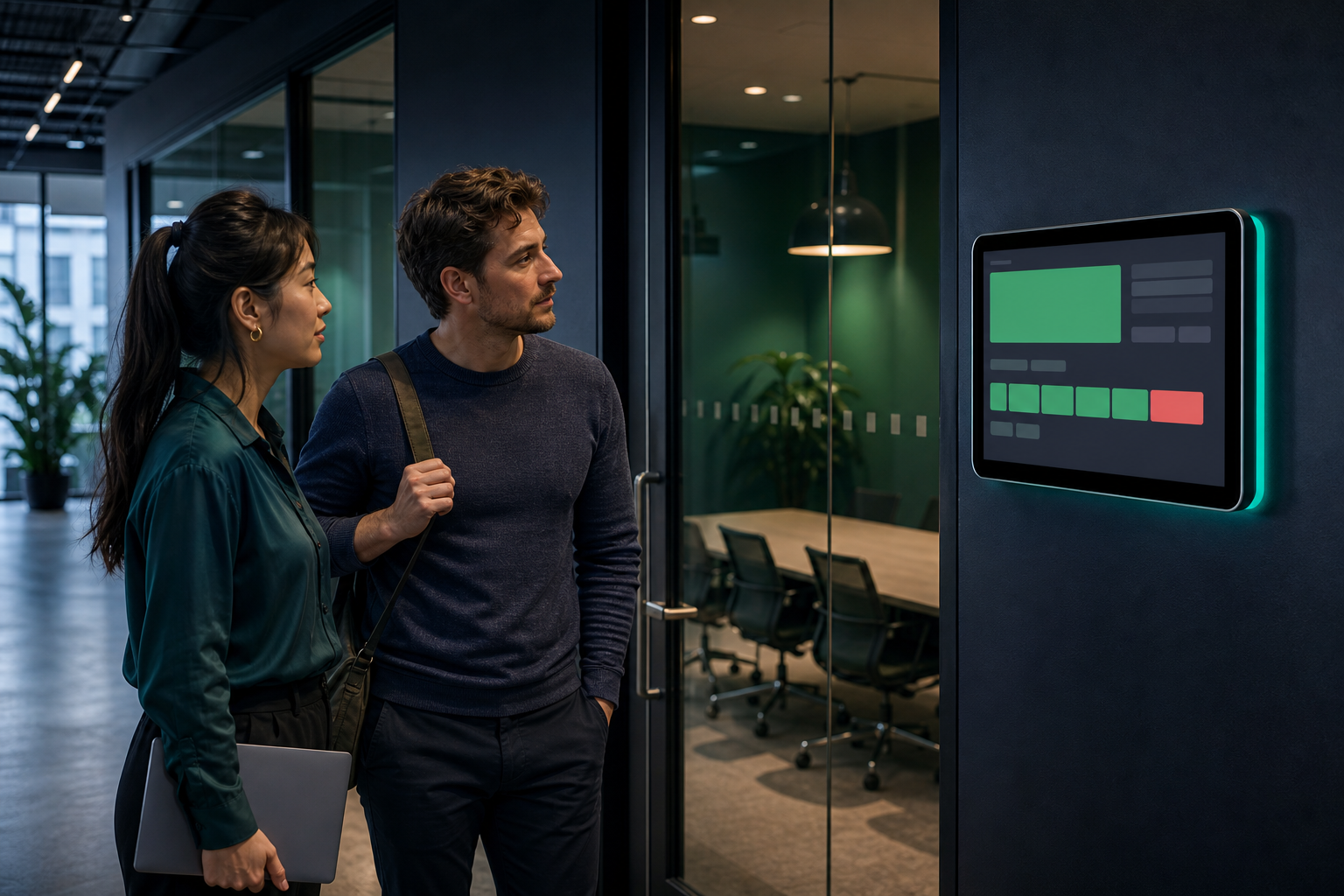
A meeting room may be available, occupied, or reserved for someone who never arrives. Without a clear signal outside the door, employees have to open a calendar, ask around, or interrupt a meeting to find out.
A room scheduler display is a dedicated screen placed near a meeting room to show its current availability and relevant booking information. The most useful systems do more than mirror a calendar: they make the next decision obvious, protect sensitive information, and give someone ownership of keeping the display reliable.
This guide explains how to plan a room display before you choose hardware or publish a schedule to a screen.
What a room scheduler display is used for#
A room display helps people answer a small set of practical questions quickly:
- Is the room available now?
- If it is occupied, when will it become available?
- What is the next scheduled use?
- Is this the correct room for the meeting?
- How can someone find another available room?
The screen might show a simple available/busy status, a short list of upcoming bookings, or a web-based room schedule. The right level of detail depends on the location and audience.
A screen outside a private executive meeting room should usually reveal less information than a display in a shared collaboration area. Treat the display as a public-facing surface, even if the scheduling system itself contains private data.
Choose the information the screen should show#
Start with the decision the viewer needs to make. Avoid displaying every field available in the scheduling system.
| Information | Useful for | Main consideration |
|---|---|---|
| Room name or number | Confirming the location | Keep it visible from the approach to the door |
| Current availability | Deciding whether to use the room | Use clear status wording and contrast |
| Current booking end time | Estimating when the room may open | The end time may not mean the room is actually empty |
| Next booking start time | Planning short, informal use | Avoid implying that a gap is always available |
| Meeting title | Identifying a booking | May expose confidential information |
| Organizer name | Contacting the person responsible | Consider whether visitors can see it |
| Capacity or room features | Choosing a suitable room | Useful when several rooms are nearby |
| Instructions or QR code | Taking the next action | Keep secondary content subordinate to availability |
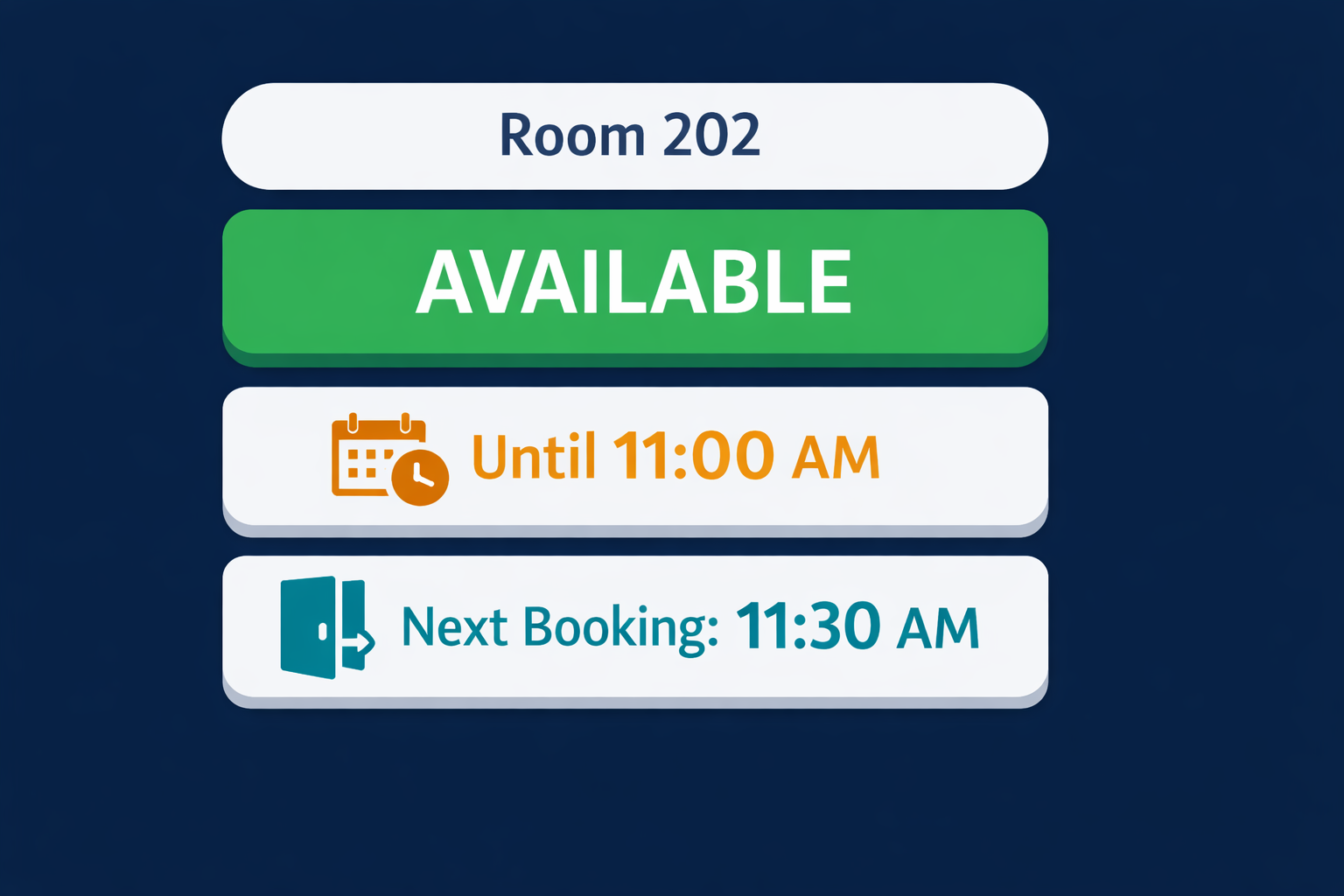
For many workplaces, a useful first version contains the room name, current status, the end time of the current booking, and the start time of the next booking. Add titles or organizer names only when there is a clear operational reason.
If the schedule is displayed through a browser or another web page, learn how to add a web URL in Variabl before committing to a particular scheduling workflow.
Design the screen for quick decisions outside a room#
People typically glance at a room display while walking, carrying equipment, or looking for a meeting. Design for recognition rather than prolonged reading.
Make availability the primary visual element#
Use a large status label such as Available, In use, or Reserved. Color can reinforce the status, but it should not be the only signal. Include text and use sufficient contrast so that people with color-vision differences can still interpret the screen.
Show a short time horizon#
A long agenda can make a room display look like a calendar application. It also makes the important information harder to find. Show only the current booking and a small number of upcoming events unless users genuinely need more detail.
Use large type at the expected viewing distance#
Estimate how far away people will stand and test the display from that distance. A screen that looks readable at a desk may be difficult to interpret from the end of a hallway. Keep the most important information near the center and avoid dense paragraphs.
Make the room identity unmistakable#
Place the room name or number in a prominent location. This reduces the chance that someone books or enters the wrong room when several doors are close together.
Handle privacy and sensitive meeting information#
A room display can be visible to employees, visitors, contractors, and anyone passing through the building. Do not assume that a calendar event is suitable for public display simply because it is visible to authorized users inside the scheduling system.
Before publishing meeting data, decide:
- Whether meeting titles should be hidden or shortened.
- Whether organizer names are necessary.
- Whether external attendee names or customer information could appear.
- How confidential, personal, or regulated information will be handled.
- Which people can change the display configuration.
- What the screen should show when the schedule cannot be loaded.
A privacy-conscious format might show “Reserved” and the time range without revealing the meeting title. If users need more detail, provide it through an authenticated system rather than exposing it on the hallway screen.
Also consider physical privacy. A screen facing a public corridor may be readable from outside the intended area. Placement, viewing angle, brightness, and the amount of information shown all affect exposure.
Choose screen placement, size, and viewing distance#
The best location is usually near the room entrance, but the exact position affects usability and safety.
Consider these factors:
- Approach direction: People should be able to read the status before opening the door or joining a queue.
- Viewing distance: Choose a screen and text size that work from the normal decision point, not only when someone stands directly in front of it.
- Door swing and traffic: Avoid mounting the screen where an opening door, corridor traffic, or a queue will block it.
- Power and network access: Check how the screen will receive power and connect to the scheduling page or display management system.
- Lighting: Avoid glare from windows and bright overhead lights. Test the display at different times of day.
- Accessibility: Keep controls, if any, within an appropriate reach range and provide information through readable text rather than color alone.
- Maintenance access: Staff should be able to service the device without disrupting a meeting or blocking a busy corridor.
For a wider rollout, document the mounting position, display orientation, power source, network connection, and device owner for every room. A consistent installation makes future troubleshooting easier.
If several rooms or locations will use the same approach, Variabl's guide to planning multiple digital signage screens may help with the broader deployment and screen-management questions.
Connect the display to an existing web-based room schedule#
Many organizations already have a booking system. Replacing it may create unnecessary training, integration, and governance work. A practical room display can often use an existing web-accessible schedule, provided the system and display environment support the required access method.
Before deployment, verify:
- The schedule page can be opened on the intended display device.
- The page remains usable in the required orientation and resolution.
- Authentication does not require a person to sign in repeatedly.
- The page does not expose more information than intended.
- The schedule updates often enough for the operational need.
- The display can recover if the network or page becomes unavailable.
- The scheduling provider permits the intended display or kiosk use.
Do not treat a browser tab that works on a laptop as proof that it will work unattended on a wall-mounted screen. Test login behavior, session expiry, pop-ups, browser compatibility, and how the page behaves after a restart.
A room display also does not automatically solve booking conflicts. If people can reserve rooms from multiple systems, define which calendar is authoritative and how conflicts are resolved.
Plan refresh, ownership, and failure handling#
The display is part of a small operational system, not just a television showing a web page. Assign ownership before installation.
Define who owns what#
A simple responsibility map should identify:
- The team that owns room calendars and booking permissions.
- The person or team that manages display devices.
- The person who approves the information shown publicly.
- The support contact for a blank, frozen, or inaccurate screen.
- The process for adding, renaming, or retiring rooms.
Decide what happens when data is stale#
A stale availability screen can be worse than no screen because people may trust incorrect information. Decide how the display should indicate a failed update. Options include showing a clear last-updated time, displaying a temporary service message, or directing users to another booking method.
Do not imply that a room is available when the schedule has stopped updating. If the system cannot confirm current data, the screen should communicate that limitation.
Monitor the physical and digital setup#
Include checks for:
- Device power and connectivity.
- Browser or display application state.
- Schedule loading and update behavior.
- Correct room identity.
- Screen brightness and orientation.
- Unexpected sign-in prompts.
- Physical damage or loose cables.
For monitoring or operations teams, displaying dashboards on dedicated screens provides related guidance on keeping information visible on shared displays. The room-scheduling use case still needs its own privacy and booking-specific decisions.
Pilot one room before wider deployment#
Choose a room that represents the normal environment but is not the most sensitive or difficult location. Run the pilot long enough to observe different conditions, such as busy periods, overnight behavior, network interruptions, and schedule changes.
Ask users and support staff:
- Can people identify the room quickly?
- Can they determine whether it is available without stopping for a long explanation?
- Is the text readable from the hallway?
- Does the display reveal more information than necessary?
- Does the schedule match the authoritative booking system?
- What do people do when the display and the room appear to disagree?
- Who notices and resolves failures?
Use the pilot to adjust content and operating procedures, not only screen size. A simpler display with clear ownership is often more useful than a feature-rich display nobody maintains.
Room scheduler display evaluation checklist#
Use this checklist when comparing a proposed room display setup:
- The display answers the availability question immediately.
- The room name or number is easy to identify.
- The information shown is appropriate for a public or semi-public hallway.
- Color is not the only way status is communicated.
- Text is readable from the normal viewing distance.
- The schedule source is clearly defined.
- Web access, authentication, and session behavior have been tested.
- Refresh and stale-data behavior are understood.
- A named team owns the calendar and another named owner supports the display, if appropriate.
- Power, network, mounting, and maintenance access are documented.
- A pilot has been completed before expanding to more rooms.
Frequently Asked Questions#
What is a room scheduler display?#
A room scheduler display is a screen near a meeting room that shows its current availability and, depending on the privacy policy, upcoming bookings or room details.
What should a room display show?#
At minimum, show the room identity and current availability. You may also show the current booking's end time, the next booking's start time, room capacity, or features. Meeting titles and organizer names should be included only when they are necessary and appropriate for the location.
Can I display a web-based room schedule on a dedicated screen?#
Potentially, if the scheduling page works in the intended display environment and supports unattended access. Test authentication, session expiry, browser behavior, refresh timing, privacy, and failure recovery before deployment. Variabl provides a guide for adding a web URL to a digital signage display, but support for a specific scheduling provider must be verified separately.
Should meeting titles appear on a room display?#
Not always. A hallway screen may be visible to people who do not need to know the subject of a meeting. Showing only “Reserved,” the time range, or a less sensitive label can reduce unnecessary exposure.
What happens if the schedule stops updating?#
The display should avoid presenting stale data as current. Define a visible warning, last-updated indicator, fallback message, or support procedure so users know when the screen cannot confirm availability.
Is a room display the same as a room-booking system?#
No. A display communicates room status and schedule information. It may not provide the controls, permissions, conflict handling, or authoritative calendar functions required to book a room. Confirm which system remains the source of truth.
A successful room scheduler display is deliberately limited: it shows the right decision-making information, protects details that do not belong in a hallway, and has a clear plan for updates and failures. Start with one room, verify the schedule behavior in its real environment, and expand only after the operational process is reliable.