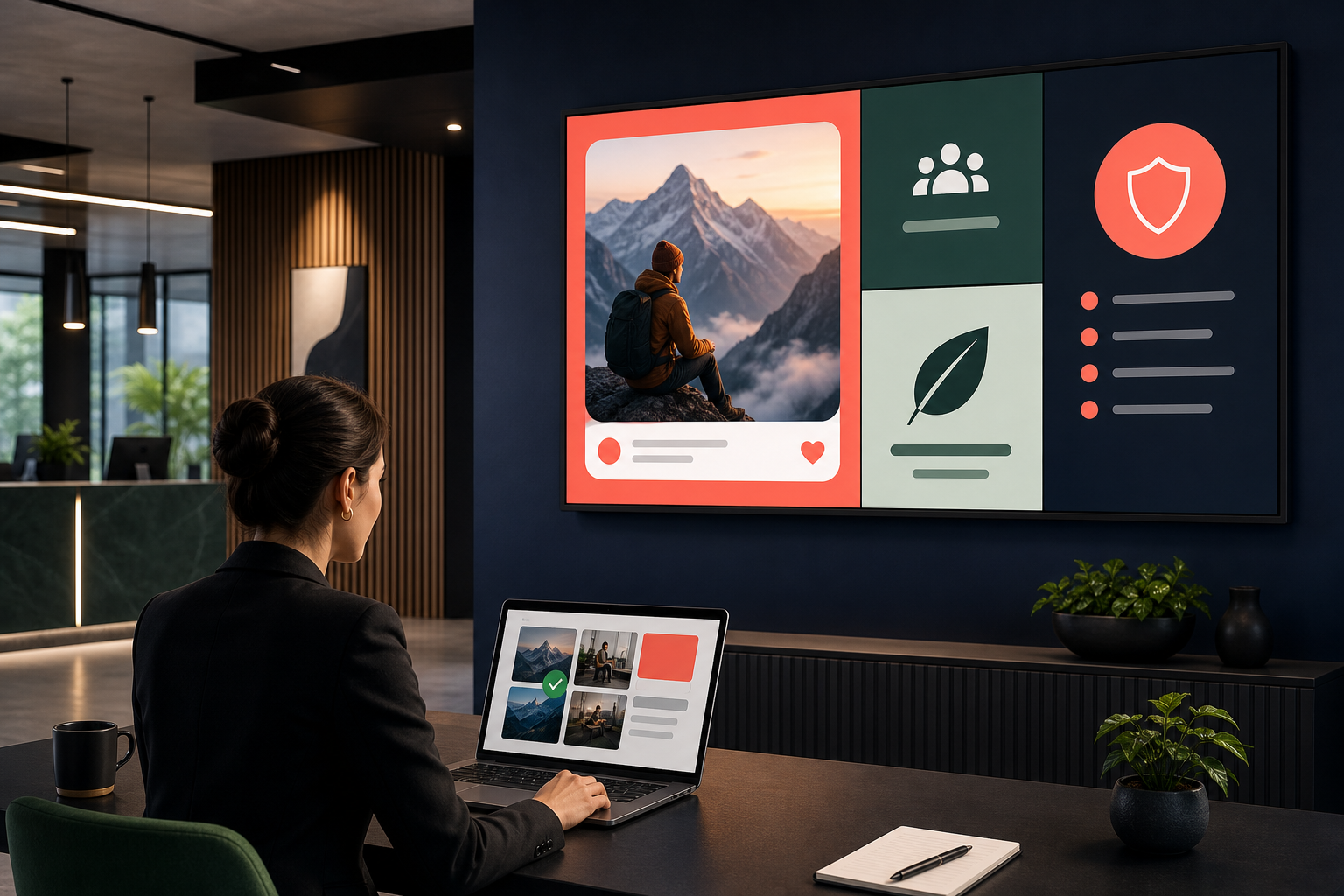
A social post that works on a phone can be a poor choice for a lobby display, staff screen, or customer-facing TV. It may include a private reply, become outdated within hours, or be too small to read from a distance.
Social media digital signage works best when posts are treated as screen content—not simply copied from a social feed. Select content for a specific audience and location, review it before display, set an expiry rule, and test how it looks on the actual screen.
This guide explains a practical workflow for doing that. It does not assume that Variabl has a native integration with a particular social network. Depending on your setup, the source may be an approved web page, a published social feed, a scheduled slide, or another supported display method.
What social media digital signage means#
Social media digital signage is the use of social content on a shared screen rather than only inside a social platform. Examples include:
- A selected customer post on a retail or event display.
- An approved employer announcement shown on an office screen.
- A campaign post included in a rotating lobby presentation.
- A moderated community update displayed at a school or venue.
- A social-media page displayed as one element alongside dashboards, announcements, or other web content.
The important distinction is selection. A public feed is not automatically suitable for a shared screen. A screen has a physical audience, a location, and an expected viewing time. Those factors should determine what appears.
When social content belongs on a shared screen#
Social content is usually a good fit when it helps people in the room understand what is happening now or what the organization wants to highlight. It may be useful for:
- Event updates and approved highlights.
- Product launches or campaign milestones.
- Community contributions that have been reviewed.
- Internal recognition and employee communications.
- Announcements that need more visibility than a social channel alone provides.
It is less suitable when the content depends on private context, requires a long caption, contains rapidly changing information, or could expose unmoderated comments to visitors or employees.
A useful test is: Would you be comfortable showing this post to everyone who can see the screen, without explaining its context? If not, it needs editing, approval, or a different display channel.
Choose content for the audience and location#
Start with the screen's job rather than the social platform. A reception display, production-floor screen, staff room, and trade-show monitor may all need different content rules.
| Screen location | Content that may fit | Main concern |
|---|---|---|
| Reception or lobby | Approved campaign posts, event highlights, community updates | Visitors may not know the original context |
| Staff area | Internal announcements, recognition, selected company updates | Personal information and workplace sensitivity |
| Retail or venue | Product highlights, event content, moderated customer posts | Brand safety and fast expiry |
| Operations area | Time-sensitive notices or campaign status | Avoid distracting from operational information |
| Public event | Selected posts using an event hashtag or submission process | Impersonation, inappropriate content, and consent |
Do not use follower count or engagement alone as the selection rule. A post can perform well online and still be unreadable or inappropriate for a physical display.
Review privacy, permissions, and moderation risks#
Before a post reaches a shared screen, check four areas.
Privacy and personal information#
A post can be publicly visible and still contain information that should not be amplified in a workplace, school, clinic, or public venue. Review names, faces, usernames, location details, direct-message excerpts, and user-generated photographs.
If the content features identifiable people, follow your organization's consent and privacy process. Do not assume that public visibility gives you unlimited permission to republish or prominently display the material.
Permissions and usage rights#
Confirm that your organization is allowed to reuse the image, video, or text in the intended setting. A social platform's sharing function, an account's visibility, and the rights to republish content are not necessarily the same thing.
Platform terms and organizational policies can change, so obtain current legal or policy guidance for campaigns involving user-generated content, paid promotion, or regulated industries.
Comments and replies#
A live feed may show replies or comments that your team has not reviewed. It may also expose usernames, personal disputes, or content that is harmless online but unsuitable for a shared screen.
For most public-facing displays, selected posts or a moderated collection are safer than an unrestricted feed.
Expiry and accuracy#
Every displayed post should have an owner and an expiry condition. Remove content when:
- An event has ended.
- An offer or announcement is no longer accurate.
- A campaign has changed.
- A post is deleted or corrected at the source.
- A person withdraws permission where applicable.
Create an approval and expiry workflow#
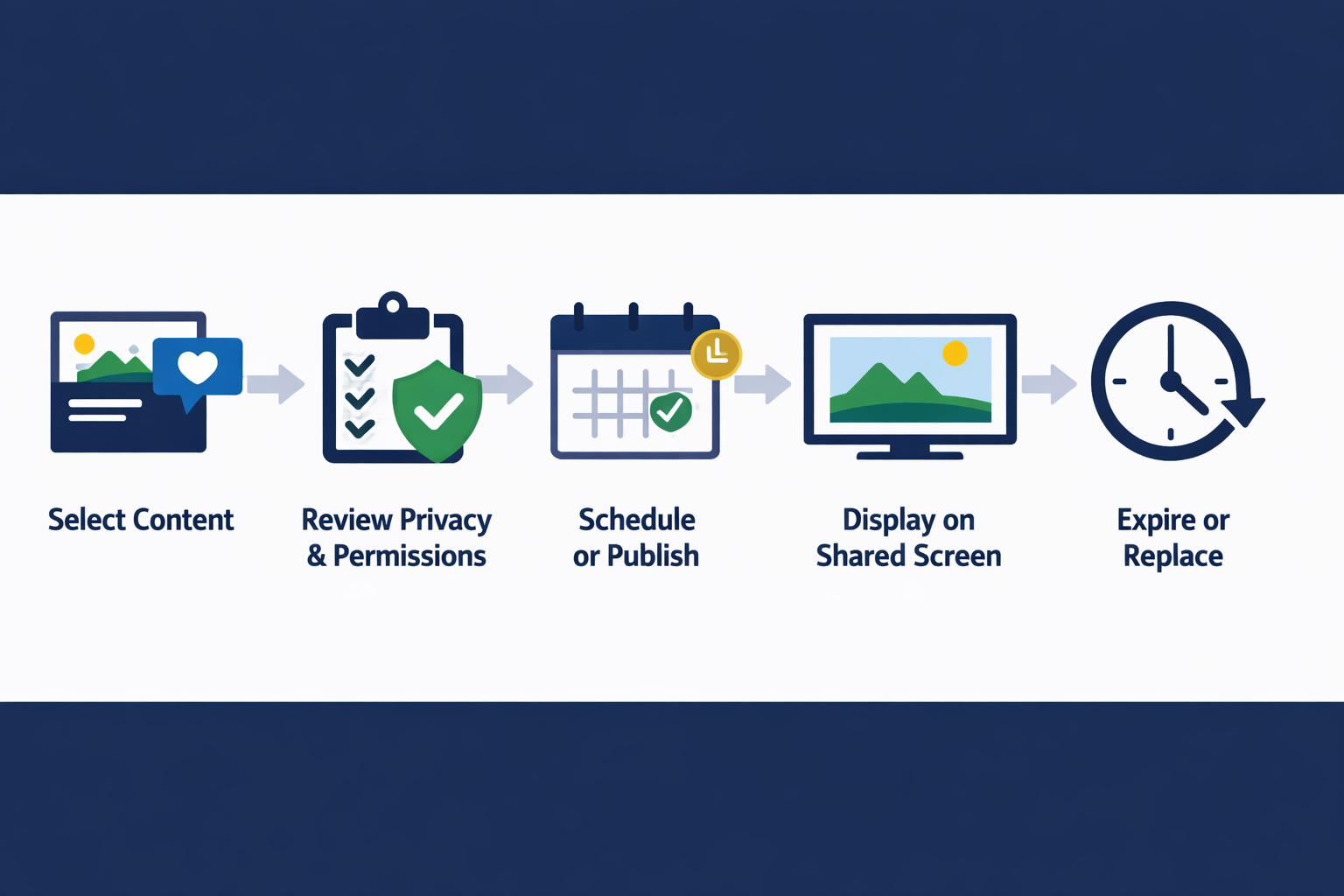
You do not need a complicated process, but you do need clear ownership. A basic workflow looks like this:
- Nominate the source. Record the platform, account, URL, campaign, or submission channel.
- Select the post. Choose content that fits the screen's audience and physical location.
- Review the content. Check privacy, permissions, spelling, links, comments, claims, and visual quality.
- Assign an owner. Name the person responsible for removing or replacing it.
- Set a display window. Record when the item may start and when it must stop.
- Publish or schedule it. Use the available screen-management workflow, URL, playlist, or presentation method.
- Check playback. Confirm that the screen shows the intended content and that it remains readable.
- Review after publication. Watch for source changes, broken pages, or content that becomes outdated.
A simple content register can include:
| Field | Example |
|---|---|
| Content owner | Marketing team |
| Screen group | Reception displays |
| Source | Approved campaign page |
| Approval date | Date recorded internally |
| Start and end time | Defined display window |
| Review notes | Consent and brand review complete |
| Removal trigger | End of event or campaign |
The dates and examples above are workflow guidance, not a claim about a particular platform's scheduling feature.
Design social content for distance viewing#
A social post is normally designed for a personal screen held close to the reader. Signage is different. People may see it briefly and from several metres away.
For better readability:
- Use a short headline or caption rather than a full post transcript.
- Keep the most important information near the center of the layout.
- Use high contrast between text and background.
- Avoid relying on tiny usernames, timestamps, or comment threads.
- Leave enough time for a passerby to read the message.
- Check the layout in the screen's actual orientation and aspect ratio.
- Make sure videos do not depend on audio if the area is noisy or silent.
- Keep branding secondary to the message when the purpose is communication rather than promotion.
If the original post is visually dense, consider creating a separate approved slide that summarizes it and links or directs people to the full source elsewhere. That preserves the message without pretending that a phone-sized interface is automatically a good signage layout.
Choose between live feeds, selected posts, and scheduled slides#
These approaches solve different problems.
Live feed#
A live feed updates automatically from a source. It can be useful for controlled internal content, but it creates the greatest moderation and availability risk. Source changes, account issues, comments, platform restrictions, or unexpected posts may affect the screen without a review step.
Use a live feed only when the source is trusted, the audience is appropriate, and someone is responsible for monitoring it.
Selected posts#
Selected posts provide more control. A team member chooses individual items, reviews them, and adds them to the display workflow. This is often the best balance for public screens and campaign content.
The trade-off is operational: someone must keep the collection current.
Scheduled slides#
Scheduled slides are useful when content must appear at a known time or for a defined period. A social post can be represented by an approved image, video, or web page and placed into a rotation alongside other content.
Scheduling software may help plan the social post itself, but that does not automatically schedule or control its appearance on a shared screen. Treat social publishing and screen playback as two related workflows that may require separate approval and testing.
How scheduled Instagram content fits the workflow#
People searching for ways to schedule content on Instagram are often solving a publishing problem: preparing posts in advance for a social audience. A digital-signage workflow adds another question: what version of that content should appear on a shared screen, and for how long?
For scheduled content Instagram campaigns, keep these decisions separate:
- When the social post is published.
- Whether the post is approved for physical display.
- Which screen group should show it.
- Whether the screen should show the original post, a selected visual, or a summary slide.
- When the display item expires.
This prevents a scheduled social post from becoming an unreviewed, indefinite screen item.
Test playback and content freshness#
Before expanding a social signage workflow, test one screen and one content type. Check:
- Does the source load reliably on the display device?
- Is authentication required, and will it expire?
- Does the page fit the screen without unwanted scrolling?
- Are videos, animations, and images rendered correctly?
- Can people read the content from the normal viewing distance?
- What happens if the source is unavailable?
- Who notices and fixes stale or broken content?
Variabl's existing screen setup guide can help with the general process of preparing displays. If the content is a web page, review the guide to adding a web URL before choosing a URL-based approach. Teams planning a wider display workflow may also find the article on using screen displays to support productivity relevant.
Do not treat a successful first load as proof that a social source will remain available indefinitely. Recheck the workflow after account, platform, browser, or content changes.
Measure usefulness without assuming engagement results#
A social post's online likes or comments do not prove that it works as signage. Measure the display workflow itself:
- Are approved items being removed on time?
- Do people understand the message without extra explanation?
- Are screens showing current content during the intended hours?
- Are staff spending too much time fixing source or layout problems?
- Are viewers asking fewer repetitive questions because the information is visible?
Avoid inventing a conversion result from screen exposure alone. If you need to measure action, use a clearly defined method such as a campaign code, an event response process, or a separately designed survey.
A practical decision rule#
Use this short rule when deciding how to display a social item:
- Public screen and sensitive audience: use selected, approved content with a short expiry.
- Internal screen and trusted source: a controlled feed may be reasonable, but assign an owner.
- Time-limited campaign: use scheduled slides or selected posts with a defined end date.
- Fast-changing or controversial content: avoid unattended live display.
- Content that is hard to read at a distance: redesign it instead of displaying the original post unchanged.
Social media scheduling software can help organize publishing, but it is only one part of the signage system. The safer workflow connects planning, approval, screen presentation, and removal.
Frequently asked questions#
What is social media digital signage?#
It is the use of selected or approved social-media content on shared displays such as lobby screens, workplace TVs, event monitors, or digital menu and information boards. The content may be live, selected manually, or converted into scheduled slides.
Can I display an Instagram post on a digital-signage screen?#
Possibly, depending on the source, display method, account access, platform behavior, and your permission to reuse the content. Confirm that the page loads correctly on the display and review the post for privacy, moderation, readability, and expiry before publishing it to a shared screen.
Is a live social feed better than scheduled content?#
Not necessarily. A live feed is more current but gives you less control over unexpected updates, comments, availability, and moderation. Selected or scheduled content is usually easier to review and expire, especially on public-facing screens.
Does social scheduling software also control digital-signage playback?#
Usually, publishing a social post and displaying content on a physical screen are separate workflow steps. A scheduling tool may plan when a post is published, while a screen-management system controls what appears on a display and when it is removed. Verify the capabilities of the specific tools in your setup.
How often should social signage content be reviewed?#
Review it according to how quickly the subject can change. Event announcements, offers, emergency information, and live campaigns need more frequent checks than evergreen brand content. Every item should have an owner and a removal condition.
The safest default is simple: display fewer posts, review them carefully, make them readable from a distance, and give every item an end date.