
author: name: "Sam Reed" picture: "/author/sam.png" cover_image: "/assets/blog/display-tableau-business-dashboards-digital-signage-cover.jpg"#
A Tableau dashboard that works well on a laptop can become difficult to use when it is placed on a wall-mounted screen across a room. Small labels, interactive filters, sign-in prompts, stale data, and session timeouts can all turn a useful business display into an empty or unreadable screen.
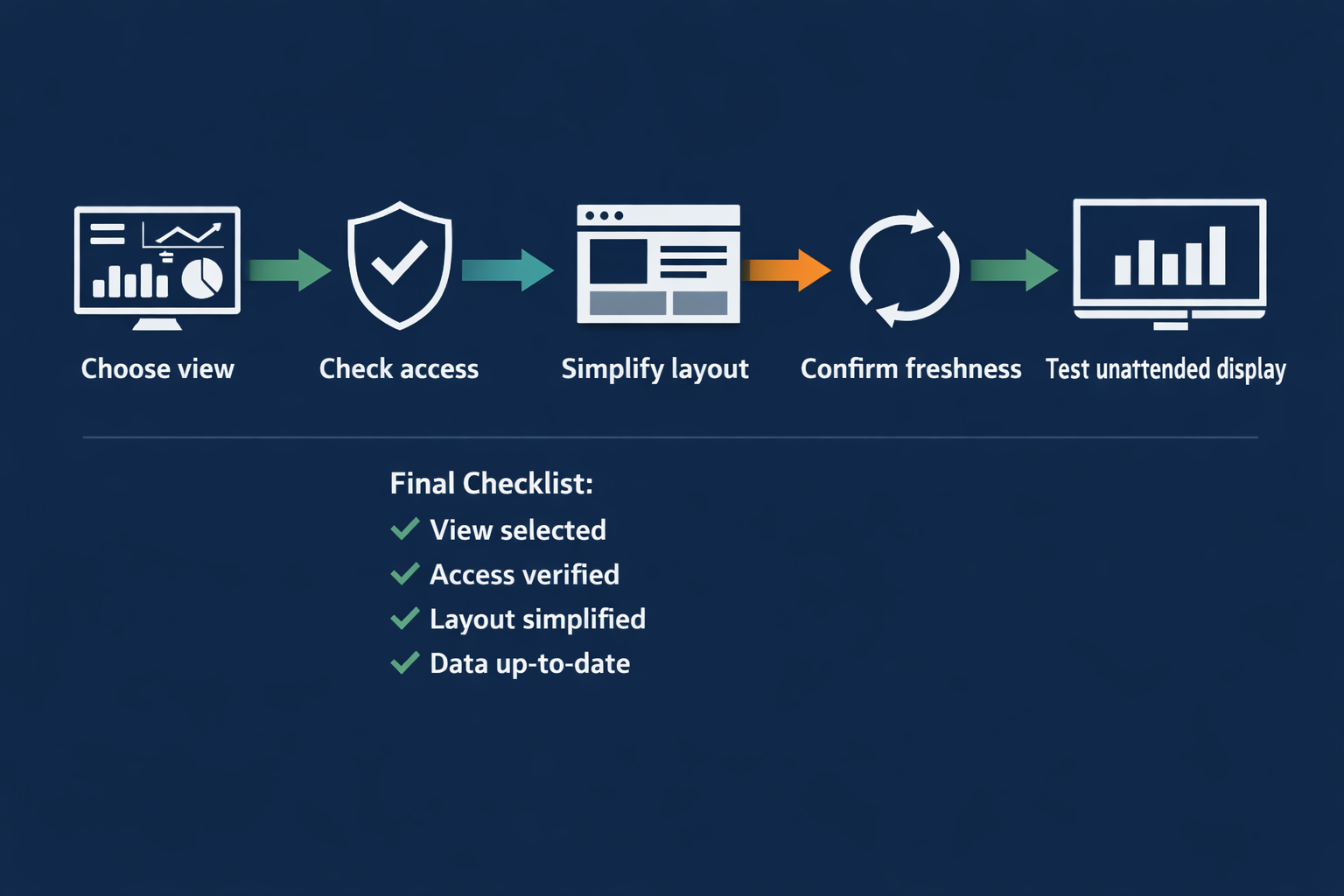
The reliable approach is to treat a Tableau display as an operational screen, not simply as a browser tab. Choose a view that makes sense without a presenter, confirm that the intended audience can access it, simplify the layout for distance viewing, and test how it behaves when left unattended.
This guide explains how to prepare Tableau business dashboards for a dedicated digital signage screen and how to troubleshoot common display problems. The exact sharing, authentication, embedding, and refresh behavior depends on your Tableau environment and configuration, so confirm those details with your Tableau administrator before deployment.
Why use a Tableau dashboard on a shared screen?#
A shared screen can give a team a persistent view of information that would otherwise require opening Tableau repeatedly. Examples include:
- Production output and order status
- Sales pipeline or revenue progress
- Customer support queues
- Inventory or fulfillment indicators
- Service-level or operational metrics
- A summary view for a meeting area, office, or command center
The screen should answer a small number of questions at a glance. For example: Are orders on track? Which queue needs attention? Has a key operational measure moved outside its expected range?
A wall display is not a good replacement for the full Tableau experience. Users generally cannot interact with it as comfortably as they can with a nearby computer, and a display located in a public or semi-public area may expose information to people who would not normally open the workbook.
If you are planning several dashboard screens rather than one Tableau view, review Variabl's guide to planning a command-center dashboard display for broader screen-layout considerations.
1. Choose a Tableau view that works without a presenter#
Start with the view, not the display software. Select a dashboard that communicates a clear operational message when nobody is available to explain it.
A suitable view usually has:
- A clear title and reporting period
- A limited number of important charts or indicators
- Labels that remain readable from the intended viewing distance
- A visible indication of when the data was last updated, if freshness matters
- Filters that are already set to the appropriate default state
- No dependence on frequent mouse movement or manual interaction
Avoid placing a complex workbook with many tabs, dense tables, or exploratory controls on a screen intended for passive viewing. Those features may be valuable to an analyst but confusing to someone who sees the screen for only a few seconds.
Decide whether the view is public, internal, or restricted#
Before displaying a dashboard, classify the information:
- Public: safe for anyone who can see the screen.
- Internal: appropriate for employees or a controlled workplace area.
- Restricted: contains personal, financial, customer, security, or commercially sensitive information.
A screen in a reception area, hallway, shared workspace, or customer-facing environment should be treated as visible to an unknown audience. Cropping a dashboard or hiding one chart does not necessarily remove sensitive information if other labels, filters, or totals reveal it.
2. Confirm Tableau sharing and authentication requirements#
A dashboard URL is not automatically a display-ready source. The screen workflow must be able to reach the view and remain authorized to load it.
Ask your Tableau administrator:
- Is the view available to the account or group that will use the screen?
- Does the view require a Tableau sign-in, single sign-on, VPN, or network access?
- Does the account have permission to see the underlying workbook and data?
- Will access expire after a period of inactivity?
- Are there policies that prohibit displaying this view on an unattended device?
- Is the intended sharing method approved for this dashboard?
Do not assume that a publicly accessible link is appropriate. Public sharing can expose data beyond the intended audience and may conflict with organizational policy. Conversely, a private view may be secure but unsuitable for unattended playback if the screen cannot renew authentication when a session expires.
Use the least access necessary. A dedicated display account should not have broad permissions simply because it makes setup easier. If the screen is in a sensitive location, consider whether the dashboard should show aggregated values instead of individual records.
For a broader explanation of screen setup and device preparation, see Variabl's guide to setting up digital signage screens.
3. Prepare the layout for distance viewing#
A dashboard designed for a monitor at arm's length may not be legible from across a room. Check the actual viewing position and redesign the view where necessary.
Prioritize:
- Larger type for titles, labels, and key values
- Strong contrast between text and background
- Fewer simultaneous charts
- Shorter labels and simpler legends
- Clear spacing between visual elements
- A layout that fits the screen without requiring browser zoom
Do not rely on a viewer hovering over a mark to understand it. Tooltips and hover states can help an interactive analyst, but they are unreliable on an unattended display.
A useful test is to stand where the most distant viewer will normally be and ask whether they can identify the dashboard's purpose, reporting period, and most important status within a few seconds. If not, simplify the view before adding it to the signage workflow.
Review filters and defaults#
Filters can make a dashboard useful or misleading. Check that the initial state:
- Covers the intended location, team, product, or time period
- Does not show an empty result because of an invalid default
- Does not hide an important exception
- Is understandable to someone who did not configure it
If the display cycles through several views, document the filter state for each one. A dashboard that silently retains a previous user's selection may show the wrong region or reporting period.
4. Check data freshness separately from screen refresh#
A browser reload and a data refresh are not necessarily the same event. Reloading the page may retrieve the same published result, while the underlying data source may update on its own schedule. The dashboard may also use extracts, cached results, or a refresh process controlled by your Tableau environment.
Before deployment, identify:
- How often the underlying data is updated
- Whether the workbook uses live connections or extracts
- Whether the displayed view indicates its last update time
- Whether a page reload is needed to show new results
- What should happen if the data source is temporarily unavailable
Match the display's expected update frequency to the business decision. A daily planning dashboard does not need to reload every minute, while a production status display may require a much shorter freshness window. More frequent reloads can also create unnecessary network or system activity, so do not use an aggressive interval without a reason.
If freshness is operationally important, add a visible timestamp or reporting period to the Tableau view. A number without context can look current even when it is not.
5. Add the Tableau destination to a dedicated display workflow#
Once access and layout are confirmed, add the approved Tableau URL to your digital signage workflow. Variabl can be used to place web-based content on dedicated screens, but the exact behavior depends on the device, browser, network, and Tableau authentication configuration.
A typical workflow is:
- Copy the approved Tableau view URL.
- Add the URL as web content in the signage system.
- Assign it to the intended screen or playlist.
- Configure the display device to use the appropriate network and browser mode.
- Set any approved reload or rotation behavior.
- Save and publish the content.
- Observe the physical screen rather than relying only on an editor preview.
If your screen also needs other web pages or monitoring sources, Variabl's article about displaying dashboards on a digital signage screen provides useful context for comparing screen and dashboard requirements.
Do not publish the URL widely if it contains access tokens, private parameters, or other information that should remain confidential. Store credentials using your organization's approved method; do not place passwords in a URL or in an image-generation prompt.
6. Test unattended playback before relying on it#
A dashboard that loads once is not necessarily ready for continuous display. Test the conditions that can occur after hours or during a network interruption.
Use this sequence:
- Load the dashboard on the actual display device.
- Confirm that the correct view and filter state appear.
- Check the screen from the normal viewing distance.
- Leave it running for at least the expected operating period.
- Observe what happens after a reload or device restart.
- Test a temporary network interruption if your IT team permits it.
- Confirm that the screen returns to the dashboard rather than a sign-in page, error page, or blank browser tab.
- Verify that sensitive data is not visible during loading or failure states.
Record the device, browser or playback method, Tableau environment, account, URL, and expected refresh behavior. This makes later troubleshooting much faster and helps distinguish a Tableau permission issue from a signage-device issue.
Common Tableau display problems#
| Symptom | Possible cause | What to check first |
|---|---|---|
| Blank page | Network, permission, browser, or loading problem | Open the same URL on the device and check connectivity and sign-in state |
| Sign-in page appears | Session expired or authentication is unsupported for unattended playback | Confirm the approved authentication method and session policy |
| Old numbers remain visible | Source, extract, cache, or reload behavior | Check the data source's update time and the dashboard's freshness indicator |
| Dashboard is cropped | Resolution, scaling, browser zoom, or responsive layout | Match the view and device resolution; remove unnecessary browser zoom |
| Text is too small | Dense layout designed for analyst use | Simplify the dashboard and increase labels or key values |
| Filters show the wrong scope | Saved state or URL parameters | Confirm default filters and test the exact URL used on the screen |
| Screen stops updating | Device, network, browser, or session problem | Check device health, logs, connectivity, and authentication expiry |
A blank dashboard does not prove that the Tableau workbook is broken. It may indicate that the display device cannot complete authentication, reach a private network, or run the required browser behavior. Troubleshoot each layer separately: network, access, Tableau view, browser, and signage workflow.
Tableau dashboard display checklist#
Before putting the screen into regular use, confirm:
- The selected Tableau view has a clear purpose.
- The audience and physical location are approved.
- Sensitive information has been removed or protected.
- The display account has only the required access.
- Authentication works on the actual device.
- Filters and time periods show the intended scope.
- Labels, legends, and key values are readable at distance.
- The data source's update schedule is understood.
- A timestamp or reporting period is visible when needed.
- Reload, restart, and recovery behavior have been checked.
- The screen does not expose credentials or private URLs.
- Someone owns ongoing review of the dashboard and device.
Frequently asked questions#
Can I display a Tableau dashboard on a dedicated digital signage screen?#
Usually, a Tableau view can be presented as web content when the display device can reach the required URL and complete the configured authentication. Confirm the specific Tableau permissions, network, browser, and session requirements before deployment.
Should I make a Tableau dashboard public before displaying it?#
No. Public sharing is not a default requirement and may expose business information. Use an approved access method and share only the data appropriate for the screen's audience.
Will refreshing the screen automatically refresh Tableau data?#
Not necessarily. A page reload and an underlying data-source refresh are separate behaviors. Confirm whether the workbook uses live data, extracts, cached results, or another refresh process, and display a last-updated time when freshness matters.
Why is my Tableau dashboard readable on a laptop but not on a TV?#
The viewing distance, screen resolution, scaling, and dashboard layout are different. Increase the size of important labels, remove low-value elements, simplify legends, and test from the farthest normal viewing position.
What should I do if the Tableau screen signs out overnight?#
Treat it as an authentication or session-management issue rather than simply increasing reload frequency. Ask the Tableau or IT administrator whether the session expires, whether the device is supported for the approved sign-in method, and what unattended access policy applies.
Can I display a restricted Tableau dashboard in a public area?#
Only if the content and access arrangement have been explicitly approved. A restricted dashboard may reveal sensitive information through totals, labels, filters, or loading states even when individual records are not visible.
A Tableau business dashboard is ready for digital signage when it is understandable without assistance, approved for its audience, reachable by the display device, and tested beyond the first successful load. Validate those conditions before treating the screen as a dependable source of operational information.