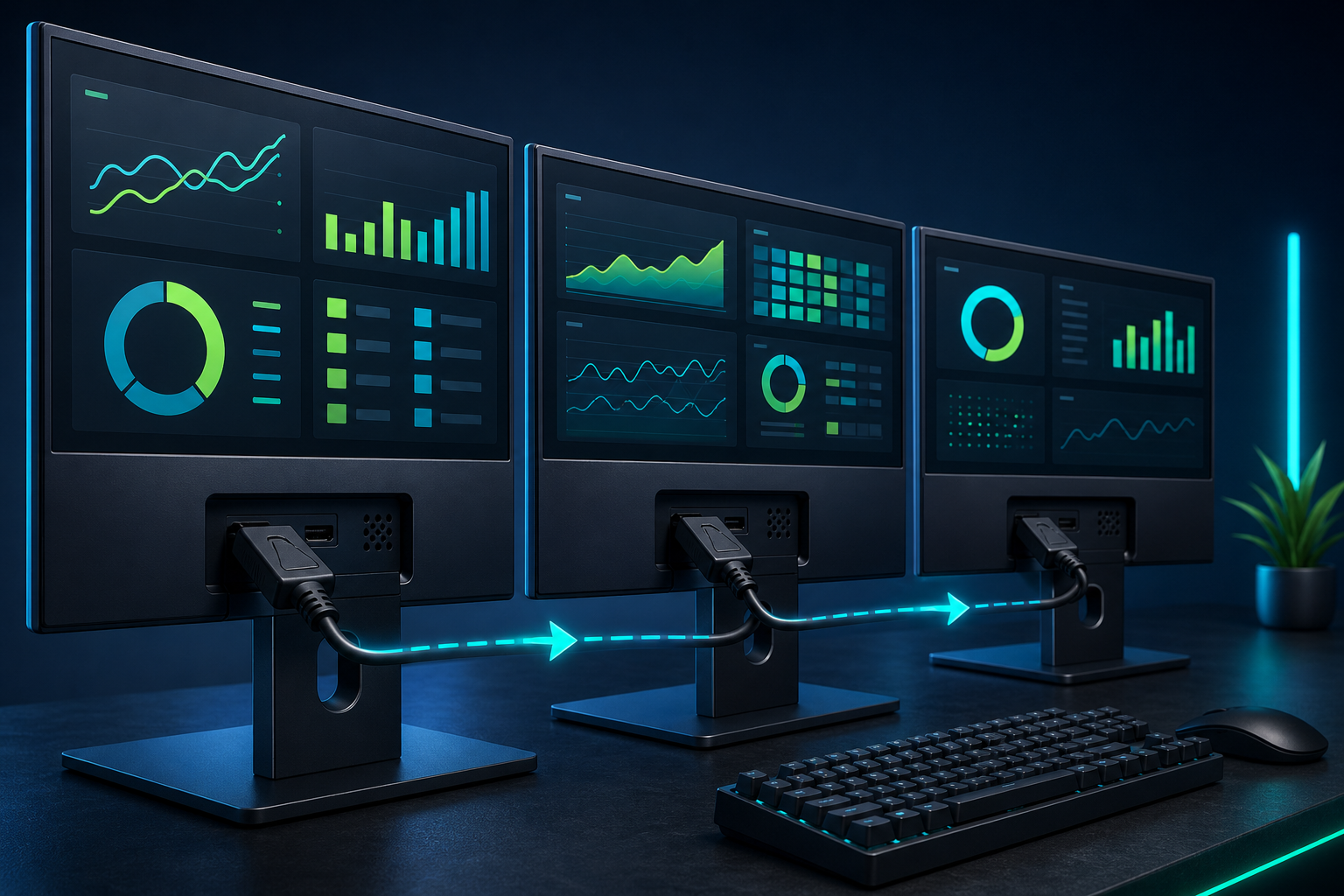
A daisy chain monitor setup connects the computer to one monitor, then connects that monitor to the next. It can reduce cable runs and make a multi-screen dashboard installation easier to organize—but only when the computer, monitors, ports, cables, and display settings all support the same technology.
The usual technology behind this arrangement is DisplayPort Multi-Stream Transport, commonly called MST. Before buying cables or rearranging screens, check that your computer can send multiple independent display signals and that each monitor in the chain supports the required input and output connections.
For a broader planning context, see Variabl’s guide to choosing a monitor for digital signage and dashboard displays. It covers screen size, brightness, orientation, and connectivity before you settle on a physical layout.
What monitor daisy chaining means#
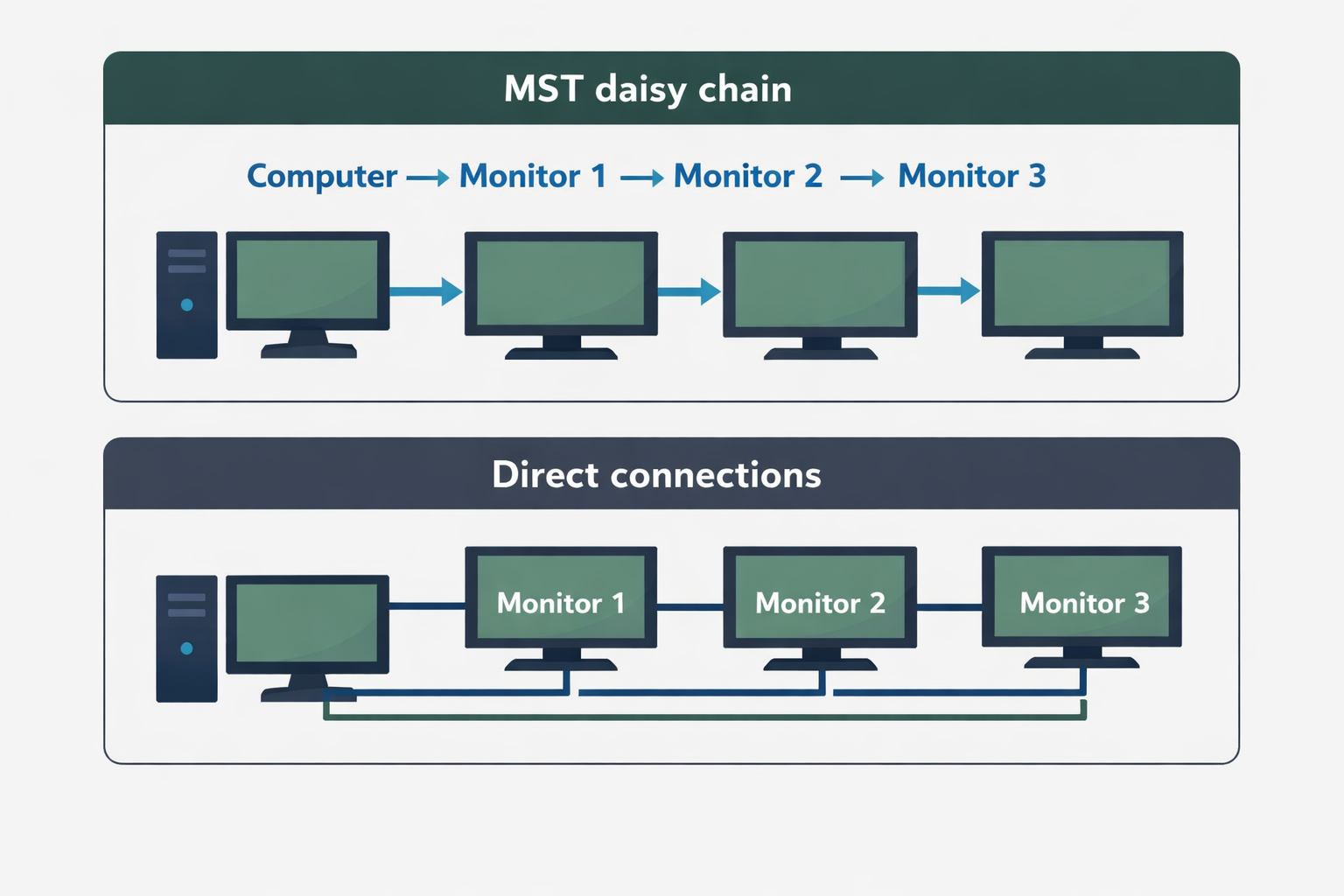
In a conventional multi-monitor setup, every monitor connects directly to the computer. A daisy chain uses the first monitor as an intermediate link:
Computer → Monitor 1 → Monitor 2 → Monitor 3
Each screen receives its own portion of the desktop. This is different from connecting a video splitter, which commonly duplicates one signal across multiple outputs rather than creating independent displays.
A daisy chain also does not make monitors work together automatically. The operating system and graphics hardware still need to detect and drive each display. Monitor order, resolution, refresh rate, cable quality, and available bandwidth can affect the result.
Daisy chaining versus separate video outputs#
| Approach | How it works | Main advantage | Main limitation |
|---|---|---|---|
| Direct connections | Each monitor connects to the computer | Usually easier to isolate and troubleshoot | Requires more computer ports and cable runs |
| MST daisy chain | One monitor connects to the computer and passes the signal onward | Cleaner cabling and fewer direct connections | Every link must support the required standard and bandwidth |
| Video splitter | One signal is copied to multiple outputs | Useful for mirrored content | Usually not suitable for independent dashboards |
For a dashboard wall where each screen shows different content, confirm that you are using a multi-display solution—not a mirror-only splitter.
MST, ports, cables, and bandwidth#
MST is a DisplayPort feature that allows multiple display streams to travel through one connection. It is not a monitor brand or a software application. Searching for an “MST monitor” generally means looking for a monitor with MST support, often exposed through a DisplayPort output labeled DP Out, DisplayPort Out, or similar wording.
Check these components before assembling the chain:
- Computer or docking station: It must support multiple independent displays through the selected port. A USB-C port may support DisplayPort video, but USB-C shapes alone do not guarantee MST support.
- First monitor: It needs a compatible video input and an output that can pass the signal to another monitor.
- Additional monitors: Each downstream monitor must support the connection used by the chain, or you may need a supported adapter.
- Cables: Use cables rated for the DisplayPort version and resolution you plan to run. Avoid assuming that any cable with the right connector will provide the same bandwidth.
- Total workload: Higher resolutions and refresh rates consume more bandwidth. Several high-resolution screens may exceed the limits of the computer, dock, or first monitor.
For a daisy chain Dell monitors setup, check the exact manual or technical specification for every Dell model. Two monitors from the same brand can have different port layouts and MST capabilities.
How to check compatibility before connecting anything#
Use this checklist rather than relying on the monitor brand or connector shape:
- Identify the computer’s video output. Record whether it is DisplayPort, USB-C with DisplayPort support, HDMI, or connected through a dock.
- Check the graphics hardware. Look for the maximum number of independent displays and supported resolutions.
- Inspect Monitor 1. Confirm that it has both a compatible input and a video output that supports MST or daisy chaining.
- Inspect downstream monitors. Confirm their inputs match the cable path and that the planned resolution is supported.
- Check the manuals. Look for terms such as MST, DisplayPort output, daisy chain, or multi-stream transport.
- Check the operating system. Confirm it can extend the desktop across the number of displays you intend to use.
If any part of this chain is unclear, direct connections are often the safer installation choice. They may use more cables, but they reduce the number of compatibility dependencies.
How to connect the monitors in the correct order#
Once compatibility is confirmed, connect the chain in this order:
- Turn off the computer and monitors, or disconnect the display cables while the equipment is powered down.
- Connect the computer’s video output to the video input on Monitor 1.
- Connect Monitor 1’s video output to the input on Monitor 2.
- Continue from each monitor’s output to the next monitor’s input.
- Power on the monitors, starting with the downstream screens if the manufacturer recommends a specific sequence.
- Start the computer and open the operating system’s display settings.
- Select Extend rather than Duplicate if each screen needs to show a different dashboard.
- Arrange the displays to match their physical left-to-right or top-to-bottom positions.
- Set a conservative resolution and refresh rate first. Increase them only after the entire chain is stable.
The exact menu names and startup behavior vary by operating system, monitor, dock, and graphics hardware. Follow the monitor and computer manufacturer’s instructions when they differ from this general sequence.
Test the setup before adding dashboard software#
Test the hardware as a normal extended desktop before loading dashboards or signage content. This separates display-topology problems from browser, kiosk, or digital signage problems.
Check each screen individually:
- Does the operating system detect it?
- Does the image appear without flicker or intermittent black screens?
- Is the screen in the correct physical order?
- Is the selected resolution supported?
- Does portrait orientation work if the display is mounted vertically?
- Does the setup remain stable after sleep, restart, and power cycling?
- Does disconnecting a downstream monitor affect the screens before it?
A downstream failure can sometimes make later screens disappear. Test from the computer outward: first the direct connection, then the first link, then each additional monitor.
For broader troubleshooting, Variabl’s monitor-not-displaying troubleshooting checklist may help when the problem is a blank or undetected screen. For planning the content and ownership of several screens, see how to manage multiple digital signage displays.
Common daisy-chain problems and what they indicate#
No signal on every monitor#
Start with the direct connection between the computer and Monitor 1. Check the selected input, reseat the cable, and test Monitor 1 by itself. If the first monitor does not work alone, the downstream chain is not yet the problem.
Monitor 1 works, but later screens are missing#
Check that the connection leaves Monitor 1 through its output port—not a second input. Confirm MST is enabled in the monitor’s settings if the monitor provides that option. Then test one downstream monitor at a time.
Only one duplicated image appears#
The computer may be set to duplicate the desktop, or the hardware may be acting as a mirror-only splitter. Change the operating system setting to extend the displays. If independent screens are still unavailable, verify that the graphics hardware and adapter support multiple display streams.
Displays appear in the wrong order#
The physical cable order and the operating system’s logical arrangement are separate. Reorder the display icons in system settings, then move the pointer across the screens to confirm the arrangement.
Flicker, black screens, or random disconnects#
Reduce resolution or refresh rate temporarily, replace suspect cables, and remove adapters where possible. Check whether the total bandwidth exceeds the capabilities of the computer, dock, monitor, or cable chain. A setup that works on a desktop may still fail after sleep or power cycling, so include those conditions in testing.
When a daisy chain is not the best choice#
Choose direct connections or a different distribution method when:
- The computer does not support enough independent displays.
- The first monitor lacks a compatible video output.
- The chain requires unsupported adapters.
- The screens need high resolutions or refresh rates that approach the available bandwidth.
- A failed monitor cannot be allowed to affect downstream screens.
- The installation needs simple replacement and troubleshooting by nontechnical staff.
- The physical layout makes the monitor-to-monitor cable path impractical.
For a permanent signage wall or monitoring area, reliability and serviceability can matter more than minimizing cable runs. Document which computer port feeds each screen and label both ends of every cable.
Preparing the displays for dashboard software#
Once the extended desktop is stable, configure your dashboard or signage application. Treat this as a separate layer from the monitor topology:
- Confirm that every screen remains available after a restart.
- Set the required orientation and resolution in the operating system.
- Open the dashboard or web application on the intended display.
- Confirm that content is readable from the planned viewing distance.
- Test the behavior after network interruption, browser restart, and computer reboot.
- Record the working cable order, display settings, and hardware model numbers.
Variabl can be evaluated as the software layer for displaying dashboards or web content, but the computer and monitor hardware still determine whether the operating system can create the required independent displays. Verify any hardware or operating-system limitations for your specific deployment before standardizing the installation.
Frequently asked questions#
Can any monitor be used in a daisy chain?#
No. The computer or dock, first monitor, downstream monitors, cables, and operating system must support the required multi-display path. Check for MST and a compatible video output on the monitors rather than relying on the connector shape alone.
Is daisy chaining the same as using an HDMI splitter?#
No. MST daisy chaining is intended to carry multiple display streams. A typical splitter duplicates one source signal, so it may show the same image on every screen instead of separate dashboards.
Can I daisy chain Dell monitors?#
Often, but compatibility depends on the exact models and the computer or dock. Confirm that the first Dell monitor has the required DisplayPort output and that MST is supported in the model documentation.
Does the computer need DisplayPort?#
The computer needs a video path that supports the required multi-display technology. This may be a full-size DisplayPort connection or a compatible USB-C connection carrying DisplayPort video, depending on the hardware. USB-C by itself does not guarantee MST.
Will a daisy chain keep working if one monitor is turned off?#
Not necessarily. Some monitor chains may stop passing video when an intermediate monitor is powered off or loses its connection. Test the exact power and sleep behavior before using the arrangement for unattended signage or operational dashboards.
Should I use a daisy chain for a critical monitoring wall?#
Use it only after testing failure, restart, sleep, and cable-replacement scenarios. Direct connections may be preferable when one monitor failure must not interrupt the displays that follow it.
A successful daisy chain is a hardware topology first and a dashboard setup second. Confirm MST support, connect the screens in order, validate each display independently, and choose direct connections when reliability or troubleshooting simplicity outweighs cable savings.