
author: name: "Kim Martin" picture: "/author/kim.png" cover_image: "/assets/blog/display-plotly-dashboards-digital-signage-cover.jpg"#
A Plotly dashboard can be useful on a TV, wall display, or monitoring screen—but a dashboard that works well in a normal browser session may not work reliably when left unattended. Sign-in prompts, session expiration, slow data loads, small labels, and browser scaling can all turn a useful dashboard display into a blank or unreadable screen.
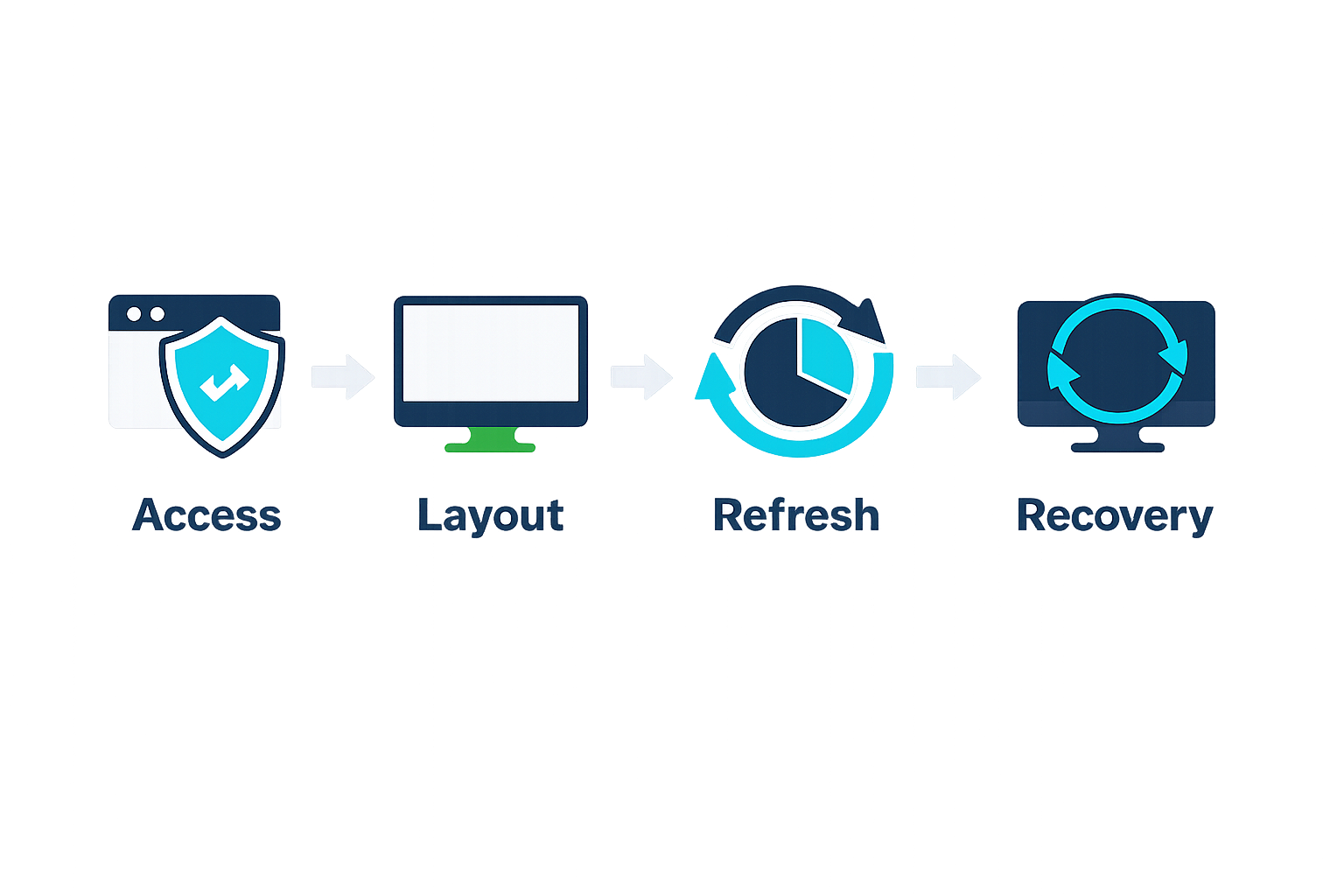
The practical approach is to treat the Plotly dashboard as a web destination that needs to be prepared for shared viewing. Confirm that the dashboard can be opened without unexpected prompts, make the layout readable from a distance, test how fresh the data remains, and then add the dashboard URL to your digital signage workflow.
This guide explains what to check before displaying a Plotly dashboard on a dedicated screen. It does not assume that every Plotly hosting or authentication configuration behaves the same way.
When a Plotly dashboard belongs on a shared screen#
A shared screen is useful when several people need the same information without opening a personal browser tab. Common examples include:
- Operations or NOC dashboards
- Production and quality metrics
- Sales or service performance displays
- Classroom or research data walls
- Queue, status, or availability monitoring
- Public-facing data visualizations
A dedicated display is usually a good fit when the dashboard is primarily for observation. If viewers need to filter data, edit charts, export results, or inspect individual points, a normal interactive workstation may be more appropriate.
For broader guidance on dedicated dashboard screens, see Variabl's command center dashboard display guide.
Choose the right Plotly view for unattended display#
Plotly is used in more than one way. Before creating a dashboard display, identify which type of page you are using:
- A publicly accessible web page: Usually the simplest option for a shared screen, provided the data is appropriate for public viewing.
- A protected dashboard: May require a login, an active session, a VPN, or access from an approved network.
- An embedded visualization: May be placed inside another application or page, adding another layer of permissions and browser behavior.
- A locally running or internally hosted application: May only be reachable from a specific network or machine.
These options are not interchangeable. A URL that opens on your laptop may fail on a signage player because the player is outside the required network, lacks a session cookie, or cannot complete an interactive sign-in flow.
Do not put confidential information on a public page merely to make signage easier. If a dashboard contains personal, financial, health, customer, or operationally sensitive information, use the access controls and network design required by your organization.
Prepare the layout for a dashboard display#
A Plotly dashboard designed for a laptop often needs changes before it works as a screen display.
Make important information readable from a distance#
Prioritize the few values viewers must understand quickly. Consider:
- Larger chart titles and labels
- Fewer charts per view
- Clear units and time ranges
- High contrast between data and background
- A restrained color palette
- Short labels instead of dense descriptions
- A visible indication of the last update time
Avoid placing important details only in hover tooltips. A person standing several feet away cannot interact with every chart, and hover behavior may not work as expected on an unattended player.
Design for the screen's aspect ratio#
Check whether the destination display is landscape, portrait, ultrawide, or part of a multi-screen layout. A responsive dashboard may resize, but resizing does not guarantee that labels remain legible or that charts retain their intended proportions.
Open the dashboard at the approximate browser window size used by the screen and look for:
- Horizontal scrolling
- Cropped legends or titles
- Overlapping controls
- Excessive empty space
- Charts that become too short to interpret
- Text that is readable only when viewed close up
If you are still deciding what hardware to use, Variabl's guide to choosing a monitor for dashboard displays can help frame the screen-size and viewing-distance questions.
Check authentication, permissions, and session behavior#
Authentication is one of the most important checks for a Plotly dashboard on digital signage.
Test the exact access path that the signage player will use. Do not rely only on a browser session that is already signed in on your personal computer.
Check whether the dashboard:
- Opens in a private or fresh browser session.
- Requires a username and password.
- Requires multi-factor authentication.
- Depends on a VPN, internal DNS, or corporate network.
- Redirects to a separate identity provider.
- Expires after a period of inactivity.
- Requires a user interaction before the page becomes visible.
- Blocks access from an unfamiliar device or location.
A shared screen also changes the security model. Avoid saving personal credentials in a signage browser unless your organization's security policy explicitly allows it. If authentication cannot be completed safely and reliably on the player, ask the dashboard owner whether a kiosk-safe, read-only, or otherwise approved viewing method is available.
Check refresh and data-freshness behavior#
A dashboard display is only useful if viewers can tell whether its data is current. Do not assume that leaving a browser tab open will always produce fresh results.
Determine which of these behaviors applies to your dashboard:
- The page updates data automatically while open.
- Charts update only after a user action.
- The browser page must be reloaded.
- The underlying dashboard process must regenerate or republish the data.
- A session or token must be renewed before new data can load.
Look for a clear “last updated” value or another trustworthy freshness indicator. If no such indicator exists, document how the dashboard is expected to update and how operators should verify it.
A signage platform can display a web URL, but it cannot automatically guarantee that the application behind that URL has refreshed its data. Refresh timing, caching, authentication, and application logic remain properties of the dashboard and its hosting environment.
Add the dashboard as a web destination#
Once the dashboard works in the intended viewing environment, add it to Variabl as a web destination using the dashboard's approved URL. Variabl's guide to adding a web URL to digital signage is the relevant starting point for that workflow.
Before assigning the item to a live screen, record:
- The dashboard URL
- The expected screen orientation
- The intended refresh or reload behavior
- Any network or VPN requirement
- The account or permission model
- The owner responsible for the dashboard
- The action to take if the page becomes unavailable
Use a dedicated read-only view when possible. A screen should not expose editing controls, private browser history, unrelated tabs, or account information to people nearby.
Test unattended playback and recovery#
Test the complete chain rather than stopping when the page first appears.
Initial playback test#
Confirm that:
- The screen opens the correct URL.
- The dashboard fits the available area.
- Charts and labels are readable.
- No login prompt is visible.
- No browser warning or permission dialog blocks the page.
- The expected data is present.
Longer unattended test#
Leave the display running for at least the period in which you expect the dashboard to operate. Watch for:
- Session expiration
- Stale data
- Blank charts
- Memory or performance problems
- Unexpected navigation
- Network interruptions
- A page that fails to recover after a reload
Recovery test#
Disconnect and restore the network if your test environment permits it. Also test what happens after restarting the signage player. A reliable dashboard display should have a documented recovery path rather than depending on someone remembering how to fix it manually.
For browser-specific deployments, Variabl's Chrome OS kiosk mode dashboard guide may provide useful context, although the exact behavior depends on the device, browser, and dashboard setup.
Troubleshoot common display problems#
| Symptom | Possible causes | What to check first |
|---|---|---|
| Blank page | Network restriction, failed script, expired session, blocked content | Open the URL in a fresh session on the same network |
| Sign-in screen appears | No persistent session, expired credentials, identity-provider redirect | Confirm the approved authentication method for unattended viewing |
| Data looks stale | No automatic refresh, caching, failed API request, paused application | Check the dashboard's update indicator and application logs |
| Charts are cropped | Incorrect aspect ratio, browser zoom, fixed-size layout | Test the actual screen resolution and orientation |
| Text is too small | Too many charts, laptop-oriented design, excessive labels | Simplify the view and increase key text sizes |
| Screen stops updating | Network loss, session timeout, application error | Test reload and restart recovery behavior |
| Controls are visible | Interactive view not prepared for display | Use a read-only or presentation-oriented view where available |
A blank screen does not prove that the dashboard is broken. It may indicate a permission, network, browser, or session problem. Check the simplest access path first, then compare the results with the signage player's environment.
Plotly dashboard display checklist#
Use this checklist before putting the dashboard into regular operation:
- The dashboard URL is approved for the intended audience.
- The screen can reach the required host and network.
- Authentication works through the intended unattended workflow.
- Sensitive information is not exposed unnecessarily.
- The layout matches the screen's orientation and resolution.
- Key labels and values are readable from the viewing distance.
- A last-updated indicator or documented freshness process exists.
- Refresh, reload, and session behavior have been tested.
- The display recovers after a network interruption or restart.
- Someone owns ongoing dashboard and access maintenance.
Frequently Asked Questions#
Can I display a Plotly dashboard on a digital signage screen?#
Usually, a Plotly dashboard can be displayed when it is available through a browser-accessible URL and the signage player can reach it. The exact result depends on hosting, authentication, network access, browser behavior, and the dashboard's refresh design.
Does a Plotly dashboard automatically refresh on a screen?#
Not necessarily. Some dashboards update while open, while others require a reload, an application-side update, or a renewed session. Verify the behavior of the specific dashboard instead of assuming that the browser will keep its data current.
Can I display a private Plotly dashboard?#
Possibly, but private dashboards require careful testing of permissions, network access, session duration, and authentication. Do not store or expose credentials on a shared device without approval from your security or IT team.
Why is my Plotly dashboard cropped on the TV?#
The dashboard may have been designed for a different aspect ratio, browser window size, or zoom level. Check the actual player resolution and simplify or resize the dashboard layout for the target screen.
Is an interactive Plotly dashboard suitable for digital signage?#
It can be, but signage viewers usually need a read-only presentation rather than interactive controls. Keep essential information visible without requiring hover, clicking, filtering, or scrolling.
What should I do if the dashboard becomes stale?#
First check whether the dashboard itself has a working update indicator or refresh mechanism. Then check network access, session expiration, application errors, and the signage player's reload behavior. Assign an owner for monitoring the display after launch.
A Plotly dashboard is ready for shared display when it is readable, appropriately secured, reachable from the signage device, and predictable during unattended operation. Validate those conditions before treating the screen as a dependable source of operational information.